Invoice Reminders
Set up automatic email reminders for unpaid invoices.
1. Overview
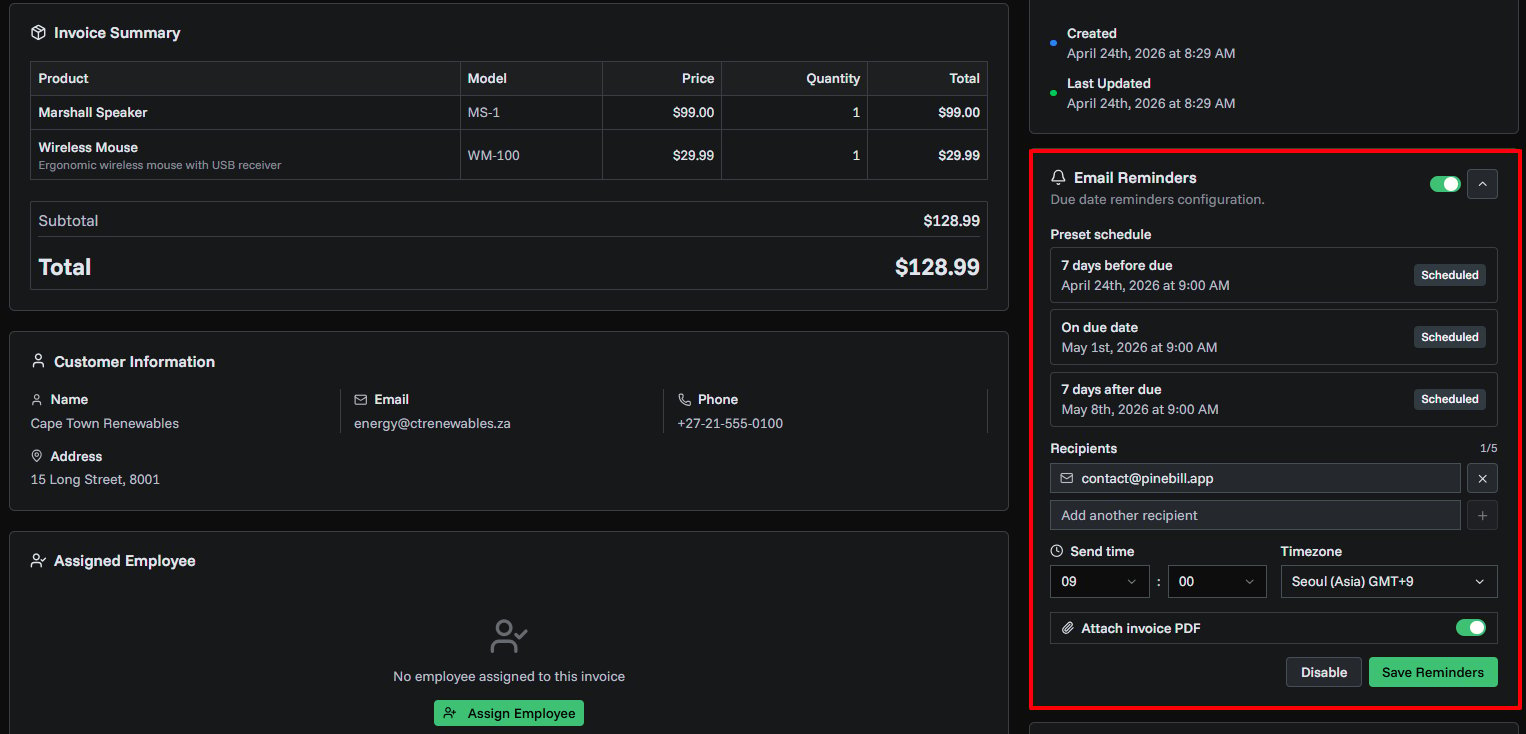
Invoice reminders help you follow up with customers before and after an invoice is due. After reminders are enabled, PineBill schedules email reminders for the invoice and records reminder activity in the invoice email history.
2. When Reminders Can Be Used
You can enable reminders when the invoice:
- Has a due date
- Is not marked as paid
- Is not cancelled
- Has at least one reminder recipient
If the invoice is paid or cancelled later, pending reminders are cancelled automatically.
3. Reminder Schedule
PineBill uses a fixed three-step schedule:
| Reminder | When it sends |
|---|---|
| Before due | 7 days before the due date |
| Due today | On the due date |
| Overdue | 7 days after the due date |
You choose the send time and timezone. PineBill only schedules reminder dates that are still in the future.
4. Enable Invoice Reminders
- Open Invoices.
- Select the invoice you want to follow up on.
- Find the Email Reminders card on the invoice details page.
- Turn on the reminder switch.
- Expand the card if it is not already open.
5. Add Recipients
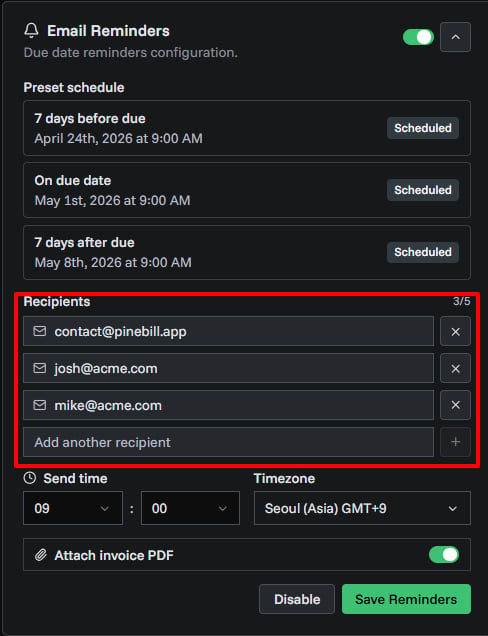
Add the email addresses that should receive reminder emails.
- The customer email is used as the default recipient when available.
- You can add up to 5 recipients.
- Duplicate email addresses are ignored.
- At least one recipient is required before reminders can be saved.
6. Set Send Time and Timezone
Choose when reminders should be sent:
- Select the hour.
- Select the minute.
- Choose the timezone.
Use the customer's timezone when possible. This keeps reminders from arriving too early or too late in their local day.
7. Attach the Invoice PDF
Turn on Attach invoice PDF if you want each reminder email to include the invoice PDF.
This option is only available when the invoice already has a generated PDF. If the invoice PDF is missing, generate or update the invoice PDF first, then return to the reminder settings.
8. Save Reminders
Click Save Reminders after recipients, send time, and timezone are set.
The schedule preview shows each reminder and its current status:
| Status | Meaning |
|---|---|
| Scheduled | The reminder is waiting to be sent |
| Sending | PineBill is currently processing it |
| Sent | The reminder email was sent |
| Skipped | PineBill skipped it because it no longer applies |
| Failed | PineBill could not send it |
| Cancelled | The reminder was cancelled |
| Not scheduled | No active reminder exists for that step |
9. Disable Reminders
To stop future reminders:
- Open the invoice.
- Expand Email Reminders.
- Click Disable.
Disabling reminders cancels pending reminders. Reminders that were already sent remain in the email history.
10. Track Reminder Emails
Reminder emails appear in the invoice Email History section. Use it to confirm:
- Which reminder was sent
- The recipient email address
- When it was sent
- Whether the invoice link was clicked
11. Common Issues
The reminder switch is disabled
Add a due date to the invoice. Reminders are also unavailable for paid and cancelled invoices.
The PDF attachment option is disabled
The invoice does not have a generated PDF yet. Generate or update the invoice PDF before attaching it to reminders.
No reminders were scheduled
All reminder dates may already be in the past. Update the invoice due date or send the customer a manual email instead.
A reminder was skipped
This usually means the invoice was paid, cancelled, disabled, missing a due date, or no longer has valid reminder recipients.