Subscription
Plans, pricing, usage limits, and billing management in PineBill.
Quick Start
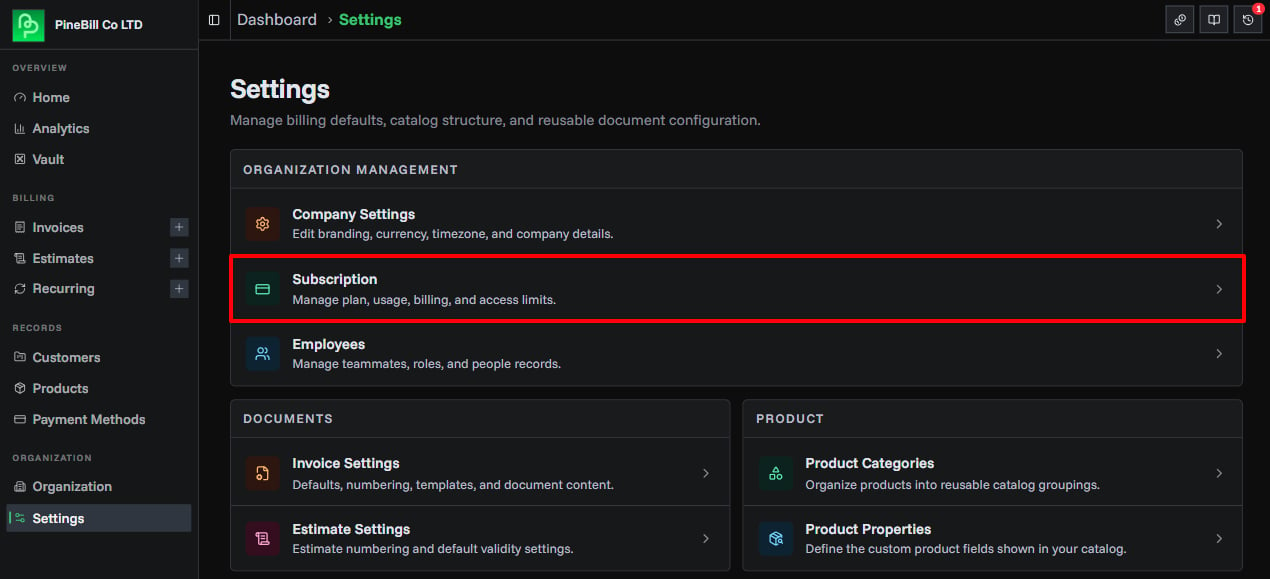
Every PineBill account starts with a 7-day free trial of Pro features. View and manage your subscription from Settings → Organization Management → Subscription.
Available Plans
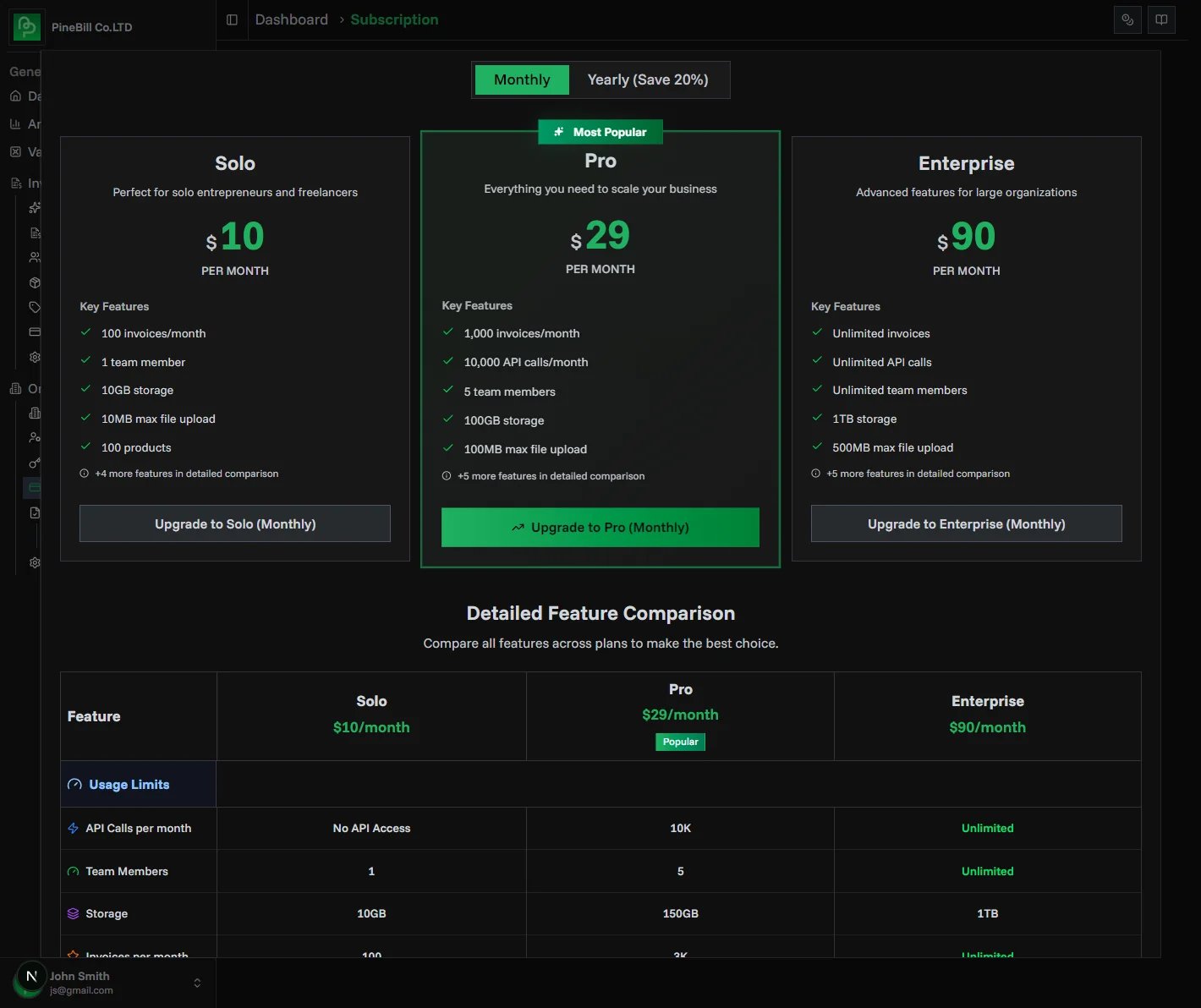
PineBill offers four subscription tiers to match your business needs, check more details on the Pricing Page:
| Plan | Price | Best For | Key Limits |
|---|---|---|---|
| Trial | Free (7 days) | Testing PineBill | 50 invoices/month, 2 members |
| Solo | $10/month | Freelancers | 100 invoices/month, 1 member |
| Pro | $19.9/month | Growing businesses | 1,000 invoices/month, 5 members, 10K API calls |
| Enterprise | $90/month | Large organizations | Unlimited invoices, members, API calls |
Save with Annual Billing: Get 2-3 months free by switching to annual billing. Solo saves $30/year, Pro saves $60/year, Enterprise saves $180/year.
Usage Limits & Monitoring
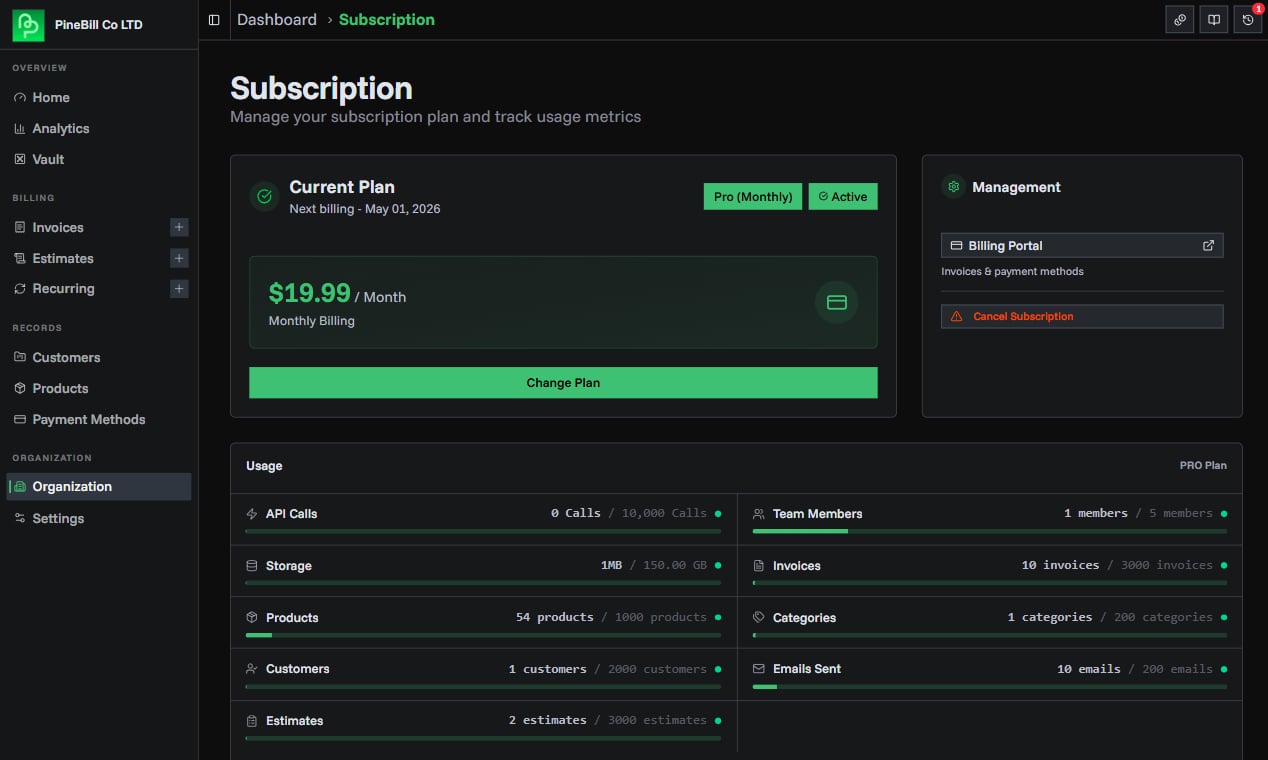
Each plan includes specific usage limits tracked in your dashboard:
Monthly Limits (Reset Every Billing Period)
- Invoices Generated: Number of invoices created per month
- API Calls: Monthly API requests (Pro and Enterprise only)
Account Limits (Ongoing State)
- Team Members: Active organization members
- Storage: Total file storage used
- Max File Size: Maximum size per file upload
- Products: Items in product catalog
- Categories: Product category count
- Customers: Customer records
When you reach a limit, PineBill will prompt you to upgrade or reduce usage before continuing.
Changing Your Plan
1. Access Plan Management
- Open Settings
- Click Subscription
- Click Upgrade Now or Change Plan button
- Plan comparison dialog opens
2. Choose Your Plan
- Upgrading: Takes effect immediately with prorated billing
- Downgrading: Takes effect at the end of your current billing period
- Billing Cycle: Choose monthly or annual (annual saves money)
You cannot downgrade if your current usage exceeds the target plan's limits. Reduce usage first (e.g., remove team members, delete files).
3. Complete Checkout
- First-time subscribers: Redirected to Polar checkout
- Existing subscribers upgrading: Instant upgrade with automatic proration
- Downgrading: Scheduled for next billing period
Billing Management
Billing Portal
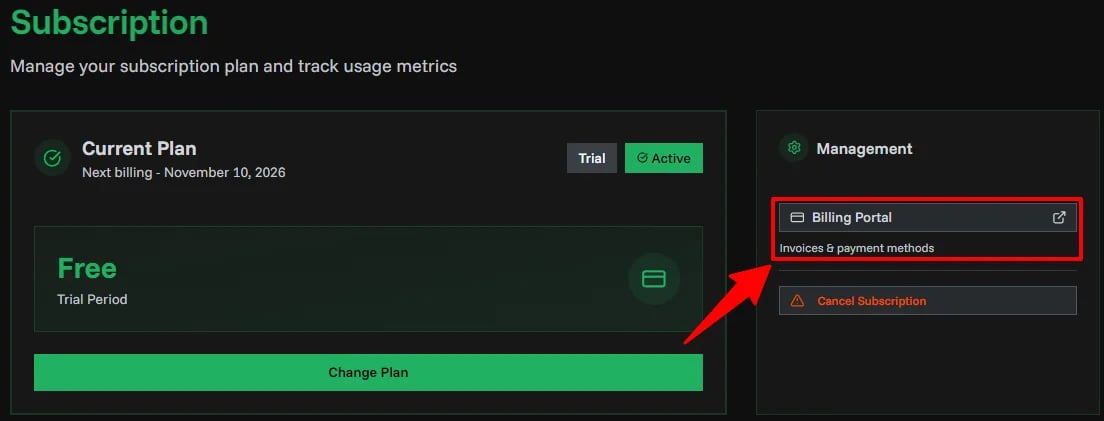
Access your billing portal to manage:
- View invoices and payment history
- Update payment methods
- Change billing email
- Download receipts
To access: Open Settings → Subscription, then click Billing Portal (opens in a new tab).
Note: Only organization owners can access billing management features.
Billing Cycles
- Monthly: Billed every month on your subscription start date
- Annual: Billed once per year (save 17-25%)
- Trial: Free for 7 days, no payment required
Trial Period
Every new organization gets a 7-day free trial with Pro plan features:
Trial Includes:
- 50 invoices/month
- 50 API calls/month
- 2 team members
- 100MB storage
- All Pro features enabled
What Happens After Trial:
- If you upgrade: Seamless transition to your chosen paid plan
- If trial expires: Account switches to restricted mode until you subscribe
You can upgrade to a paid plan anytime during your trial. You'll only be charged after your trial period ends.
Canceling Your Subscription
1. Initiate Cancellation
- Open Settings
- Go to Subscription Dashboard
- Click Cancel Subscription in the Management section
- Cancellation dialog opens
2. Confirm Cancellation
- Optionally provide a cancellation reason (helps us improve)
- Review what happens after cancellation
- Click Confirm Cancellation
3. End of Billing Period
- Your subscription remains active until your current period ends
- You keep full access to paid features until then
- No refunds for partial months
- After period ends, account reverts to Trial limits with view-only access
Reactivating a Canceled Subscription
Changed your mind? You can reactivate anytime before your period ends:
- Open Settings
- Go to Subscription Dashboard
- Click Reactivate button
- Subscription continues without interruption
Subscription Statuses
Your subscription can have different statuses:
| Status | Meaning | What to Do |
|---|---|---|
| Trialing | In 7-day trial period | Upgrade anytime or wait for trial to end |
| Active | Subscription is current and paid | Continue using PineBill normally |
| Past Due | Payment failed but retrying | Update payment method in billing portal |
| Unpaid | Payment overdue, limited access | Update payment method immediately |
| Incomplete | Payment setup incomplete | Complete payment setup in billing portal |
| Canceled | Canceled, waiting for period end | Reactivate or continue until period ends |
| Expired | Trial or subscription ended | Subscribe to continue |
Payment Issues: If your payment fails, you'll have limited time to update your payment method before access is restricted.
Common Questions
Related Topics
- Organization Settings - Manage your organization and team
- Getting Started - Set up your account and create your first invoice
- API Documentation - Integrate PineBill with your applications