Invoice Details Page
View, manage, and track all invoice information in one comprehensive page.
Overview
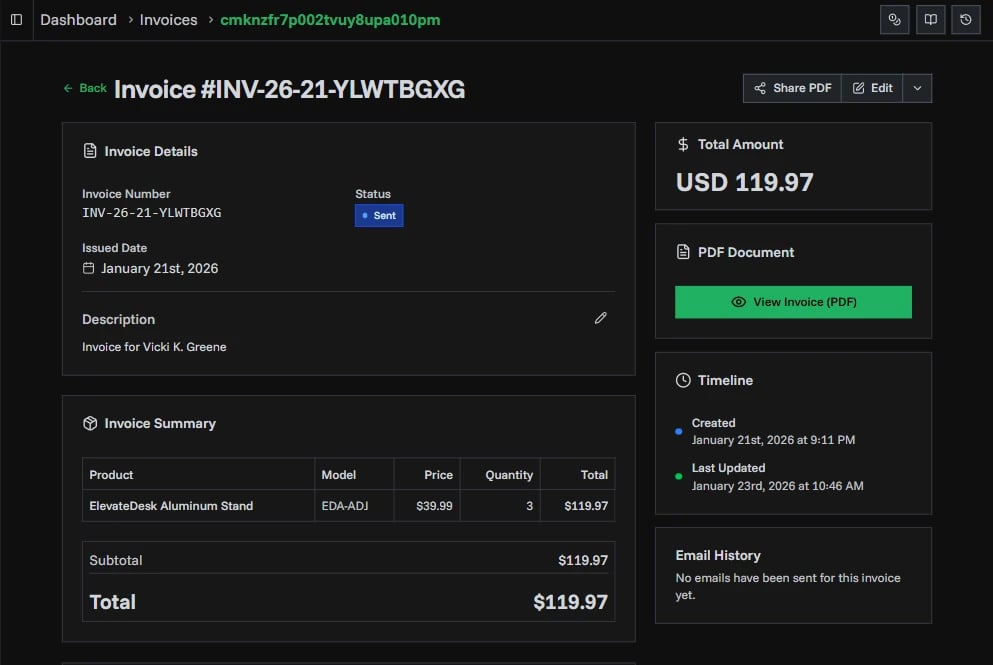
The Invoice Details page displays all information about a specific invoice. Access it by clicking any invoice from the invoices list. The page is divided into two main sections: the left column contains invoice details, items, and customer information, while the right sidebar shows the total amount, PDF actions, and timeline.
Page Header
At the top of the page, you'll find the invoice number and quick action buttons:
- Back Button - Returns you to the invoices list
- Edit - Open the invoice in the generator for full editing (not available for cancelled invoices)
- View PDF (Mobile/Tablet only) - Opens the PDF viewer in a modal
- Manage Shares - View and manage all shared links for this invoice
- Share PDF - Create a new shareable link with customizable expiration
- Delete - Permanently delete the invoice (owners only)

Invoice Details
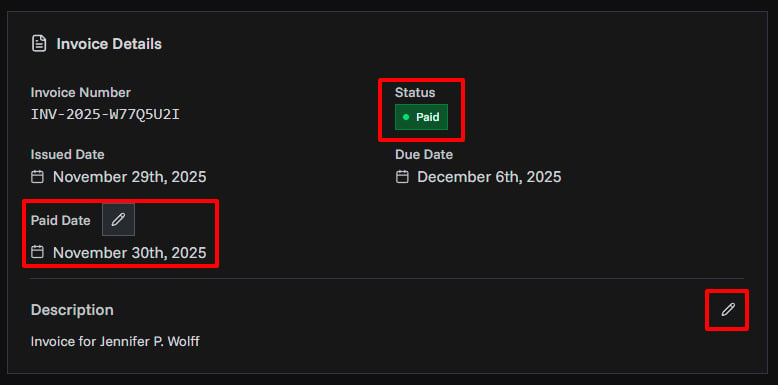
The invoice details section shows core information about your invoice. Some fields are editable directly from this page using quick inline edits. For comprehensive changes (items, customer, payment methods, etc.), use the Edit button in the header to open the full invoice generator. See Editing Invoices for more details.
Editable Fields
| Field | How to Edit | Notes |
|---|---|---|
| Status | Click the status badge to open popover menu | Changes saved immediately. Options: Draft, Sent, Paid, Overdue, Cancelled |
| Description | Click edit icon to open text editor | Add or modify invoice notes. Save or cancel changes |
| Paid Date | Click edit icon to open date picker | Cannot be before issued date or in the future |
Read-Only Information
- Invoice Number - Unique identifier generated when the invoice was created
- Issued Date - When the invoice was originally created
- Due Date - Payment deadline (if specified)
- Exchange Rate - Shows currency conversion rate and capture date for non-USD invoices, this value is not the real-time rate but the rate at creation time of the invoice.
Invoice Summary
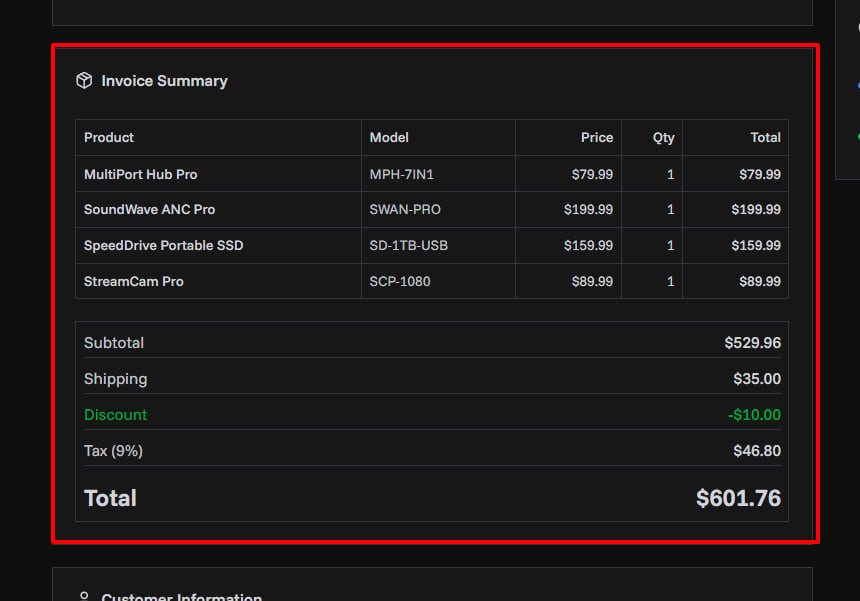
This section displays all line items and the calculation breakdown.
Items List
Each item shows:
- Product or service name
- Model or SKU (if applicable)
- Unit price
- Quantity
- Line total (price × quantity)
Calculations
Below the items table, you'll see the complete calculation:
- Subtotal - Sum of all line items
- Shipping - Delivery or shipping costs (if applicable)
- Discount - Applied discount amount (displayed in green)
- Tax - Tax amount with rate shown as percentage or fixed amount
- Tax included invoices show "(included)" next to the tax rate
- Example: "Tax (5%)" or "Tax ($10.00)"
- Total - Final amount due
If there's a discrepancy between the calculated total and stored amount, a warning will appear highlighting the difference.
Customer Information
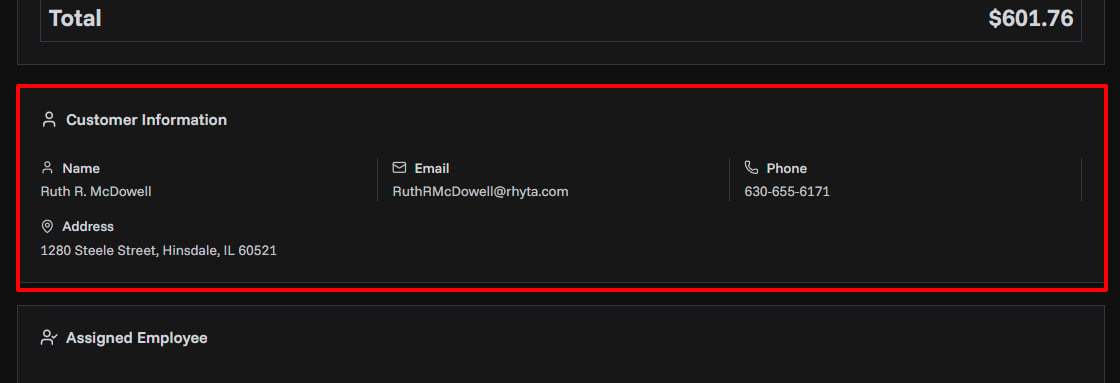
View complete customer details including:
- Full name
- Email address
- Phone number
- Complete billing address with zip code
This information is pulled from the customer record and cannot be edited directly from the invoice. To update customer details, go to the Editing Customers section. Updating the customer record will reflect changes on the future invoices.
Assigned Employee
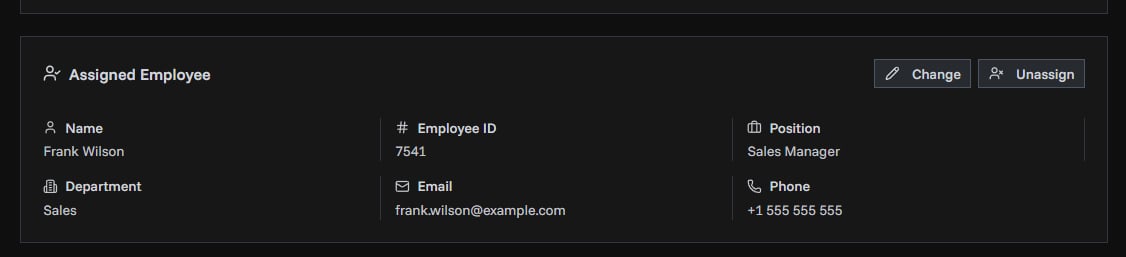
Track which team member is responsible for this invoice. This is useful for analyzing employee performance and tracking sales.
When No Employee is Assigned
You'll see a placeholder with an "Assign Employee" button. Click it to open the employee selector and choose from your team members.
When Employee is Assigned
The card displays:
- Employee name
- Employee ID
- Email and phone (if available)
- Position and department (if specified)
You can Change the assigned employee or Unassign to remove the employee from this invoice.
Custom Fields
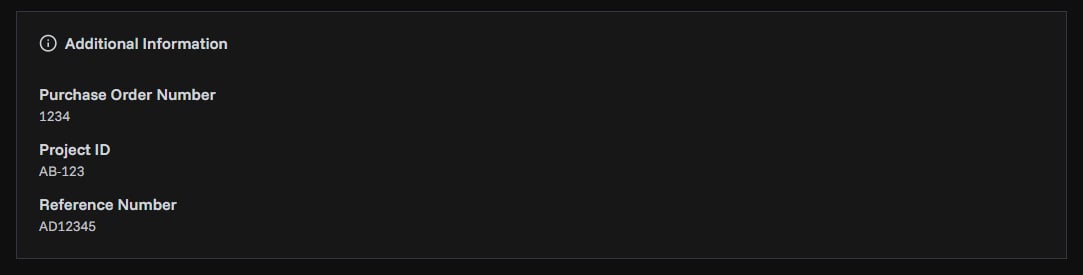
If the invoice includes custom fields, they appear in the "Additional Information" section. These are custom label-value pairs you added when creating the invoice, such as:
- Purchase Order Number
- Project ID
- Reference Number
- Any other custom data
Payment Methods
View all payment options available for this invoice. Each payment method displays relevant details:
Bank Transfer Shows bank name, branch, address, account details, IBAN, SWIFT code, routing number, and sort code (depending on what was configured).
PayPal Displays the PayPal email address.
Cryptocurrency Shows the wallet address and currency type.
Custom Payment Methods Displays custom payment method name and any custom fields defined.
Terms & Notes
This section displays:
- Terms of Payment - Payment conditions and deadlines (e.g., "Net 30", "Due within 14 days")
- Additional Notes - Custom end message or notes included on the invoice
Right Sidebar
Total Amount
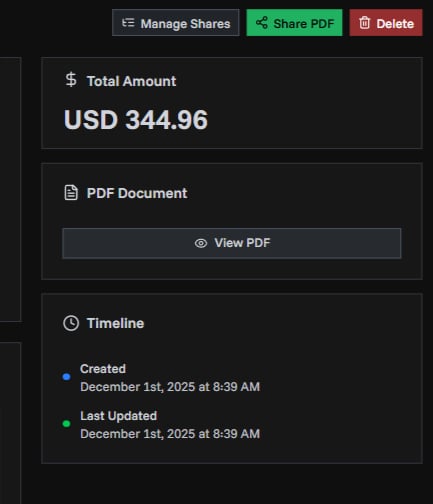
The total amount is prominently displayed at the top of the sidebar, showing:
- Primary amount in the invoice currency
- Converted amount (if currency is not USD)
- Currency code
PDF Document
Click View PDF to open the invoice PDF in a viewer modal where you can:
- Preview the PDF
- Download the PDF to your device
- Print the invoice
Timeline
The timeline tracks important dates and events:
- Created - When the invoice was first generated, with precise timestamp
- Last Updated - Most recent modification date and time
- Paid - Payment received date (if applicable)
- Click the edit icon to modify the paid date
- Color-coded indicator shows payment status
Each event includes both date and time for complete tracking.
Tips & Best Practices
Quick Edits Use the inline edit icons to quickly update paid dates, descriptions, and status without leaving the page.
Status Management Click the status badge for instant status updates. The popover menu provides one-click access to all status options.
Sharing & Security Use "Manage Shares" to track who has access to the invoice. You can revoke access at any time by deleting shared links.
Employee Performance Assign employees to invoices to later analyze performance metrics and track which team members generated the most revenue.
Custom Fields Use custom fields to add any additional information needed for your business process or compliance requirements.
Related Topics
- Editing Invoices - Full and quick editing options
- Creating Invoices - Step-by-step guide to creating invoices
- Invoice Statuses - Understanding the invoice lifecycle
- Invoice List - Managing multiple invoices