Customers
Editing Customers
Step-by-step guide to editing and managing existing customers in PineBill.
Quick Start
You can update customer information anytime from the Customers page. All customer fields can be modified except for the internal database ID.
Step-by-Step Guide
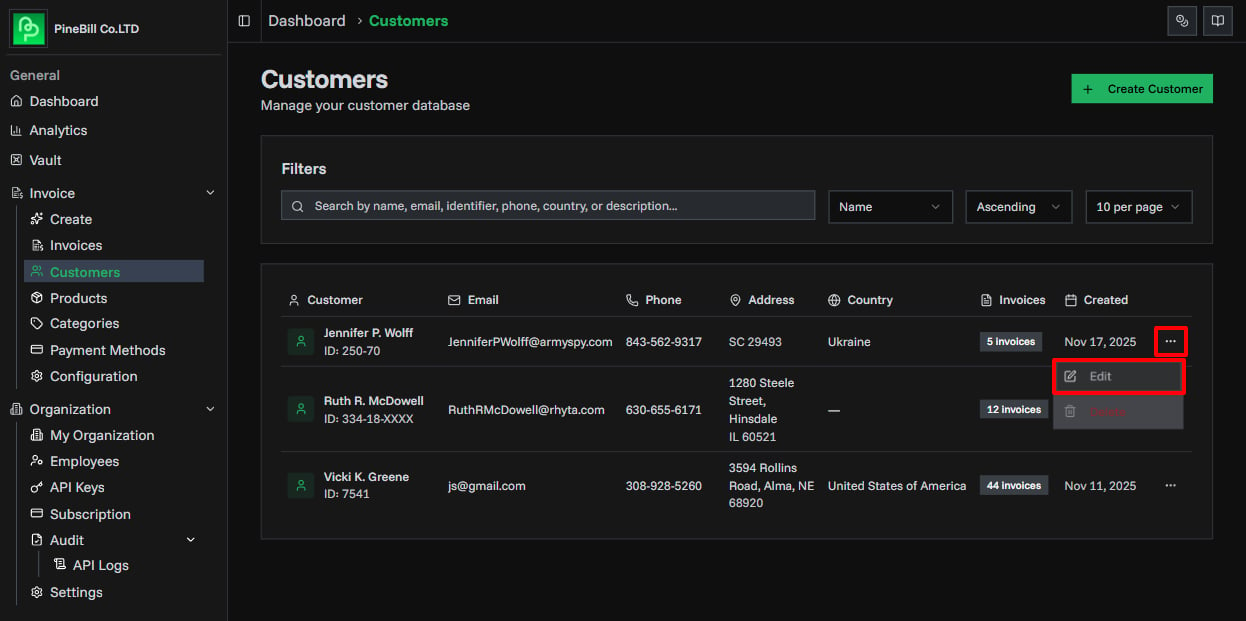
1. Open the Edit Dialog
- Go to the Customers page
- Locate the customer using search or pagination
- Click the Edit button in the customer's row
2. Modify Customer Information
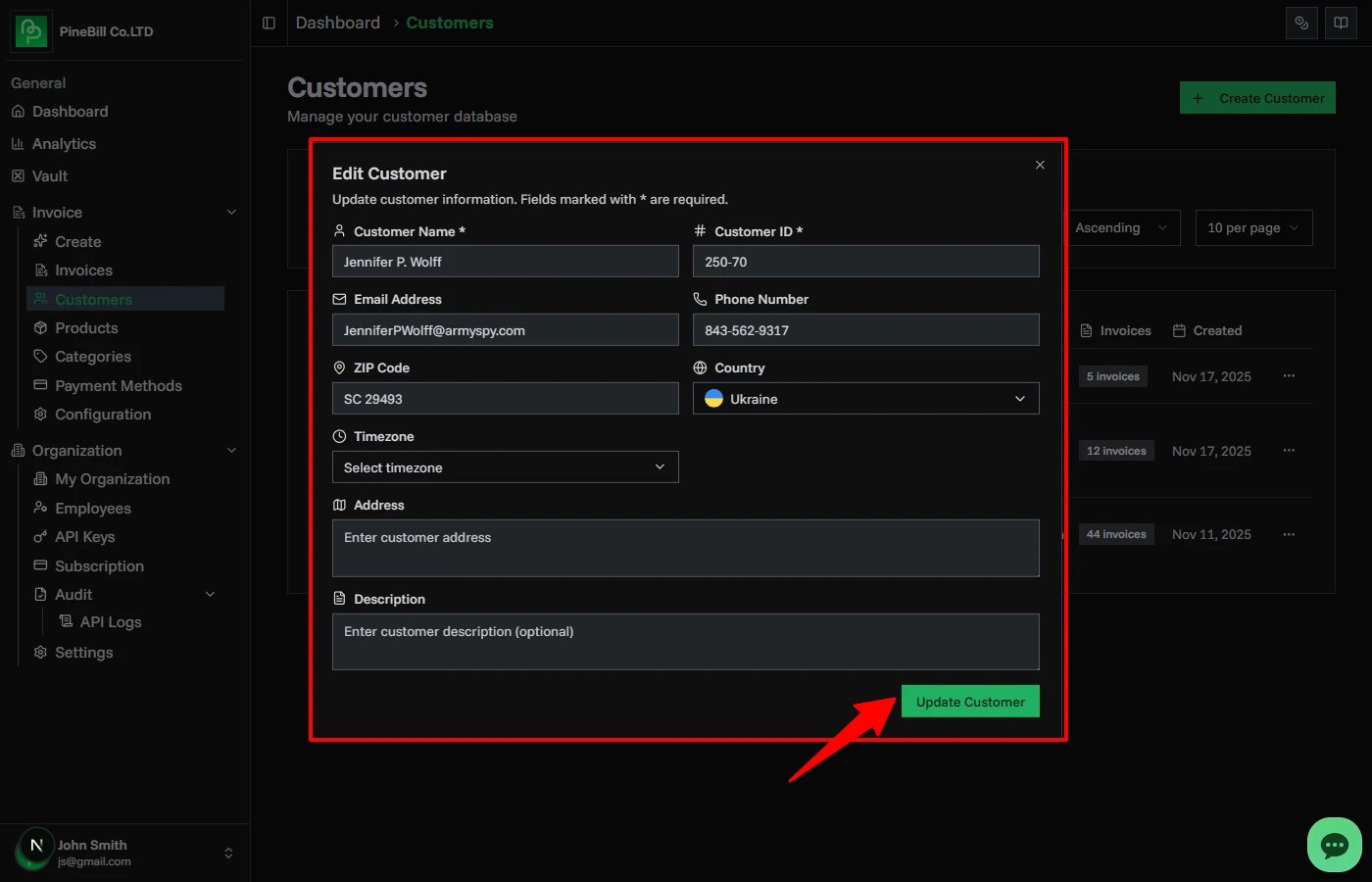
The edit dialog will display the customer's current information pre-filled in all fields:
- Update any fields you need to change
- Leave fields unchanged if they're correct
- Use the dropdown selectors for Country and Timezone to ensure valid values
3. Save Changes
- Review your changes
- Click Update Customer to save
- You'll see a success notification when the update completes
- The customer list will automatically refresh with the updated information
Editable Fields
You can modify all the same fields available during customer creation:
| Field | Can Edit | Notes |
|---|---|---|
| Customer Name | Yes | Update the customer's full name or business name |
| Customer ID | Yes | Change the unique identifier (must remain unique across your organization) |
| Email Address | Yes | Update or add email address for invoicing |
| Phone Number | Yes | Update or add phone number |
| Address | Yes | Update billing or business address |
| ZIP Code | Yes | Update postal/ZIP code |
| Country | Yes | Change country (use dropdown for valid ISO 3166-1 names) |
| Website | Yes | Update or add website URL |
| Tax ID / VAT | Yes | Update or add tax identification / VAT number |
| Timezone | Yes | Update timezone (IANA format) |
| Description | Yes | Modify internal notes and customer details |
Additional Notes
- Edits take effect immediately after saving
- Customer edits don't affect existing invoice data (invoices store a snapshot)