Project Management
Organize work into projects, track tasks, link invoices and expenses, and share project progress with clients.
Quick Start
Use Projects to group tasks, invoices, estimates, and expenses under one workspace. Each project tracks budget, timeline, and assigned team members.
Key Features
Creating Projects
Set up a project with budget, timeline, customer, and team assignment
Project Sharing
Generate password-protected share links for client visibility
Task Management
Create tasks, track time, and manage work inside projects
Convert Tasks to Invoices
Turn completed task hours into invoice line items
Project List
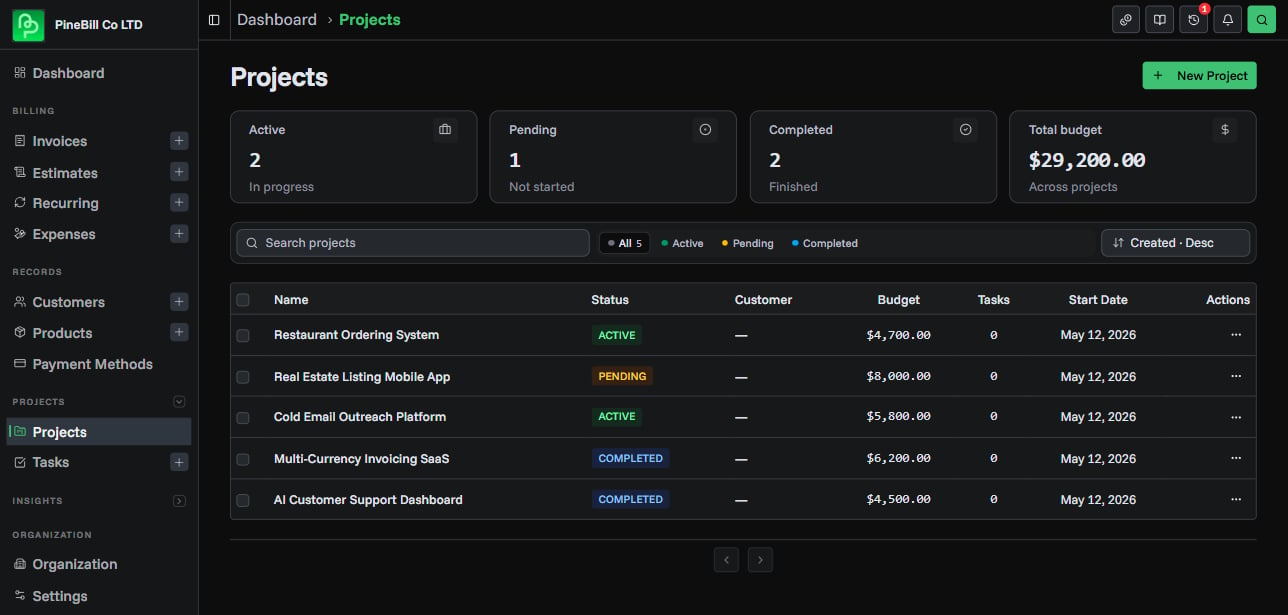
The Projects page shows all projects in your organization.
Each project row displays:
- Project name and description
- Status badge (Active, Pending, or Completed)
- Assigned customer
- Assigned team member
- Budget and currency
- Start and end dates
- Created date
Project Statuses
| Status | Meaning |
|---|---|
| Active | Work is currently in progress |
| Pending | Project is planned but not yet started |
| Completed | All work is finished |
Searching, Filtering, and Sorting
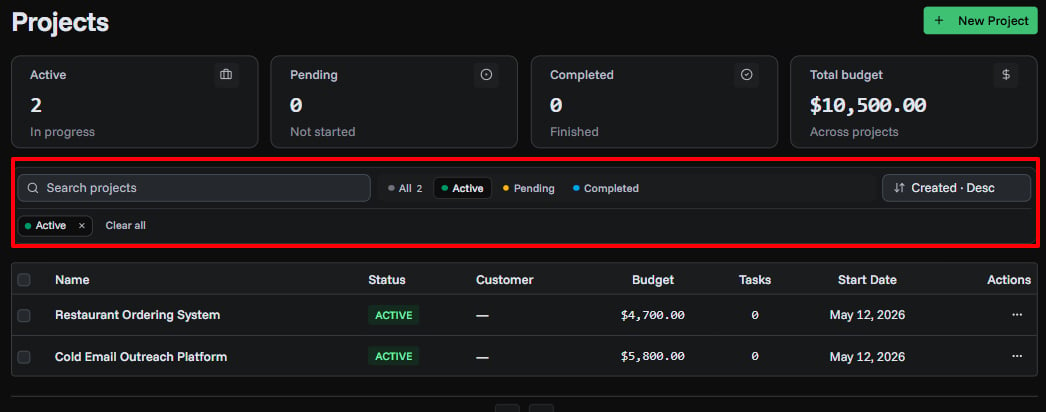
Use the controls above the project list to narrow results.
| Control | What it does |
|---|---|
| Search | Searches project name and description |
| Status | Filters by Active, Pending, or Completed |
| Sort by | Sort by created date, name, status, start date, end date, or budget |
| Sort order | Ascending or descending |
Active filters appear as badges. Click Clear filters to reset.
Project Detail Page
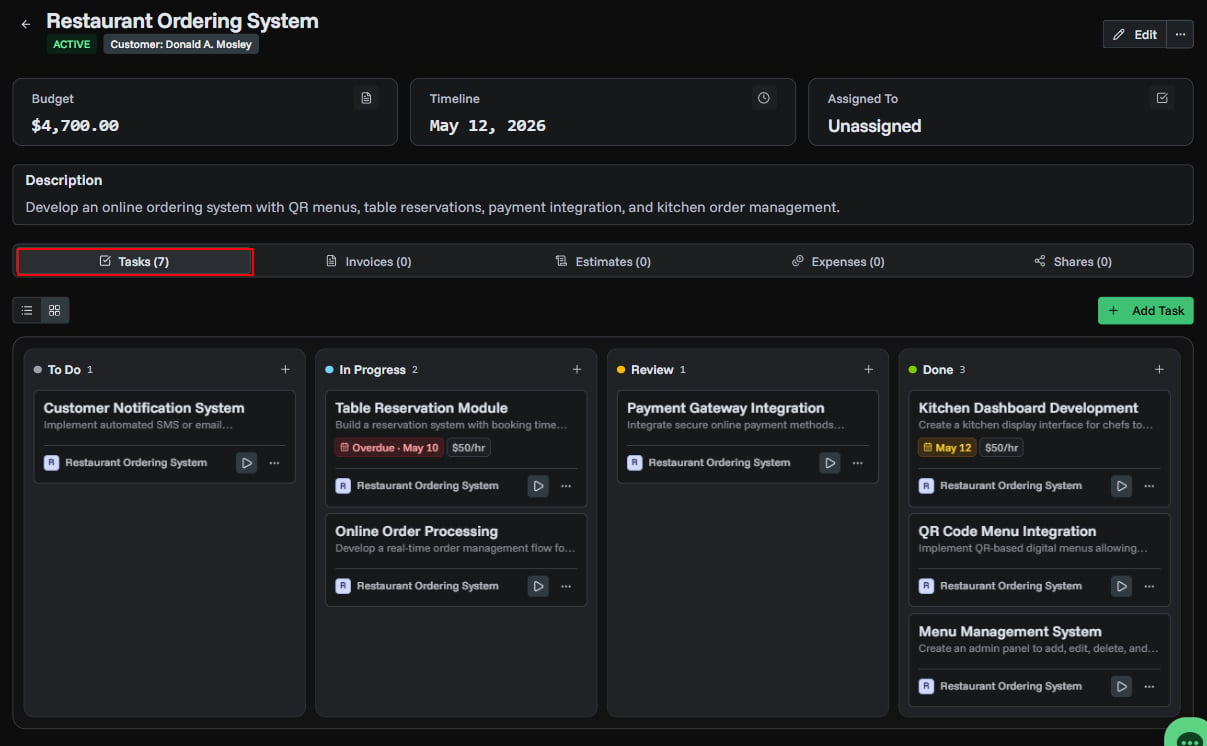
Click any project to open the detail page. The project header shows the name, status, customer, budget, dates, and assigned team member.
Below the header are five tabs:
Tasks Tab
Displays all tasks belonging to the project. You can switch between a Kanban board (drag-and-drop columns) and a table list view. Create new tasks directly from this tab.
Invoices Tab
Lists invoices linked to the project. You can link existing invoices or navigate to linked invoice details.
Estimates Tab
Lists estimates linked to the project. You can link existing estimates or view linked estimate details.
Expenses Tab
Lists expenses linked to the project. You can add new expenses directly from this tab or link existing ones.
Shares Tab
Manage share links for the project. Create new share links with optional expiration, view limits, and password protection. See Project Sharing for details.
Linking Documents to a Project
From the project detail page, you can link invoices, estimates, and expenses to keep all project-related documents in one place.
- Link: Use the link button on the Invoices, Estimates, or Expenses tab to associate an existing document
- Unlink: Use the actions menu on any linked document to remove the association
Linking does not move or copy the document. It creates a reference so you can see all related documents from the project.
Deleting Projects
You can delete a project from the actions menu on the project list or from the project detail page.
To delete multiple projects at once, select them using the checkboxes and click Delete Selected. You can bulk delete up to 100 projects at a time.
Deleting a project also removes all tasks within it. Linked invoices, estimates, and expenses are unlinked but not deleted.
Permissions
| Role | Can view | Can create | Can edit | Can delete |
|---|---|---|---|---|
| Owner/Admin | Yes | Yes | Any project | Yes |
| Member | Yes | Yes | Own projects | No |
Common Questions
Related Topics
- Creating Projects - Set up a new project
- Project Sharing - Share project progress with clients
- Task Management - Create and manage tasks
- Time Tracking - Track time spent on tasks
- Converting Tasks to Invoices - Bill clients for task hours