Tasks
Converting Tasks to Invoices
Turn completed task hours into invoice line items in PineBill.
Quick Start
When you finish work on a task, convert it to an invoice to bill your client for the hours tracked.
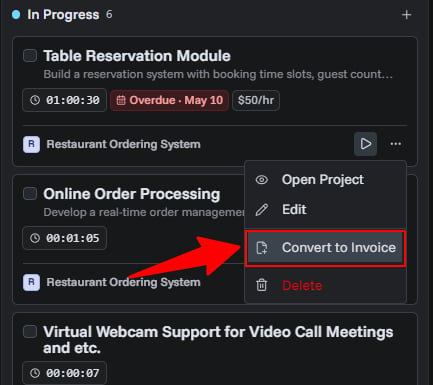
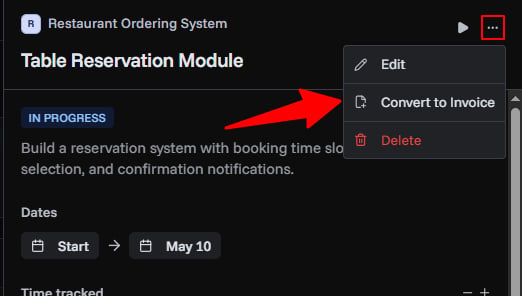
Convert a Single Task
- Open the task actions menu or the task detail sidebar
- Click Convert to Invoice
- PineBill opens the invoice generator with the task added as a line item
- Add customer details, review the amounts, and finalize the invoice
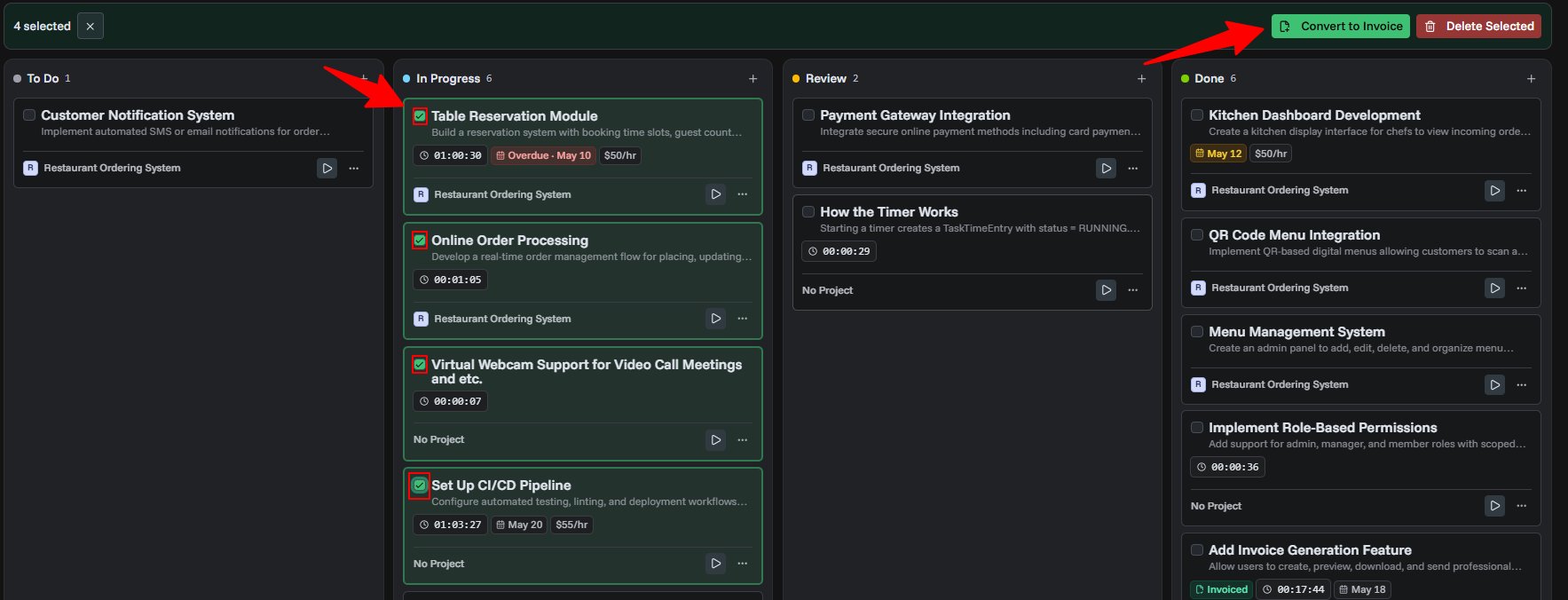
Convert Multiple Tasks
- Select tasks using the checkboxes on the Kanban board or table list
- Click Convert to Invoice
- PineBill opens the invoice generator with each selected task as a separate line item
- Review all line items, add customer details, and finalize the invoice
What Gets Included
Each task becomes an invoice line item with:
| Field | Source |
|---|---|
| Name | Task title, date range, and total duration |
| Price | Task hourly rate |
| Quantity | Total time spent (used to calculate the line total) |
| Description | Task description, if one exists |
If the task currency differs from your organization currency, PineBill converts the hourly rate using current exchange rates.
Before Converting
Make sure the following are in place before converting:
- Stop all running timers — Tasks with active timers cannot be converted. Stop the timer first so the final time is recorded.
- Set an hourly rate — Tasks without an hourly rate will have a zero price on the invoice line item.
- Check time entries — Review the total time spent and make manual adjustments if needed.
After Converting
- PineBill opens the invoice generator pre-filled with the task line items
- The invoice is saved as a Draft — you can edit it before sending
- Once the invoice is created, it is linked to the original tasks via the task's invoice field
- You can view the linked invoice from the task detail sidebar
Common Questions
Related Topics
- Task Management - Overview of task features
- Time Tracking - Track hours before invoicing
- Creating Invoices - Finalize and send invoices