Projects
Project Sharing
Generate shareable links so clients can view project progress, tasks, and time spent.
Quick Start
Open a project and go to the Shares tab to create a share link.
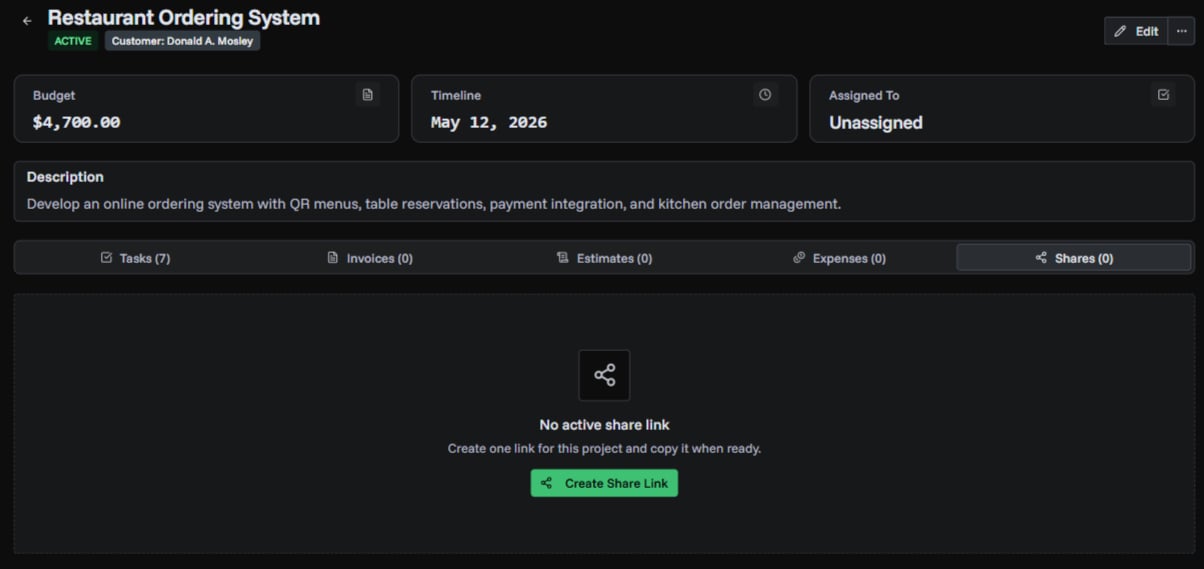
Creating a Share Link
- Open the project detail page
- Go to the Shares tab
- Optionally set a password for extra security
- Click Create Share Link
- Copy the generated URL and send it to your client
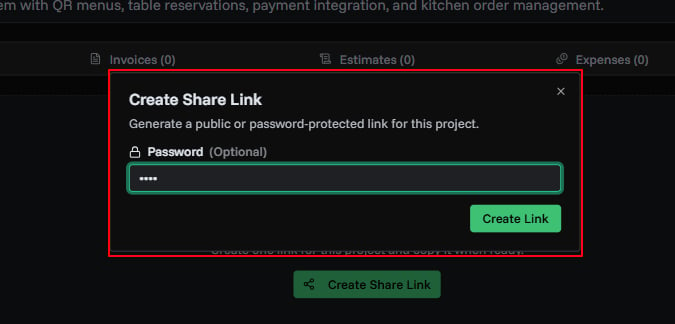
Share Options
| Option | Description |
|---|---|
| Password | Require a password before the recipient can view the project |
| Expiration | Set a date after which the link stops working |
| Max Views | Limit how many times the link can be opened |
All options are optional. Without any restrictions, the link stays active until you revoke it.
What Shared Viewers See
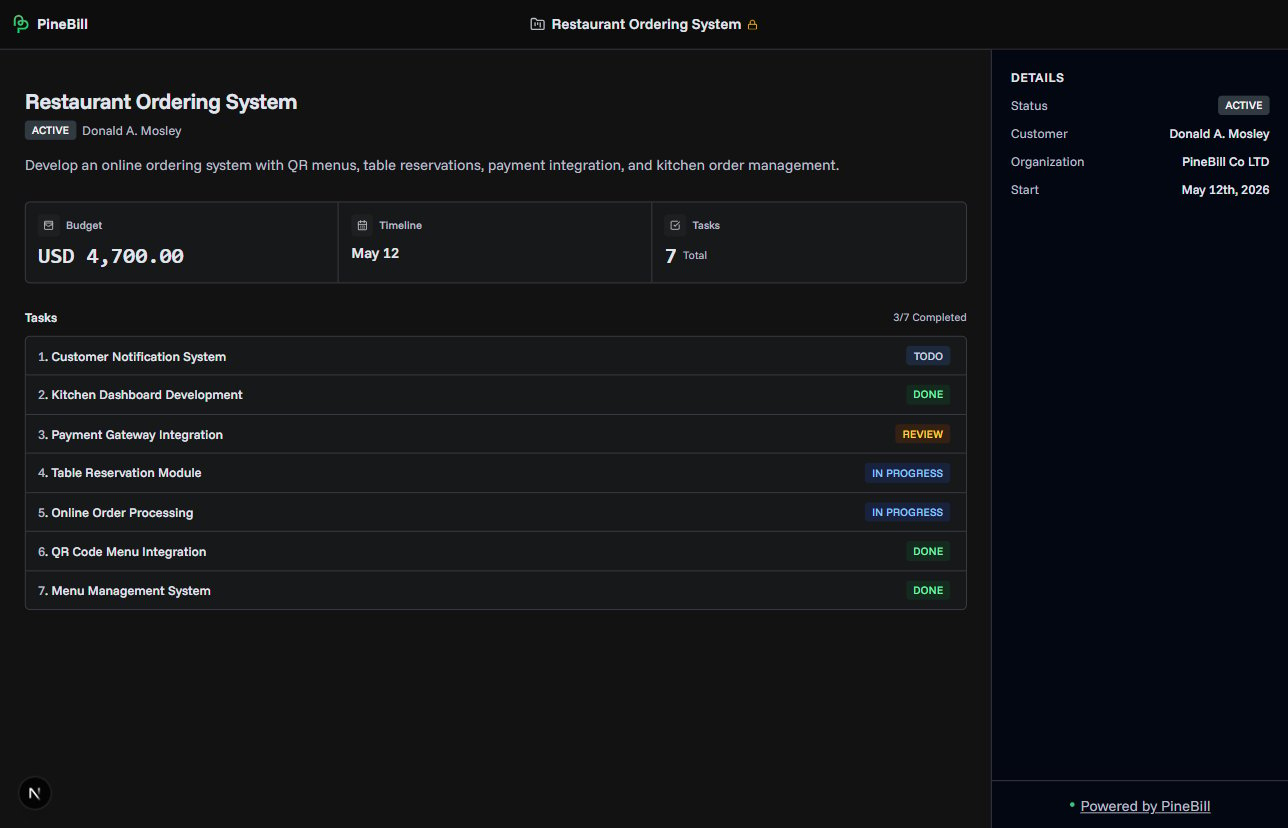
Recipients who open the share link can view:
- Project name, description, and status
- Budget and currency
- Start and end dates
- Customer name
- Tasks with their status and time spent
Viewers cannot edit the project, start timers, or access any other part of your account.
Revoking a Share Link
To disable an active share link:
- Open the project detail page
- Go to the Shares tab
- Click Revoke on the active share link
Once revoked, anyone with the link will see an error page. You can create a new share link at any time.
Security
- Password protection: If a password is set, the viewer must enter it before seeing the project. After 10 failed password attempts, the share is locked for 1 hour.
- View tracking: PineBill records when the link was last viewed and how many times it has been opened.
- Expiration: Links with an expiration date automatically stop working after that date.
Common Questions
Related Topics
- Project Management - Overview of project features
- Invoice Sharing - Share invoices with clients