Payments
Payment Methods
Add and manage payment methods for your invoices.
Quick Start
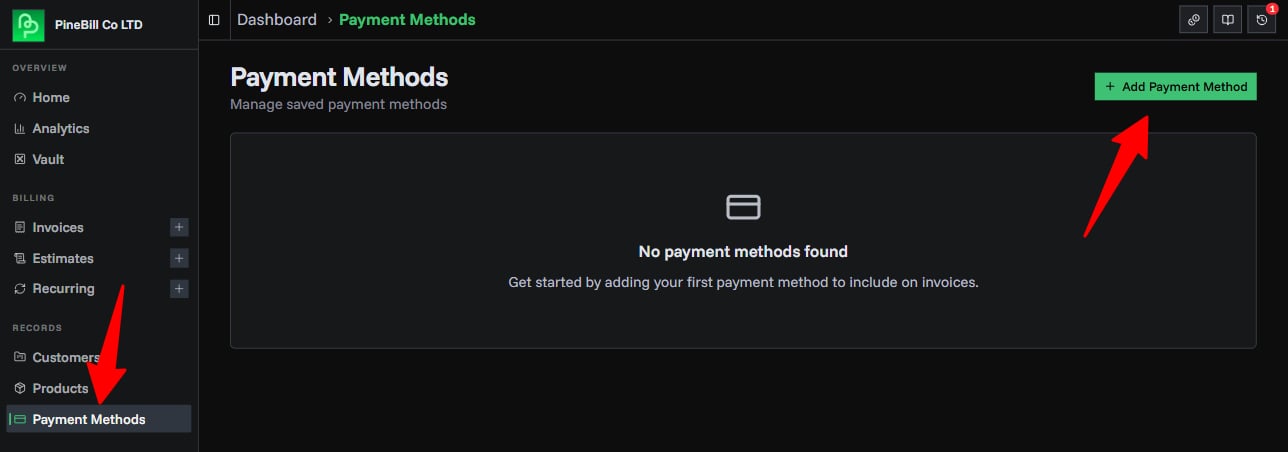
Payment methods are displayed on invoices to show customers how they can pay. Navigate to Payment Methods to manage your payment options.
Payment Method Types
| Type | Fields | Notes |
|---|---|---|
| Bank | Bank Name, Account Name, Account Number, SWIFT, IBAN, Routing Number, Sort Code, Branch, Address | Most common for business payments |
| PayPal | Email address | Simple, single field |
| Crypto | Currency (BTC, ETH, etc.), Wallet Address | For cryptocurrency payments |
| Custom | Custom label-value pairs | Any other payment method |
Creating Payment Methods
1. Open Create Dialog
- Navigate to Payment Methods
- Click Add Payment Method button
- Payment method dialog opens
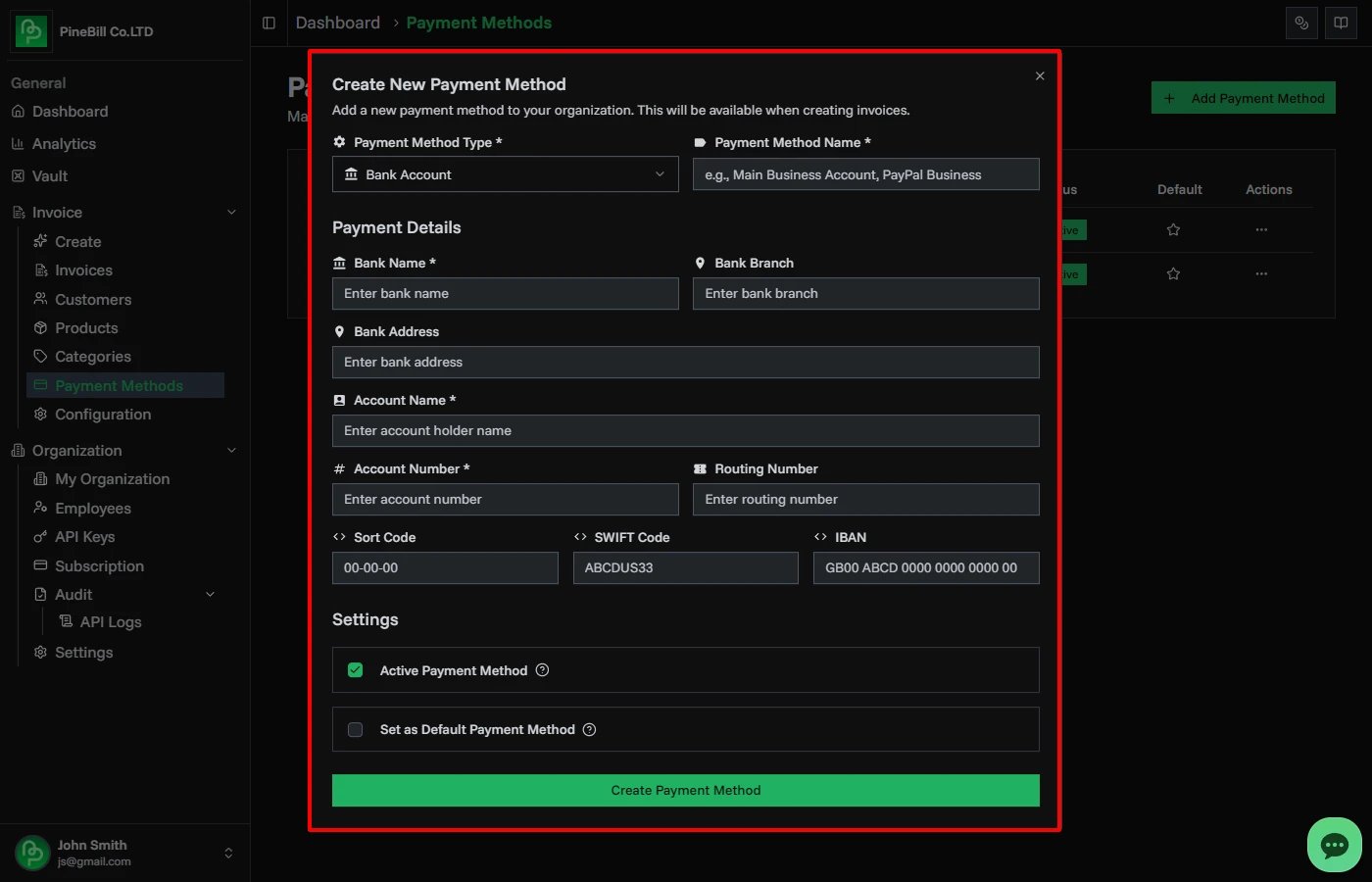
2. Select Type and Fill Details
Required Fields (All Types):
- Payment Method Name (max 100 characters)
- Type selection (Bank, PayPal, Crypto, or Custom)
Type-Specific Fields:
Bank Transfer:
Bank Name: Chase Bank *
Account Name: Acme Corporation *
Account Number: 1234567890 *
SWIFT Code: CHASUS33 (optional)
IBAN: US12 CHAS 0000 1234 5678 90 (optional)
Routing Number: 021000021 (optional)
Sort Code: 00-00-00 (optional)
Bank Branch: Main Branch (optional)
Bank Address: 123 Wall St, New York (optional)
PayPal:
PayPal Email: payments@company.com *Cryptocurrency:
Currency: BTC *
Wallet Address: bc1qxy2kgdygjrsqtzq2n0yrf2493p83kkfjhx0wlh *
Custom:
(Add unlimited custom fields)
Label: Venmo Username
Value: @company-payments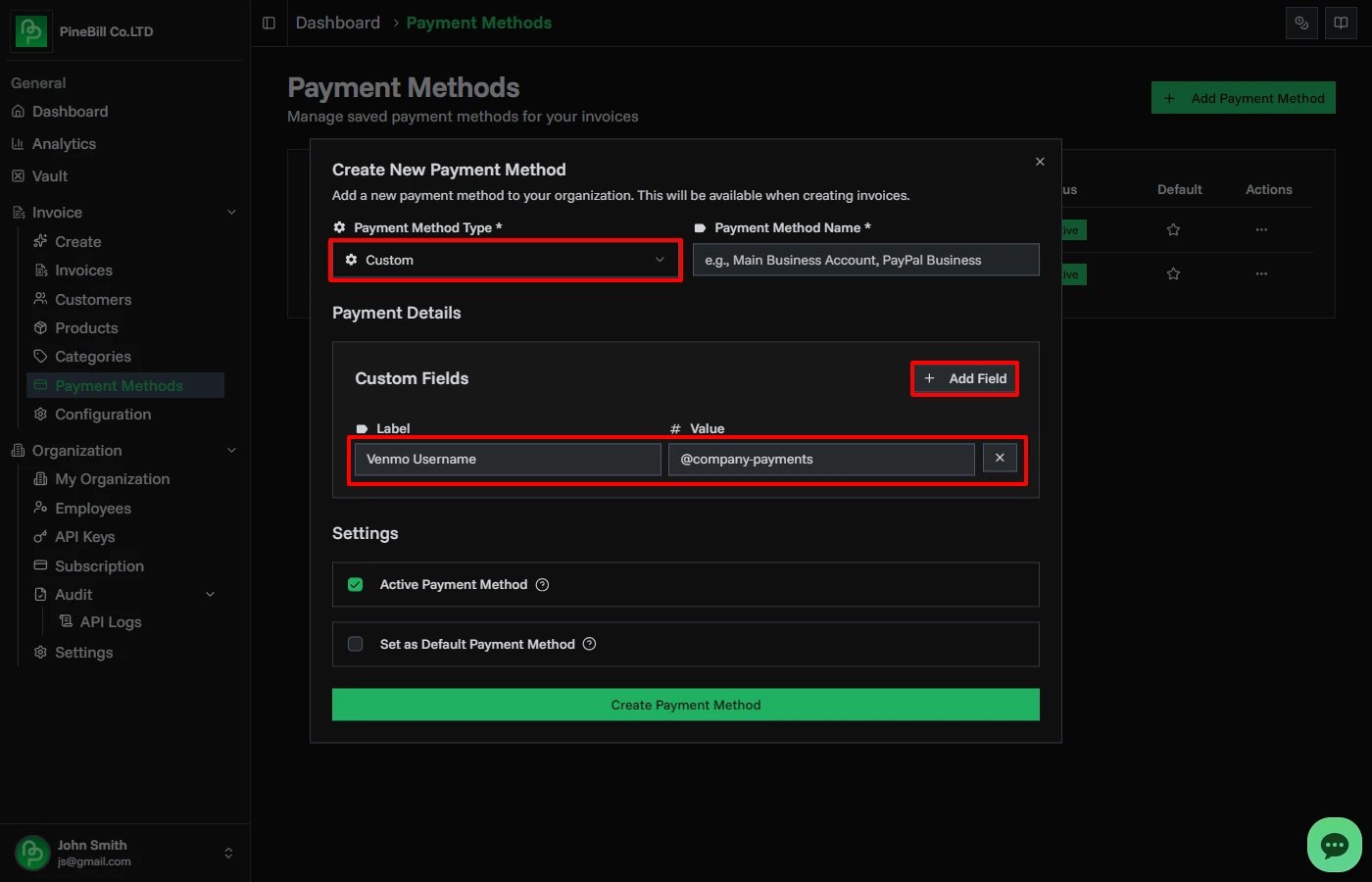
3. Set Options
Default Payment Method:
- Check "Set as default" to auto-select this method in new invoices
- Only one payment method can be default at a time
- Setting a new default removes the flag from the previous one
4. Save
- Click Create Payment Method
- Payment method is saved
- Available for use in invoices
Using Payment Methods in Invoices
Adding to New Invoices
When creating an invoice:
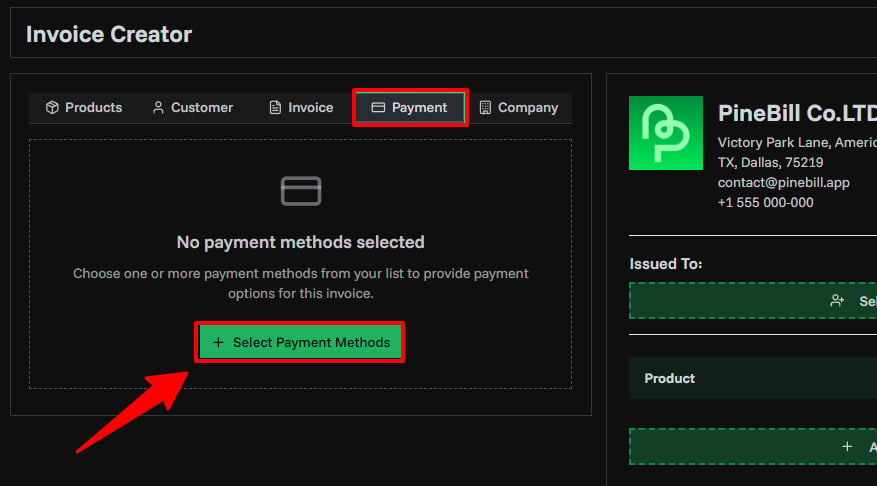
- Go to the Payment Methods tab
- Click Select Payment Methods
- Choose one or more payment methods
- Default payment method is pre-selected
- Selected methods appear on the generated invoice PDF
Multiple Payment Methods
- Invoices can have multiple payment methods
- All selected methods appear on the PDF
- Customers can choose their preferred option
No Payment Methods
- Payment methods are optional
- Invoices can be created without payment methods
- Useful for internal invoices or specific billing arrangements
Custom Payment Methods
Custom payment methods support unlimited label-value fields.
Creating Custom Fields
- Select Custom type
- Click Add Custom Field
- Enter label (e.g., "Zelle Email")
- Enter value (e.g., "payments@company.com")
- Repeat for additional fields
- Click Save Payment Method
Example Custom Payment Method:
Name: Mobile Payment
Type: Custom
Fields:
  - Zelle Email: payments@company.com
  - Cash App: $CompanyPayments
  - Venmo: @company-payments
Editing Custom Fields
- Edit the custom payment method
- Add, remove, or modify field labels and values
- Save changes
Common Errors
Related Topics
- Creating Invoices - Add payment methods to invoices
- Invoice Settings - Configure default payment methods