Task Management
Create tasks, track time with built-in timers, manage work on a Kanban board, and convert task hours into invoices.
Quick Start
Use Tasks to break projects into trackable units of work. Each task has a built-in timer for time tracking and can be converted into an invoice line item when the work is done.
Key Features
Creating Tasks
Add tasks with hourly rates, due dates, and team assignment
Time Tracking
Start, pause, and stop timers to log hours automatically
Convert to Invoice
Turn completed task hours into invoice line items
Project Management
Organize tasks inside projects with budgets and timelines
View Modes
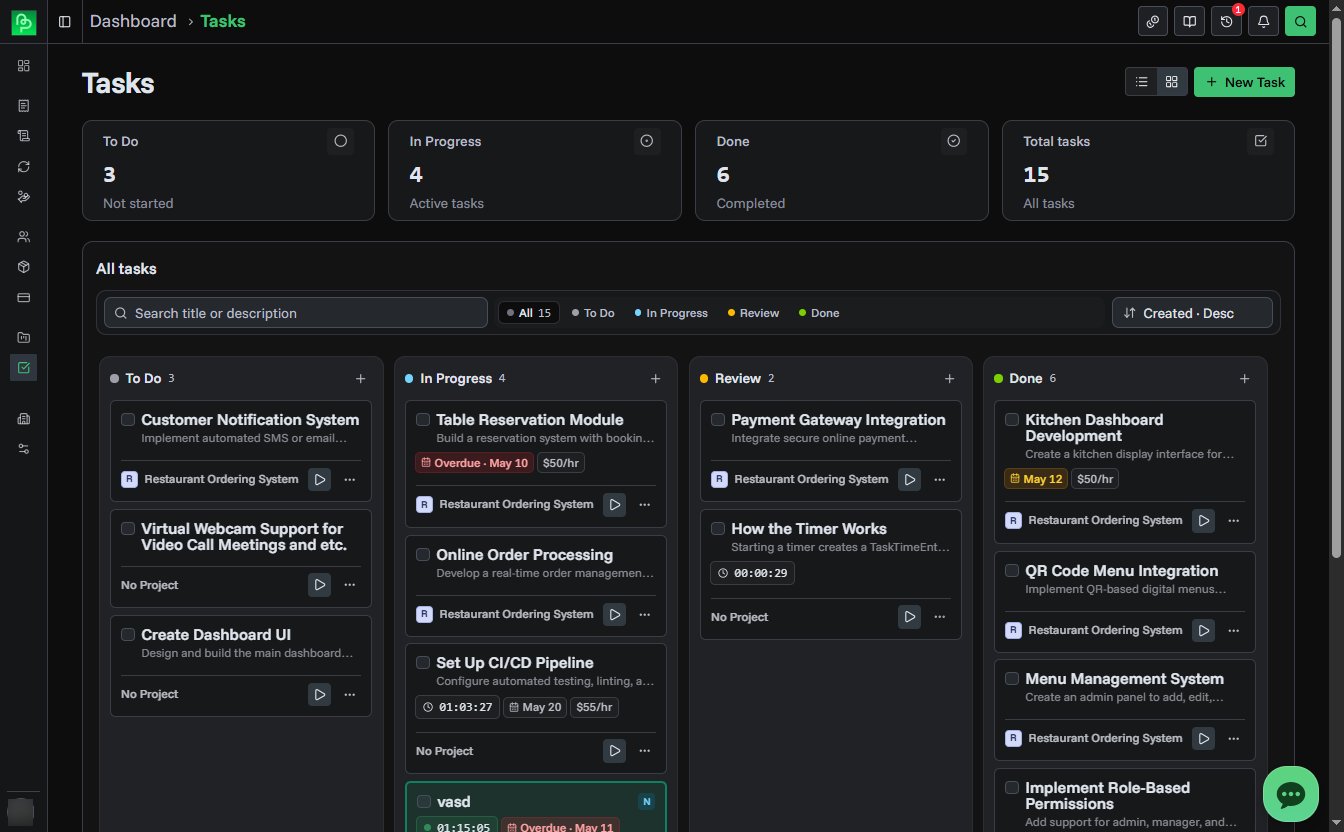
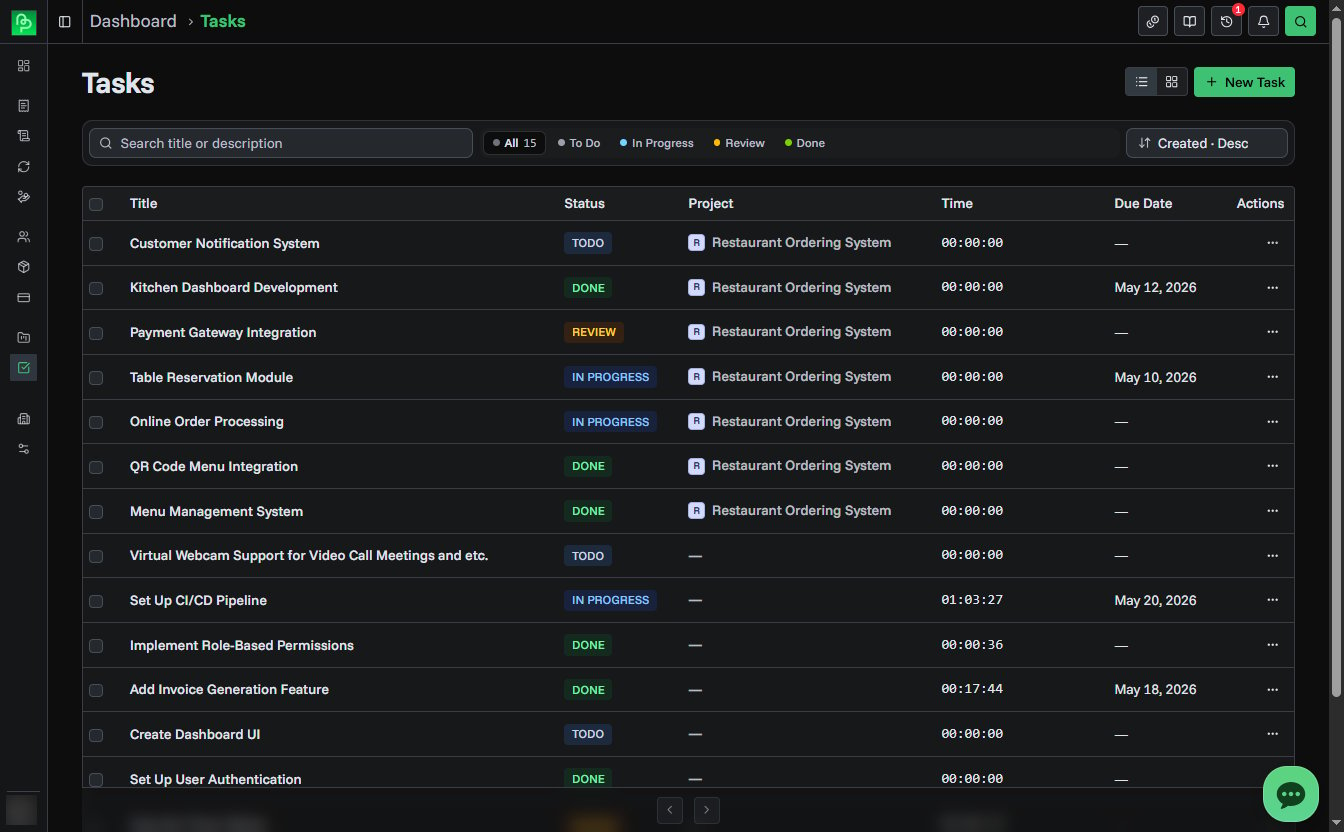
Tasks can be displayed in two ways. Use the toggle at the top of the page to switch.
Kanban Board
Drag-and-drop cards between columns to change status. Columns are To Do, In Progress, Review, and Done. Each card shows the task title, timer state, time spent, due date, project, and assignee.
Table List
A sortable table with columns for task details. Useful for searching, bulk selecting, and sorting across all tasks.
Task Metrics
Summary cards at the top of the page show:
- To Do: number of tasks not yet started
- In Progress: tasks currently being worked on
- Done: completed tasks
- Total: all tasks across statuses
Task Statuses
| Status | Color | Meaning |
|---|---|---|
| To Do | Gray | Not started |
| In Progress | Blue | Work is underway |
| Review | Amber | Work is done, awaiting review |
| Done | Green | Completed |
Change status by dragging cards on the Kanban board, using the actions menu, or editing the task.
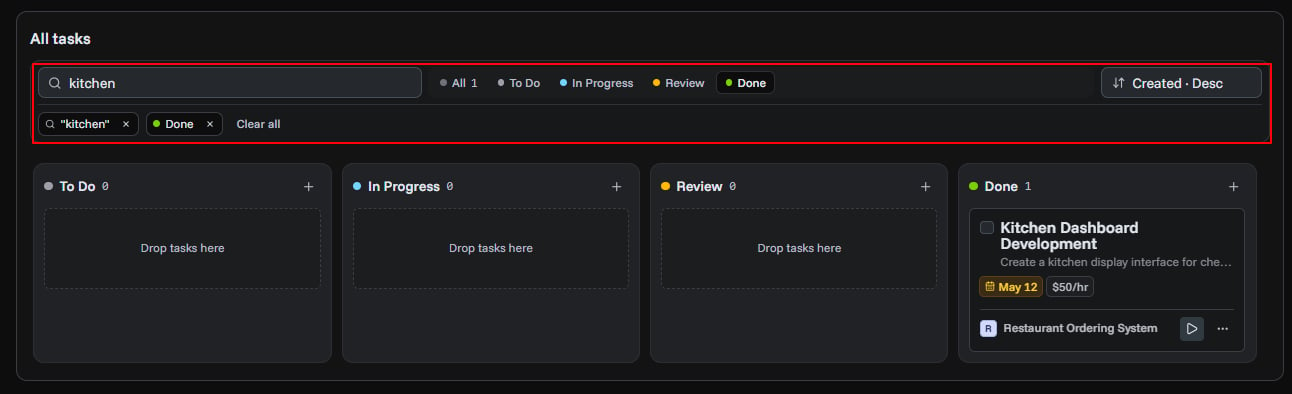
Searching, Filtering, and Sorting
| Control | What it does |
|---|---|
| Search | Searches task title and description |
| Status | Filters by To Do, In Progress, Review, or Done |
| Sort by | Sort by created date, due date, start date, title, status, or hourly rate |
| Sort order | Ascending or descending |
Click Clear filters to reset all active filters.
Task Detail Sidebar
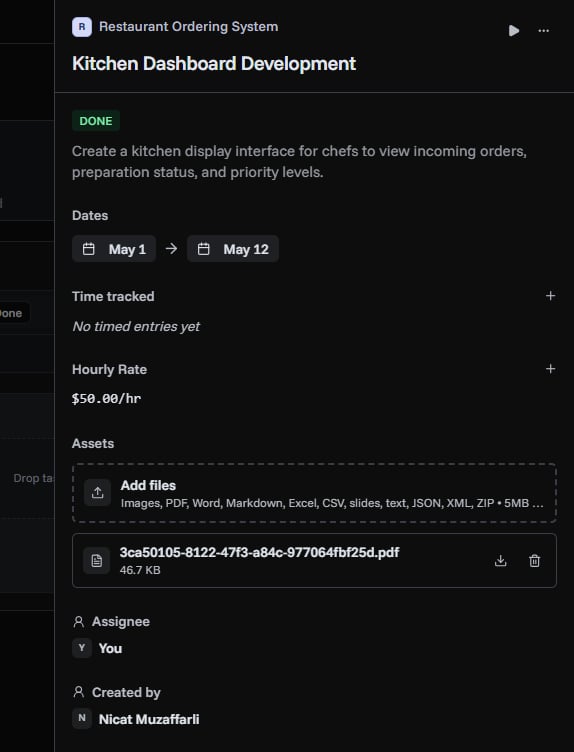
Click any task to open the detail sidebar on the right. From here you can:
- View and edit all task properties
- Start, pause, or stop the timer
- Add or remove time manually with notes
- View timer history with timestamps
- Upload and manage file attachments
- Convert the task to an invoice
- Delete the task
File Attachments
You can attach files to a task from the detail sidebar.
| Limit | Value |
|---|---|
| Max files | 3 per task |
| Max file size | 5 MB each |
| Supported types | Images, PDF, Word, Excel, CSV, Markdown, text, JSON, XML, ZIP |
Uploaded files are stored securely. Download links are signed and expire after 1 hour.
Deleting Tasks
Delete a single task from its actions menu or the detail sidebar. To delete multiple tasks, select them using checkboxes and click Delete Selected.
Deleting a task permanently removes it along with all timer history and file attachments. This cannot be undone.
Permissions
| Role | Can view | Can create | Can edit | Can delete |
|---|---|---|---|---|
| Owner/Admin | Yes | Yes | Any task | Yes |
| Member | Yes | Yes | Own tasks | No |
Common Questions
Related Topics
- Creating Tasks - Add new tasks
- Time Tracking - Use timers and manual time entry
- Converting Tasks to Invoices - Bill clients for task hours
- Project Management - Organize tasks into projects