Time Tracking
Use built-in timers and manual time entries to track hours spent on tasks in PineBill.
Quick Start
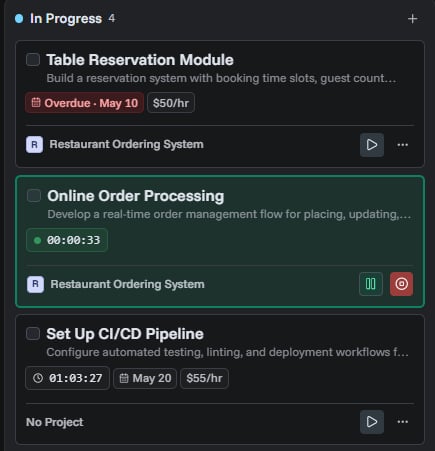
Every task has a built-in timer. Click the play button on any task card or open the task detail sidebar to start tracking time.
Timer Controls
| Action | Button | What it does |
|---|---|---|
| Start | Play | Begins tracking time from zero |
| Pause | Pause | Temporarily pauses the timer, can be resumed |
| Resume | Play | Continues a paused timer from where it stopped |
| Stop | Stop | Ends the session and adds the elapsed time to the total |
When you start or resume a timer, the task status automatically changes to In Progress.
The timer displays elapsed time in HH:MM:SS format and updates every second. A pulsing indicator shows when a timer is actively running.
Typical Timer Workflow
- Open a task and click Start to begin tracking
- Work on the task — the timer runs in the background
- Click Pause if you need a break, then Resume to continue
- Click Stop when the work session is finished
- The elapsed time is added to the task's total time spent
You can run multiple sessions across different days. Each session is recorded separately in the timer history.
Manual Time Adjustments
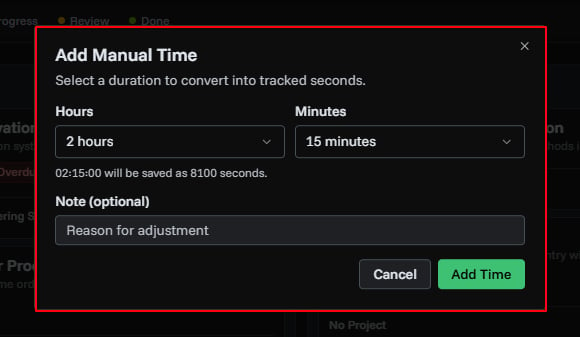
If you forgot to start the timer or need to correct logged time, use the manual adjustment dialog in the task detail sidebar.
Adding Time
- Open the task detail sidebar
- Click the manual time adjustment button
- Enter the duration to add
- Optionally add a note explaining why
- Click Add
Removing Time
- Open the task detail sidebar
- Click the manual time adjustment button
- Enter the duration to remove
- Optionally add a note explaining why
- Click Remove
The total time spent cannot go below zero.
Timer History
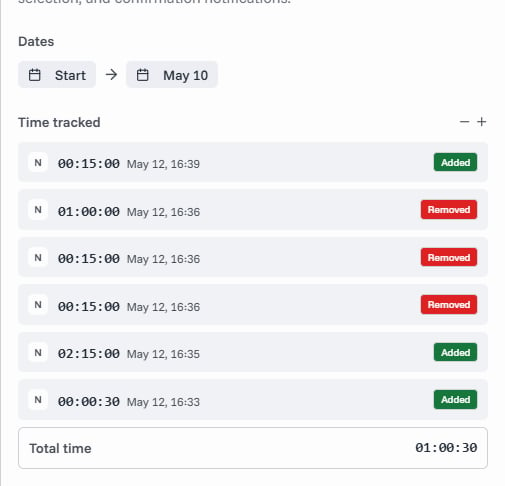
The task detail sidebar shows a complete log of all timer sessions, including:
- Action type (Start, Stop, Pause, Resume, Manual Add, Manual Remove)
- Duration recorded
- User who performed the action
- Timestamp
- Notes (for manual adjustments)
Sessions are listed in reverse chronological order.
How Time is Calculated
- Start/Resume records the moment the timer begins
- Stop/Pause calculates elapsed seconds since the last start or resume
- Manual Add adds the specified seconds directly to the total
- Manual Remove subtracts the specified seconds from the total
- The task's total time spent is the cumulative sum of all sessions
If you close the browser while a timer is running, the server continues tracking. The elapsed time is calculated when you return and stop the timer.
Common Questions
Related Topics
- Task Management - Overview of task features
- Creating Tasks - Set up tasks with hourly rates
- Converting Tasks to Invoices - Bill clients for tracked hours