Overview
Connect PineBill to Claude, ChatGPT, Cursor, and other AI apps through the PineBill MCP server.
What It Is
PineBill has an MCP server (Model Context Protocol), an open standard that lets AI apps use PineBill on your behalf. Once connected, you can ask Claude, ChatGPT, Cursor, or another AI app things like:
- "Which invoices are overdue, and who owes the most?"
- "Create an invoice for Acme for 12 hours of design work at $90 an hour, due in 14 days, and give me the PDF."
- "Turn estimate EST-0042 into an invoice and email it to the customer."
- "How did revenue this quarter compare to last quarter?"
- "Start the timer on the homepage redesign task." Later: "Stop it. How long have I spent on it?"
- "What's on my calendar this week? Add a call with Acme on Thursday at 3pm."
- "Add a $42 expense for the Figma subscription to the Acme project."
The app works with your PineBill data directly, so you don't have to copy numbers back and forth.
The MCP server is different from the AI Assistant built into PineBill. The assistant runs inside your dashboard. The MCP server lets an AI app you already use reach PineBill.
Server URL
https://www.pinebill.app/api/mcpYou can also copy it from Dashboard → Organization → Connect MCPs, which shows the exact URL for your account along with one-click setup for each app.
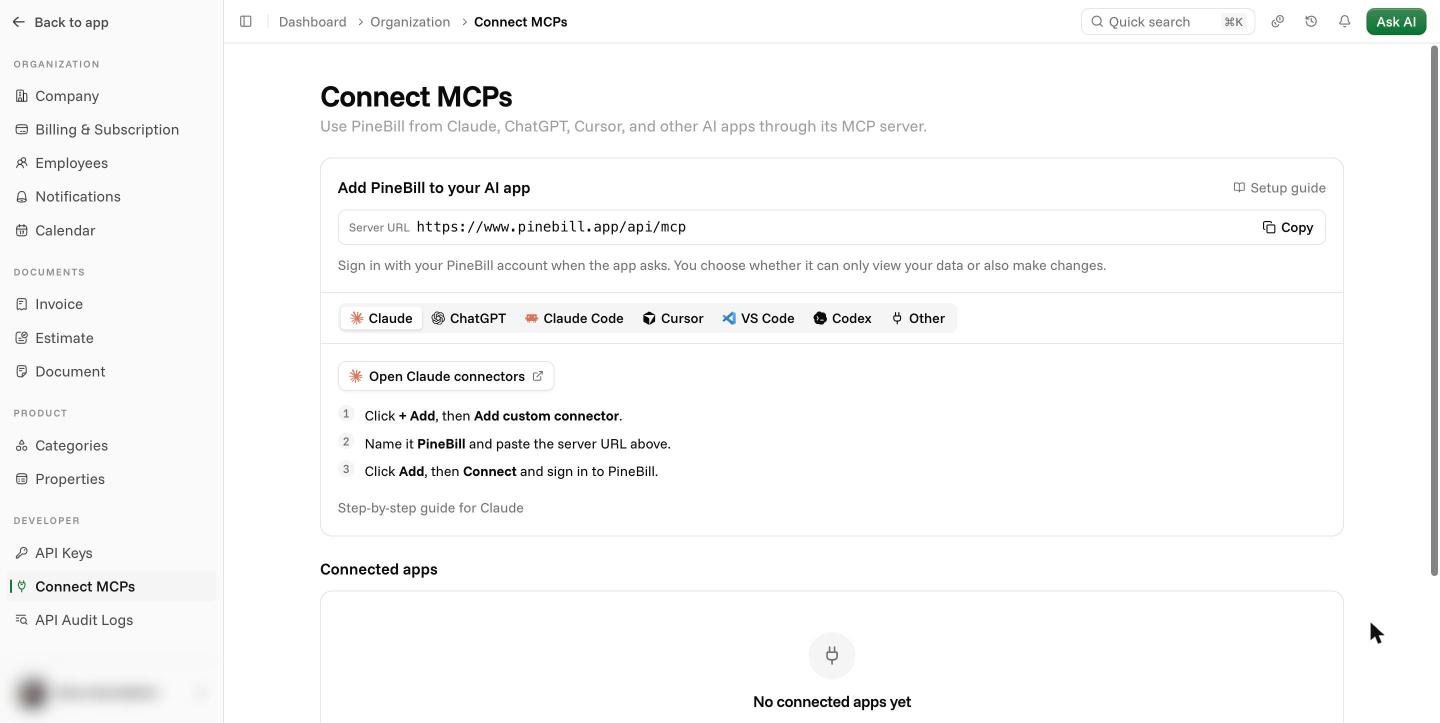
There is no API key to copy. The app asks you to sign in to PineBill the first time it connects.
Connect Your App
Claude
claude.ai and the Claude desktop app
ChatGPT
Add PineBill as a custom MCP server
Developer tools
Claude Code, Cursor, VS Code, Codex, and other MCP apps
How Signing In Works
- Your AI app opens a PineBill sign-in page. Sign in with your existing PineBill account. New accounts can't be created from this page.
- PineBill shows which app is asking and where it will send you back.
- Choose the access level and click Allow.
| Access level | What the app can do |
|---|---|
| View only | Read invoices, estimates, customers, products, expenses, projects, tasks, your calendar, and reports |
| View and edit | Everything above, plus create, update, send, and delete records, add expenses and calendar events, and start or stop task timers |
Turn on Allow edits on the consent page for view and edit access. If you connected with view only and later ask for a change, apps that support it ask you to sign in again and allow edits. Otherwise, disconnect and connect again with Allow edits on.
Sending an email or deleting a record can't be undone. Most AI apps ask you to approve each action before it runs. Keep that setting on.
Roles and plans still apply
The app acts as you, inside the first organization you joined:
- It can only see and change what your role allows. Guests are always view only.
- Your plan limits apply, the same as in the dashboard. If a feature isn't on your plan, the app tells you so.
Usage limits
Connected apps work on every plan and don't use PineBill AI credits. To keep the service fast for everyone, each PineBill user has these limits across all their connected apps:
| Limit | Per user |
|---|---|
| Requests | 120 a minute, 2,000 an hour |
| Emails sent (invoices and estimates) | 30 an hour |
Every message an app sends counts as a request, including connecting and listing tools, so one question can use several. Normal use stays well below these limits. If you reach one, the app tells you how long to wait. Nothing is lost: a refused email isn't sent, and you can still send it from the PineBill dashboard.
Manage Connected Apps
Go to Dashboard → Organization → Connect MCPs to see every app you've connected, with its access level, when you connected it, and when it was last used.
Click Disconnect to remove an app. It loses access right away. You can connect it again later.
A green shield next to an app means PineBill identified it by its website. An amber shield means the app registered itself, so check that you recognize it.
Troubleshooting
Privacy
PineBill sends an app only the records it asks for while you use it. Bank and card details of your payment methods are never included. After that, the app and its AI provider handle the data under their own terms. See our Privacy Policy and Terms of Service.