Voice Mode
Use PineBill Assistant with voice input, auto-send, and hands-free mode.
Quick Start
Voice mode lets you speak to PineBill Assistant instead of typing. It is useful when you want to create records, check totals, update tasks, or ask follow-up questions quickly.
Open Dashboard, click Ask AI, then click the microphone button.
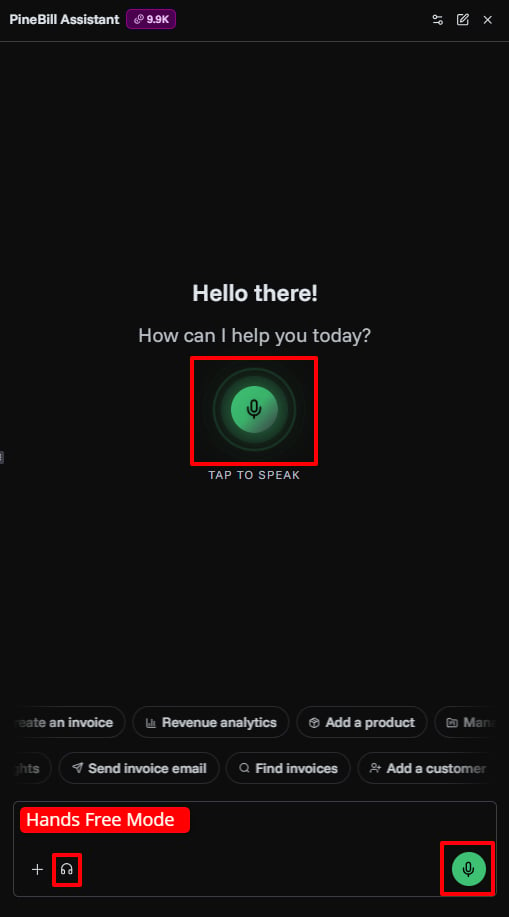
Voice Controls
| Control | What it does |
|---|---|
| Microphone | Starts voice input when the message box is empty |
| Stop voice | Stops listening and keeps the dictated text in the message box |
| Send | Sends the dictated message to the assistant |
| Hands-free mode | Restarts listening after each assistant reply so you can continue by speaking |
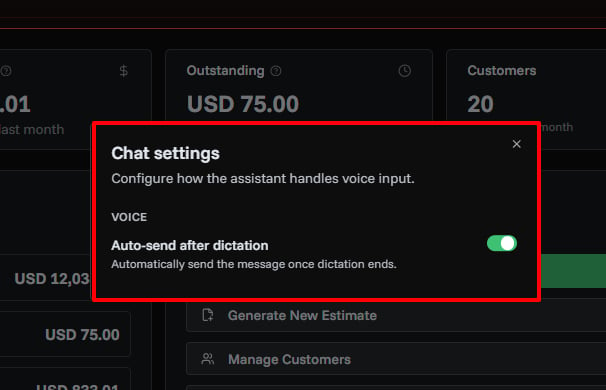
| Chat settings | Lets you turn auto-send after dictation on or off |
Dictation Mode
Use normal dictation when you want to speak one message, review it, then send it.
- Click the microphone button.
- Speak your request.
- Click stop, or wait for dictation to finish.
- Review the text.
- Send the message.
Good for:
- Creating an invoice with several details
- Asking for a summary
- Checking records before making a change
- Dictating a task or expense note
Example:
Create a task for the website redesign due next Friday and set the hourly rate to $85.Auto-Send After Dictation
Auto-send sends your message automatically after dictation ends.
Turn it on from Chat settings -> Auto-send after dictation.
Use auto-send when:
- You usually speak short, clear requests
- You want fewer clicks
- You are using voice repeatedly
Turn it off when:
- You want to review dictated text first
- You are speaking names, prices, invoice numbers, or email addresses
- Your environment is noisy
Hands-Free Mode
Hands-free mode keeps voice input ready after each assistant response. After PineBill Assistant replies, it starts listening again so you can continue the workflow without clicking the microphone each time.
Use hands-free mode for multi-step work:
- Click the hands-free button in the chat composer.
- Say your first request.
- Wait for the assistant response.
- Speak your follow-up when listening starts again.
- Turn hands-free off when you are done.
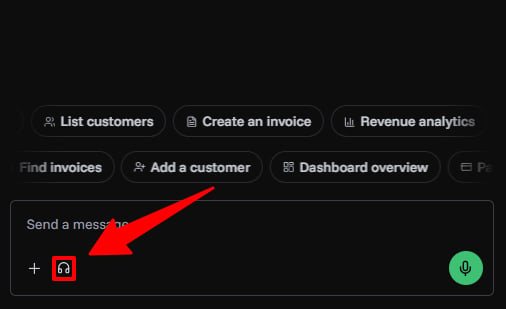
Hands-free mode works best with auto-send enabled. If hands-free is on, PineBill can send dictated follow-ups automatically so the conversation keeps moving.
Best Use Cases
Create Work Quickly
Add a new task called review client contract due tomorrow.Create an expense for software renewal, $49, category software.Review Business Status
Show my overdue invoices and summarize who owes the most.Give me a dashboard overview for this month.Continue With Follow-Ups
Now create a reminder task for the largest overdue invoice.Send that invoice to the customer with a short payment reminder.Tips for Better Voice Results
- Speak one request at a time.
- Include names, dates, prices, and quantities when you know them.
- Say invoice numbers clearly, for example: "invoice I N V dash 1024."
- Pause before ending dictation so the last words are captured.
- Review approval cards before PineBill creates, updates, deletes, or sends anything.
- Turn hands-free off before private conversations or background noise.