General
Use PineBill Assistant for text chat, voice input, business actions, analytics, and AI credit management.
Quick Start
PineBill Assistant helps you work inside your PineBill dashboard with text chat, voice input, file attachments, and approved actions.
Open your dashboard and click Ask AI.
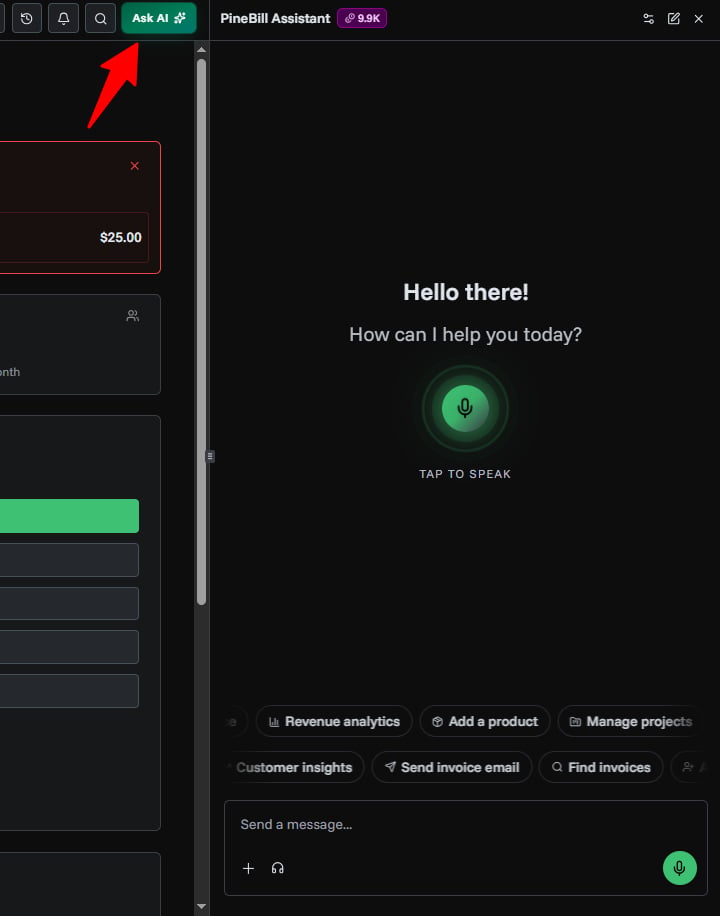
You can use it to:
- Find and summarize business records
- Create invoices, estimates, customers, products, projects, tasks, expenses, payment methods, and employees
- Update or delete records after approval
- Send invoice and estimate emails after approval
- Review revenue, invoice, customer, product, expense, employee, and dashboard analytics
- Use voice input when typing is slower
PineBill Assistant is focused on PineBill work. It is not a general-purpose chatbot.
Text, Voice, and Files
| Input | What it does |
|---|---|
| Text chat | Type requests, ask follow-up questions, and review results in the chat panel |
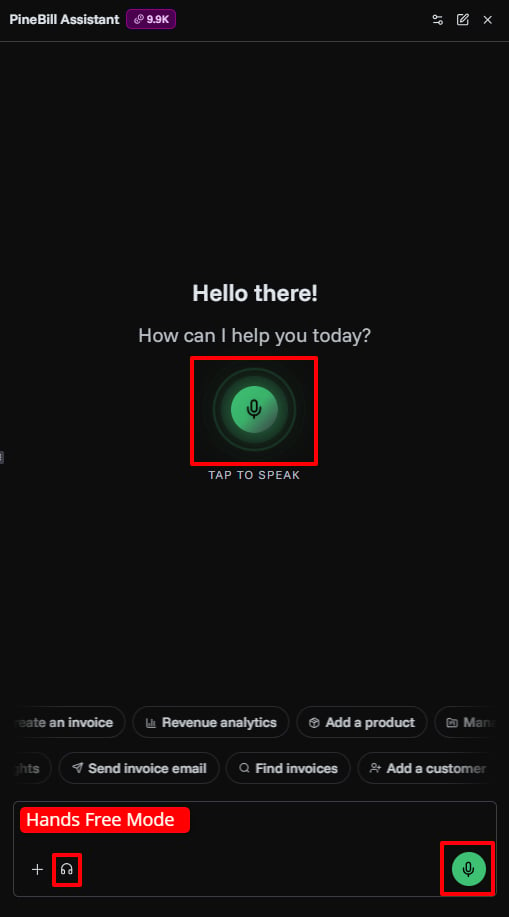
| Voice | Speak instead of typing. Use the microphone button to start or stop dictation |
| Hands-free | Keeps voice mode ready after assistant replies |
| Auto-send | Sends your dictated message when dictation ends |
| Files | Attach images, PDFs, TXT, CSV, or Markdown files up to 3 MB |
Use voice for quick work like creating tasks, finding invoices, checking totals, or updating records while you are already focused on another workflow.
Approval Before Changes
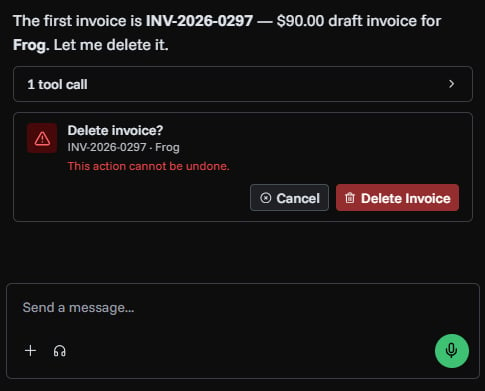
For actions that create, update, delete, or send something, PineBill shows an approval card before the action is completed.
Examples:
- Creating an invoice
- Updating a customer
- Deleting a task
- Sending an invoice email
- Creating a payment method
Review the card, then approve or cancel the action.
Available Tools
Invoices
- List, search, and fetch invoice details
- Create invoices from customers, products, temporary line items, dates, taxes, discounts, and payment methods
- Update invoice content or status
- Send invoice emails
- Delete invoices after approval
Estimates
- List, fetch, create, update, and delete estimates
- Send estimate emails
- Prepare estimates that can later become invoices
Customers
- Add new customers
- Find customers by name or details
- Update customer records
- Delete customers when allowed
Products and Services
- List products and prices
- Add catalog items
- Update product details
- Delete products when allowed
Payment Methods
- List saved payment methods
- Add bank transfer, PayPal, crypto, or custom payment methods
- Update payment method details
- Set defaults or remove methods when allowed
Projects and Tasks
- Create and manage projects
- List tasks and update task status
- Create tasks with due dates, hourly rates, notes, projects, or assignees
- Delete projects or tasks after approval
Expenses
- Record expenses
- Search and review expenses
- Update expense details
- Delete expenses after approval
Employees
- List employees
- Add employee records
- View employee details
- Update or deactivate employees
Analytics
| Plan | Analytics the assistant can help with |
|---|---|
| All plans | Dashboard overview, revenue trends, invoice analytics, customer growth |
| Pro and above | Invoice aging, expense analytics, product analytics |
| Enterprise | Advanced metrics, employee performance, customer lifetime value |
AI Credits
AI Assistant uses credits for chat and voice.
| Usage | Credit cost |
|---|---|
| Text message | 2 credits |
| Voice session | 4 credits |
Credits are tracked at the organization level. You can view your balance, usage history, and active top-ups from Settings -> Subscription -> AI Credits.
Monthly Plan Credits
| Plan | Monthly AI credits |
|---|---|
| Trial | 70 credits |
| Solo | 500 credits |
| Pro | 3,000 credits |
| Enterprise | 10,000 credits |
Monthly credits reset each billing period.
Top-Up Packs
| Pack | Price |
|---|---|
| 500 credits | $5 |
| 2,000 credits | $10 |
| 5,000 credits | $20 |
Top-up credits expire 12 months after purchase. Organization owners can buy more credits from the subscription page.
If your balance is low, PineBill shows a warning in the chat panel. If credits run out, you can top up or upgrade your plan.
Example Prompts
Daily Work
Show me my recent invoices and summarize which ones are paid, unpaid, overdue, or draft.Create a task for redesign work due next Friday with an hourly rate of $80.List my current projects and group them by status.Show my recent expenses and total them by category.Invoices and Estimates
Help me create an invoice for Acme Corp with 5 hours of consulting at $120 per hour.Send invoice INV-1024 to the customer's email with a short payment reminder.Create an estimate for website maintenance, 10 hours at $90 per hour.Mark invoice INV-1030 as paid today.Customers, Products, and Payments
Add a customer named Northwind Studio with billing email billing@northwind.example.List my products and show any items that look underpriced.Create a PayPal payment method named Main PayPal.Analytics
Give me a dashboard overview for this month.Show revenue trends for the last 90 days.Which customers have the highest lifetime value?How It Improves Productivity
- Less clicking: Ask for a result instead of navigating through several pages.
- Faster creation: Create invoices, tasks, customers, products, and expenses from one chat.
- Safer edits: Review approval cards before PineBill changes or sends anything.
- Better follow-up: Ask natural follow-up questions after a list or analytics result.
- Hands-free work: Use voice when you are reviewing records, on a call, or moving between tasks.
- Quick insight: Ask for summaries instead of manually checking invoices, revenue, expenses, or customers.