Claude
Connect PineBill from Claude's connectors directory, or add it as a custom connector, in claude.ai and the Claude desktop app.
PineBill is listed in Claude's connectors directory. The Claude tab on the Connect MCPs page links straight to it.
From the Directory
Open PineBill in Claude
Go to PineBill in Claude's connectors directory and click Connect. You can also find it by searching for PineBill under Customize → Connectors → Browse connectors.
Sign in
Sign in to your PineBill account, choose whether Claude can make changes, and click Allow.
Use it in a chat
Click + in the chat box, open Connectors, and make sure PineBill is on. Then ask something like "Show me my unpaid invoices."
As a Custom Connector
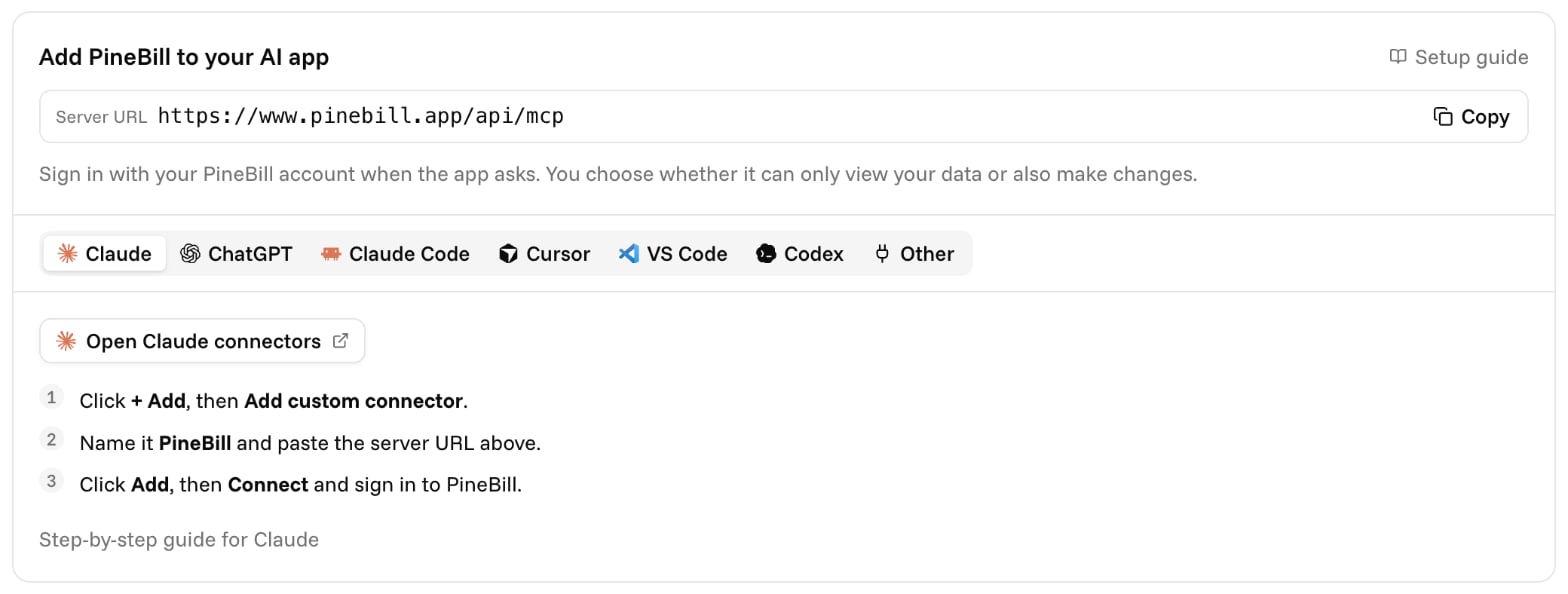
If you'd rather add PineBill by its server URL, add it as a custom connector. Custom connectors work on every Claude plan, and the Free plan allows one.
Open connectors
Go to Customize → Connectors in Claude, then click + Add and choose Add custom connector.
Add PineBill
- Name:
PineBill - Remote MCP server URL:
https://www.pinebill.app/api/mcp
Click Continue. Leave the authentication settings Claude detects as they are, then click Add.
Sign in
Click Connect next to PineBill. Sign in to your PineBill account, choose whether Claude can make changes, and click Allow.
Use it in a chat
Click + in the chat box, open Connectors, and make sure PineBill is on. Then ask something like "Show me my unpaid invoices."
Team and Enterprise Plans
An organization Owner adds the connector once, then everyone connects their own PineBill account:
- The Owner opens Organization settings → Connectors, clicks Add, and picks PineBill from the directory. To add it by URL instead, choose Custom → Web, name it
PineBill, and enterhttps://www.pinebill.app/api/mcp. - Each member opens Customize → Connectors, finds PineBill, and clicks Connect to sign in with their own PineBill account.
Each person sees only what their own PineBill role allows.
Claude Desktop
The desktop app shares connectors with claude.ai. Add PineBill on the web or from Settings → Connectors in the app, and it's available in both.
Claude asks before using a tool that changes data. You can set each PineBill tool to Always allow, Needs approval, or Blocked from the connector's settings.
To remove PineBill, disconnect it in Claude, or in PineBill on the Connect MCPs page.