ChatGPT
Add PineBill to ChatGPT as a custom MCP server.
You can add PineBill to ChatGPT on the web. On Business, Enterprise, and Edu workspaces, an admin may need to allow custom MCP servers first.
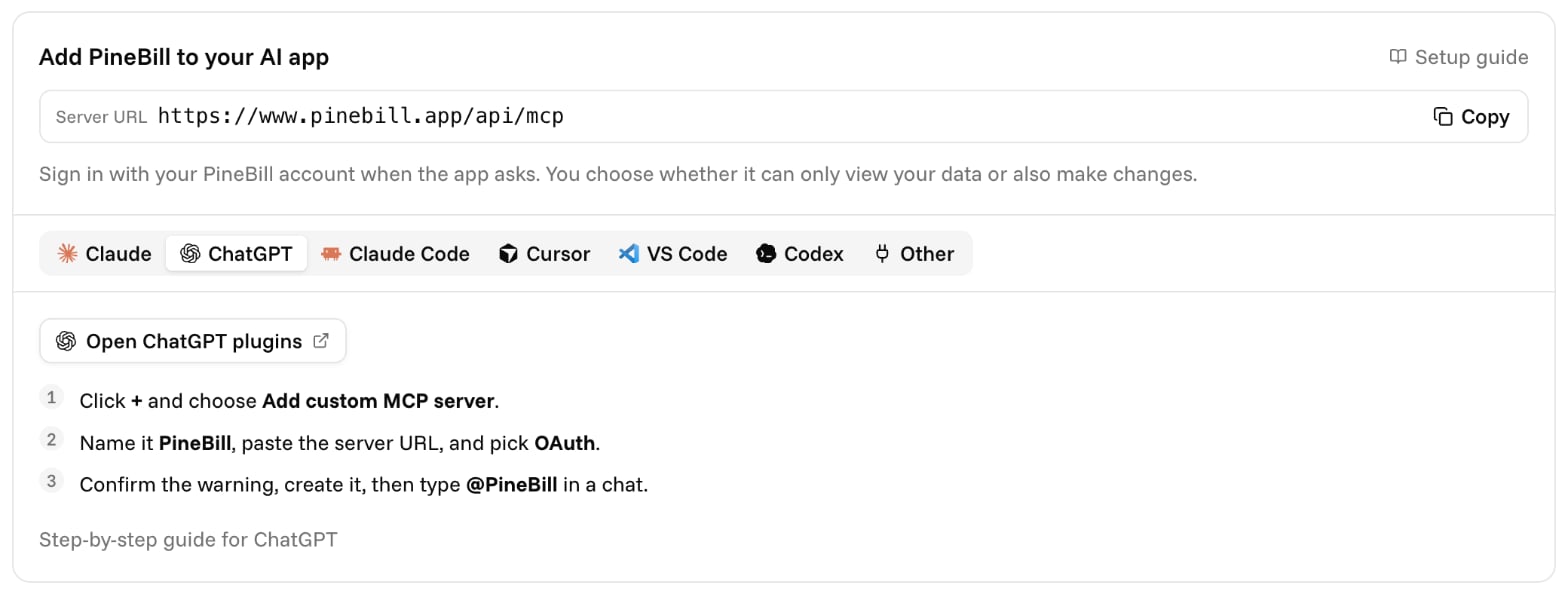
The ChatGPT tab on the Connect MCPs page opens ChatGPT's plugins page and has the server URL ready to copy.
Add PineBill
Open Plugins
Go to chatgpt.com/plugins, click the + button, and choose Add custom MCP server.
Enter the details
- Name:
PineBill - Server URL:
https://www.pinebill.app/api/mcp - Authentication: OAuth
Confirm and create
ChatGPT warns that it hasn't reviewed this server. Read it, select I understand and want to continue, then click Create.
Sign in
Install the plugin. When ChatGPT asks, sign in to your PineBill account, choose whether ChatGPT can make changes, and click Allow.
Use it in a chat
Start a new chat, type @ and pick PineBill, then ask your question. Mention @PineBill again whenever a follow-up needs fresh data.
ChatGPT asks you to confirm before PineBill sends an email, deletes a record, or makes other changes.
Workspaces
On Business and Enterprise workspaces, an admin can publish PineBill for the whole workspace from the Admin Console → Plugins. Each member still signs in with their own PineBill account, and sees only what their PineBill role allows.
To remove PineBill, uninstall it in ChatGPT, or disconnect it in PineBill on the Connect MCPs page.
ChatGPT's menus change often. If a step doesn't match what you see, follow OpenAI's guide to connecting custom MCP servers.