Product Properties
Create custom properties to add dynamic attributes to your products like weight, color, material, and more.
Quick Start
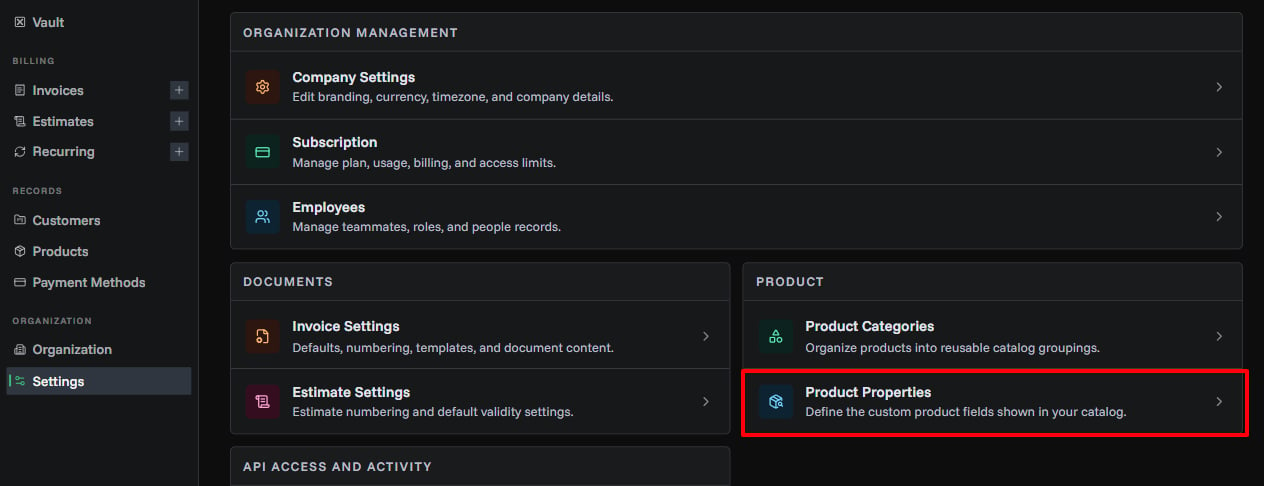
Product Properties allow you to define custom attributes for your products beyond the standard fields. Open them from Settings → Product → Product Properties to create definitions that can be assigned to any product in your catalog.
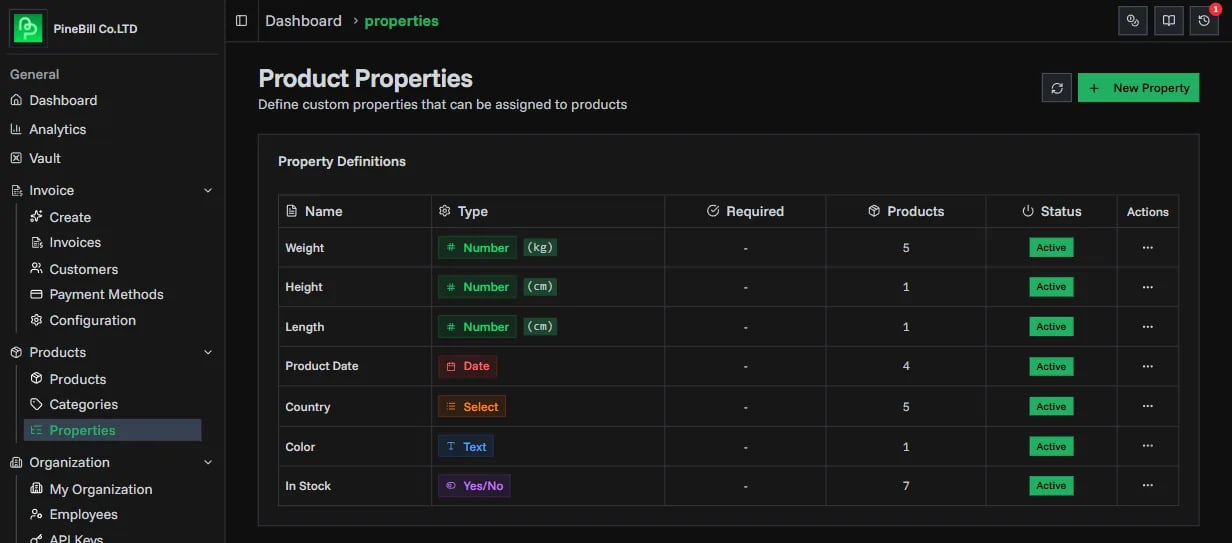
What Are Product Properties?
Product properties are organization-defined custom fields that extend product information. For example:
- Weight (number with unit "kg")
- Color (select from predefined options)
- Material (text field)
- Warranty Expiry (date)
- In Stock (boolean yes/no)
Properties help you:
- Track product specifications consistently
- Filter products by custom attributes
- Include detailed product information on invoices
- Standardize product data across your organization
Property Types
PineBill supports five property types to accommodate different data needs:
| Type | Description | Input Control | Example Use Case |
|---|---|---|---|
| String | Free-form text input | Text field | Material, Brand, SKU |
| Number | Numeric values with optional unit | Number input | Weight (kg), Length (cm) |
| Boolean | Yes/No toggle | Switch | In Stock, Fragile, Featured |
| Select | Choose from predefined options | Dropdown | Color, Size, Condition |
| Date | Date picker for temporal data | Date picker | Warranty Expiry, Manufacture Date |
Property Definition Fields
| Field | Required | Description | Notes |
|---|---|---|---|
| Name | Yes | Display name shown in forms and lists | Max 50 characters |
| Key | Yes | Unique identifier (auto-generated from name) | Lowercase kebab-case (e.g., my-property) |
| Type | Yes | Data type for the property value | STRING, NUMBER, BOOLEAN, SELECT, or DATE |
| Unit | No | Unit of measurement for NUMBER type | Max 20 characters (e.g., kg, cm, lbs) |
| Options | Conditional | Predefined choices for SELECT type | Required for SELECT type (at least 1 option) |
| Required | No | Whether products must have this property set | Default: false |
| Sort Order | No | Order in which property appears in forms | Default: 0 (lower numbers appear first) |
| Active | Yes | Whether property is available for use | Inactive properties hidden from product forms |
Creating Property Definitions
Step 1: Navigate to Properties Page
- Open Settings
- In Product, click Product Properties
- Click the New Property button (top-right)
- The property creation dialog will open
Step 2: Configure the Property
Basic Configuration:
Property Name: Weight *
Property Key: weight (auto-generated)
Type: Number *
Type-Specific Configuration:
For Number type:
Unit: kgFor Select type:
Options: Red, Blue, Green, Black, WhiteAdditional Options:
☐ Required Property (products must have this value set)
Sort Order: 0
Step 3: Save the Property
Click Create Property to save. The property will immediately be available for assignment to products.
Managing Property Definitions
Viewing Properties
The Property Definitions table shows:
- Property name and key
- Data type with icon indicator
- Unit (for NUMBER type)
- Options count (for SELECT type)
- Required status
- Active status
- Number of products using this property
Editing Properties
- Click the edit icon on any property row
- Modify the property details
- Click Save Changes
Important: Changing the type of a property that is already assigned to products may cause data inconsistencies. It's recommended to create a new property instead.
Toggling Active Status
- Click the toggle switch in the Active column
- Inactive properties are hidden from product forms
- Existing property values on products are preserved
- Can be reactivated anytime
Deleting Properties
Properties can only be deleted if:
- No products currently have values for this property
To delete:
- Remove the property value from all products first
- Click the delete icon on the property row
- Confirm deletion
Assigning Properties to Products
From Product Details Page
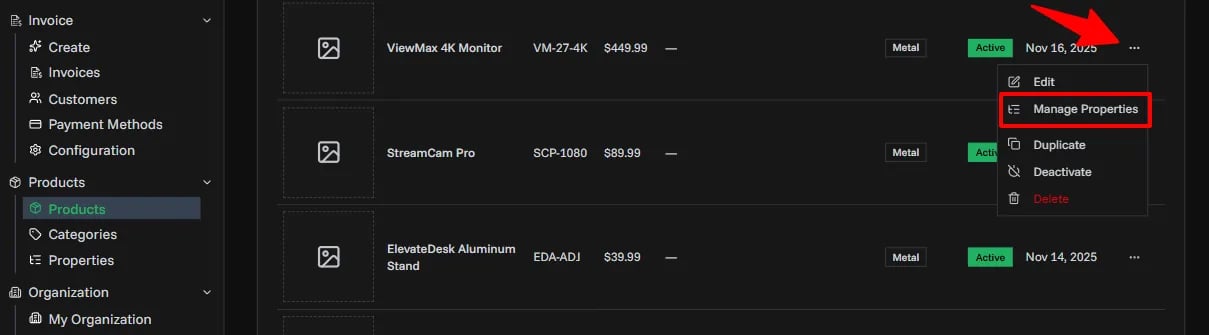
- Navigate to a product's detail page or Product List
- Find the Properties section
- Click Edit Properties
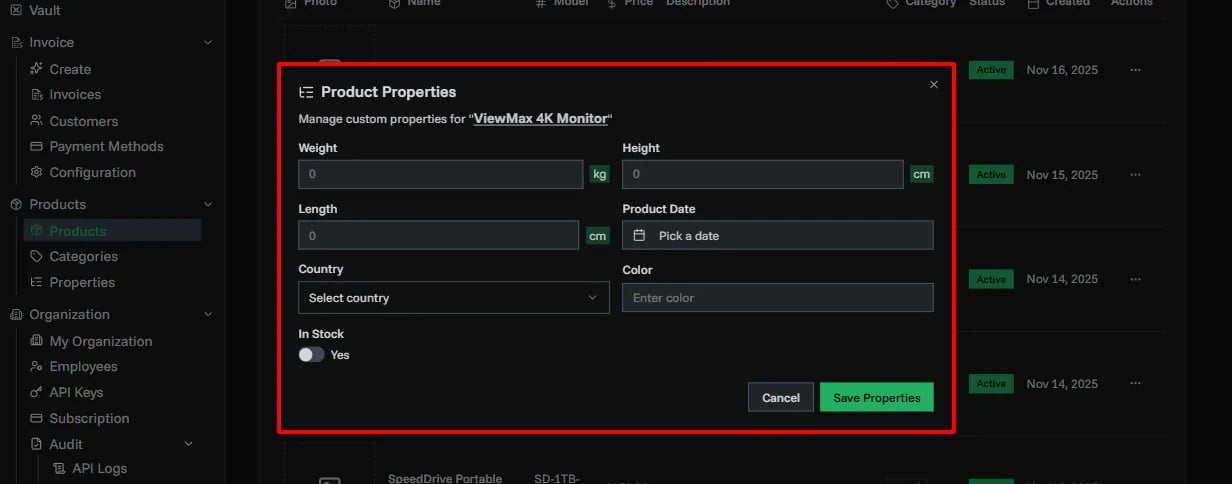
- Fill in values for each property definition
- Click Save Properties
Property Input Types
Based on the property definition type, you'll see different input controls:
- String: Text input field
- Number: Number input with unit suffix displayed
- Boolean: Toggle switch (Yes/No)
- Select: Dropdown with predefined options
- Date: Date picker calendar
Required Properties
Properties marked as required will show:
- An asterisk (*) next to the label
- Validation error if left empty when saving
Filtering Products by Properties
Product Properties integrate with the product filtering system, allowing you to find products based on their custom attributes.
Available Filters by Type
| Type | Filter Options |
|---|---|
| String | Contains text search |
| Number | Min/Max range filter |
| Boolean | Yes, No, or Any |
| Select | Multi-select from available options |
| Date | Date range (from/to) |
Using Property Filters
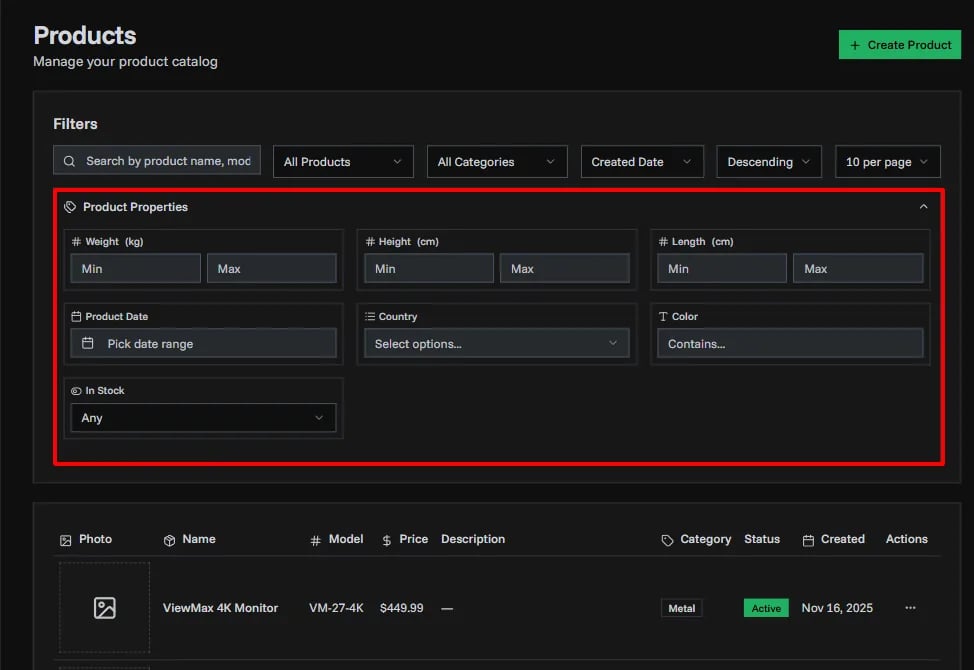
- Go to the Products page
- Expand the Property Filters section in the filter panel
- Set filters for the properties you want to search by
- Products matching all criteria will be displayed
Property filters work in combination with other product filters (category, status, search).
Common Errors
Related Topics
- Adding Products - Create products with custom properties
- Product Categories - Organize products with categories
- Creating Invoices - Add products to invoices