Bulk Import Products
Import multiple products at once using a CSV file.
Overview
You can import up to 5,000 products at once by uploading a CSV file. The import wizard walks you through four steps: upload, column mapping, preview, and results.
Starting an Import
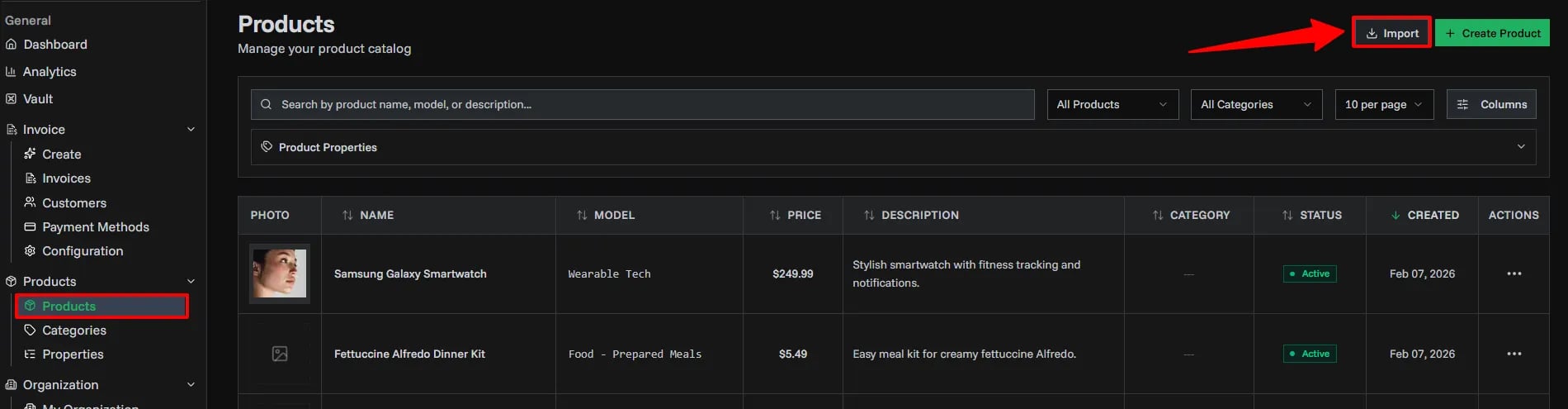
Navigate to Products and click the Import button next to the Create Product button.
Step 1: Upload CSV
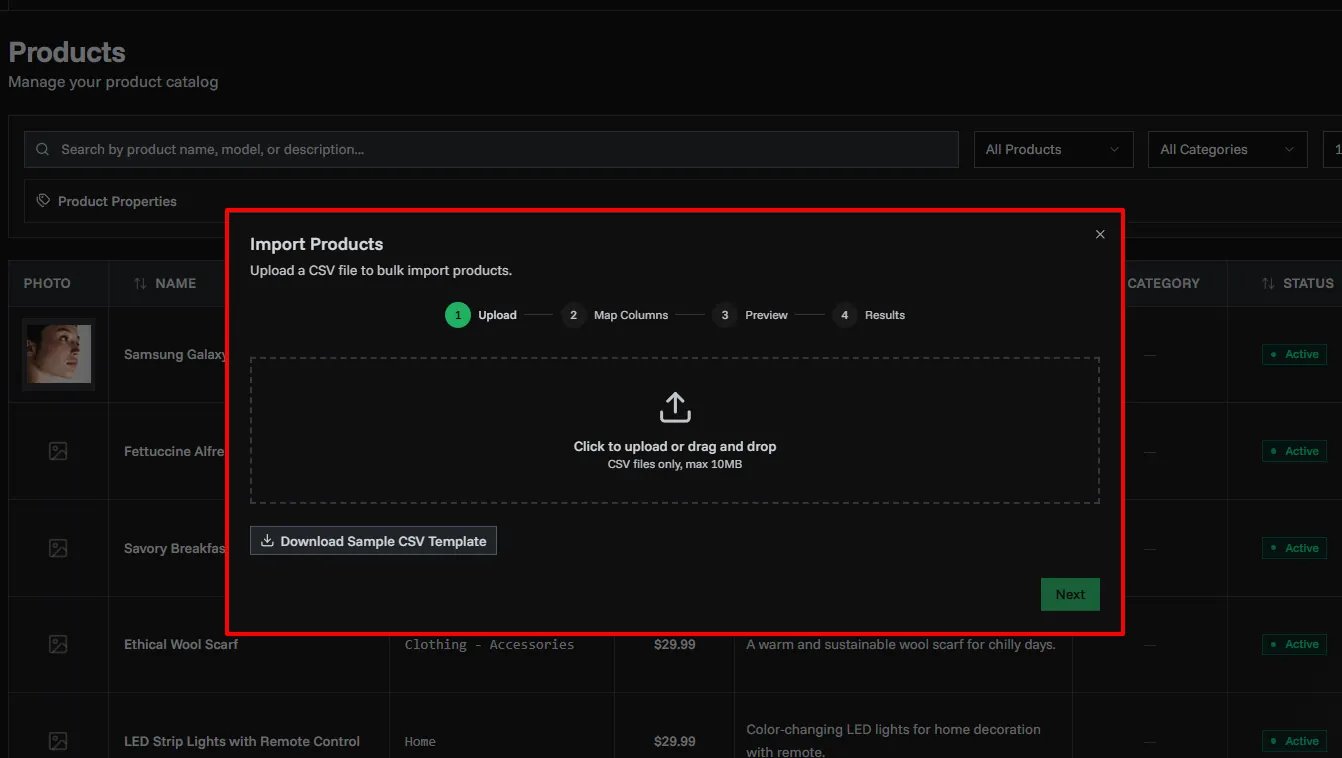
Upload your CSV file or download a template to get started.
- Click Download Template to get a pre-formatted CSV with the correct headers
- Drag and drop your CSV file or click to browse
- The file must be a valid
.csvfile with headers in the first row - Maximum 5,000 rows per import
CSV Template
The template includes these columns:
| Column | Required | Example |
|---|---|---|
| Name | Yes* | Widget Pro |
| Model | No | WP-100 |
| Price | Yes* | 29.99 |
| Description | No | A premium widget |
| Active | No | true |
Sample CSV:
Name,Model,Price,Description,Active
Widget Pro,WP-100,29.99,A premium widget,true
Basic Widget,BW-200,9.99,Standard widget,true
Custom Service,,150.00,Hourly consulting,false
Step 2: Map Columns
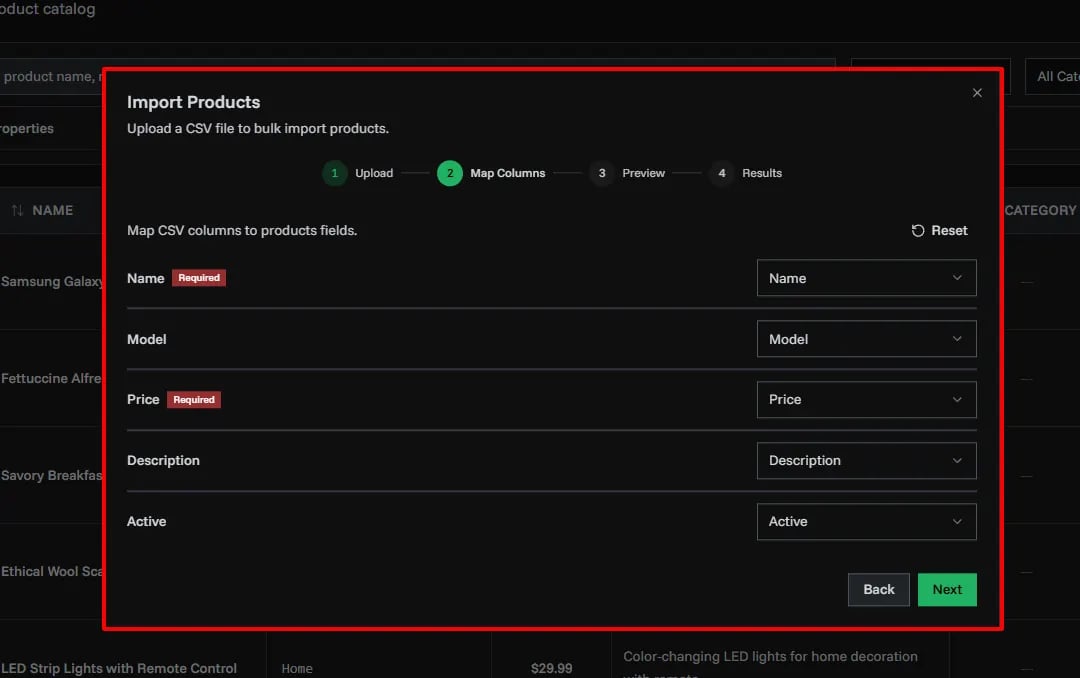
Map your CSV columns to product fields. The wizard auto-detects common column names (e.g., "product name", "sku", "unit price"), but you can adjust the mapping manually.
- Required fields (Name, Price) must be mapped before proceeding
- Unmapped optional fields will be skipped
- Click Reset to restore auto-detected mappings
Step 3: Preview
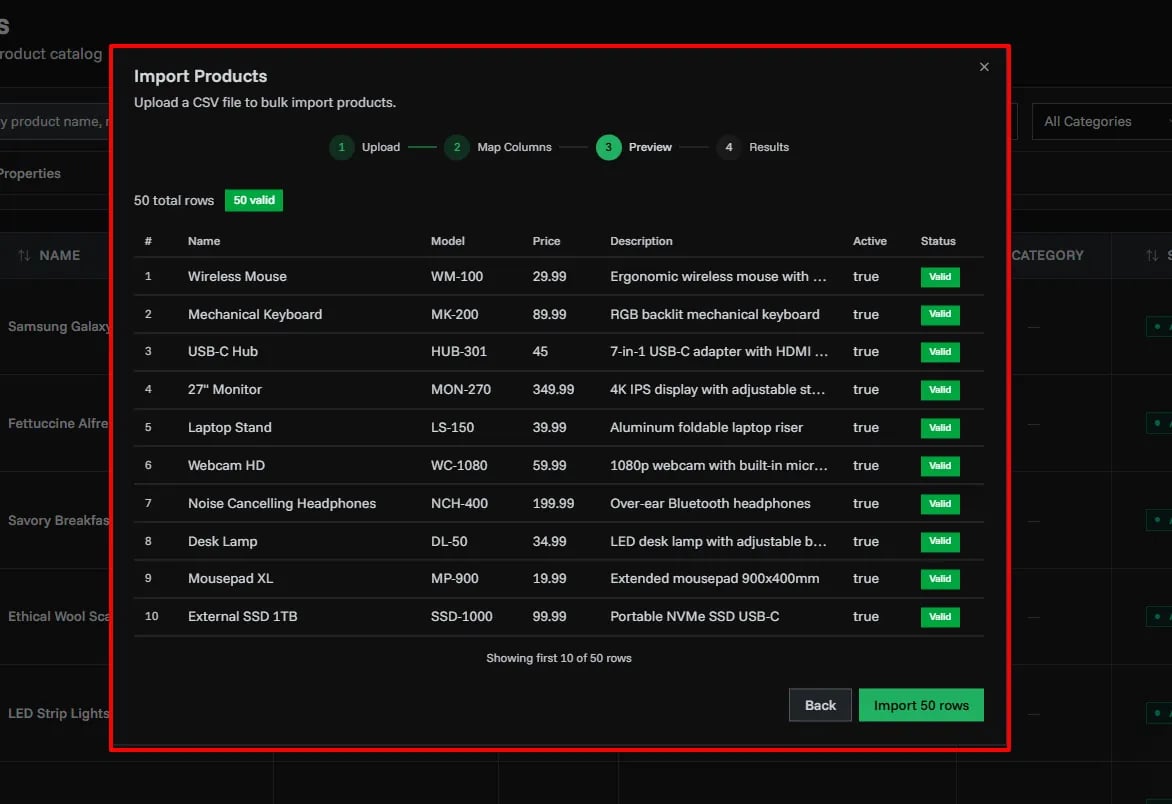
Review parsed data before importing. The preview shows:
- Total rows parsed
- Valid rows (will be imported)
- Invalid rows with specific error details per field
Only valid rows are imported. Fix any issues in your CSV and re-upload if needed.
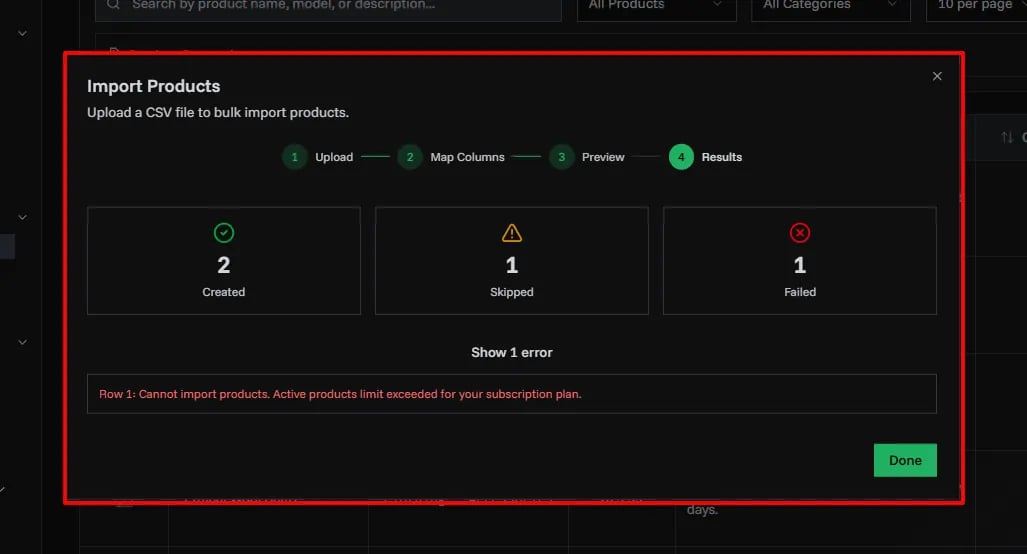
Step 4: Results
After clicking Import, the wizard processes your data in batches of 100 rows and shows a progress indicator. Once complete, you'll see:
- Number of products created
- Number of rows skipped (duplicates or errors)
- Specific error messages for failed rows
Field Details
Active Column
The Active column accepts multiple formats:
| Value | Interpreted As |
|---|---|
true, 1, yes, y, active | Active |
false, 0, no, n, inactive | Inactive |
| Empty or missing | Active (default) |
Price Column
Prices are parsed as numbers. Currency symbols and commas are stripped automatically (e.g., $1,299.99 becomes 1299.99). Must be a positive number.
Related Topics
- Adding Products - Add products one by one
- Product Categories - Organize imported products
- Bulk Import Customers - Import customers via CSV