Products
Product Categories
Organize your products with categories for better management and filtering.
Quick Start
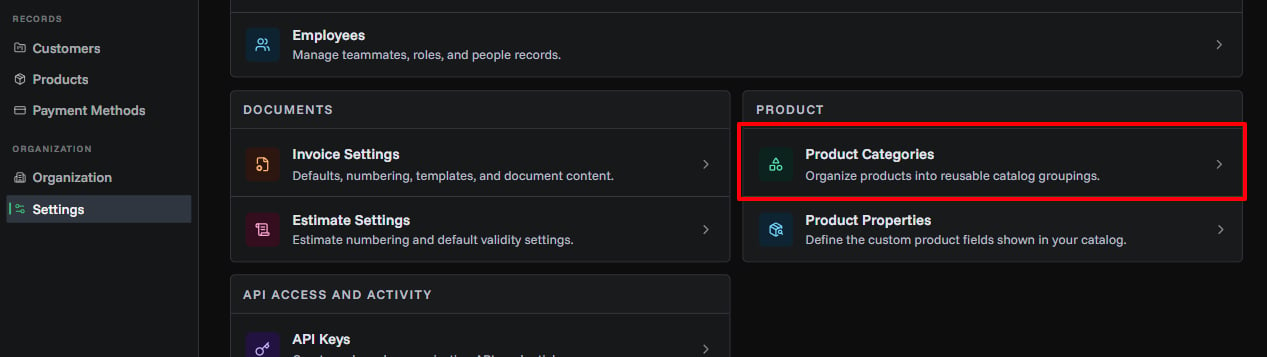
Product categories help you organize your products into logical groups. The main management entry point is Settings → Product → Product Categories. You can also create categories on-the-fly when adding products.
Category Fields
| Field | Required | Description | Max Length | Notes |
|---|---|---|---|---|
| Name | Yes | Category name displayed in lists and filters | 50 chars | Must be unique within your organization |
| Description | No | Additional information about the category | 200 chars | For internal reference only |
| Color | No | Hex color code for visual identification | - | Defaults to #000000. Must be valid hex format (e.g. #FF5733) |
| Active | Yes | Whether category is available for use | - | Inactive categories hidden from product selection |
Creating Categories
Method 1: From Settings
- Open Settings
- In Product, click Product Categories
- Click Create Category
- Fill in category details
- Click Create Category to save
Method 2: During Product Creation
- Open the product creation dialog
- In the Category field, click "Create New"
- Fill in the quick category form
- Category is created and automatically selected for your product
Managing Categories
Viewing Categories
Categories appear in:
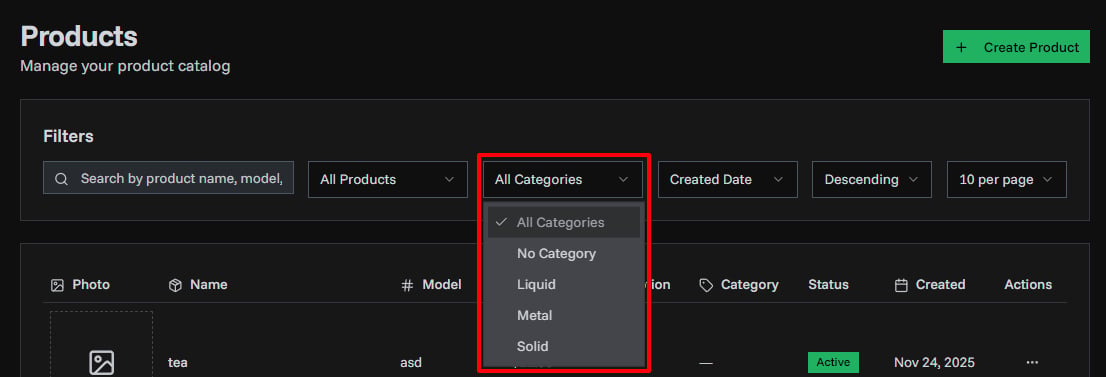
- Product list filters (dropdown at top of products page)
- Product creation/edit forms (category selector)
- Product table rows (colored badge next to product name)
Editing Categories
- Open Settings
- Go to Product Categories
- Find the category in the list
- Click the edit icon
- Update category details
- Click Save Changes
Editable fields:
- Name
- Description
- Color
- Active status
Deactivating Categories
Deactivating a category:
- Hides it from product selection dropdowns
- Does NOT remove it from existing products
- Products with inactive categories still display the category badge
- Can be reactivated anytime
To deactivate:
- Edit the category
- Uncheck "Active Category"
- Save changes
Deleting Categories
Categories can only be deleted if:
- No products are currently assigned to the category
- The category is not used in any invoices
To delete:
- Remove the category from all assigned products first
- Open Product Categories
- Click delete icon
- Confirm deletion
Related Topics
- Adding Products - Create new products with categories
- Product Properties - Add custom attributes to products
- Creating Invoices - Add products to invoices