Expense Management
Track business expenses, receipts, customers, invoices, and expense reports in PineBill.
Quick Start
Use Expenses to record business costs, keep receipts attached, connect costs to customers or invoices, and turn expenses into invoice line items when you need to bill them back.
Key Features
Creating Expenses
Record a business expense, attach receipts, and link customers or invoices
Extract from Receipt
Use AI to scan a receipt and auto-fill expense details
Expense List
Search, filter, sort, export, and bulk manage expense records
Convert to Invoice
Turn one or more expenses into invoice draft line items
Expense Analytics
Review spending trends in the Analytics dashboard
Expense List
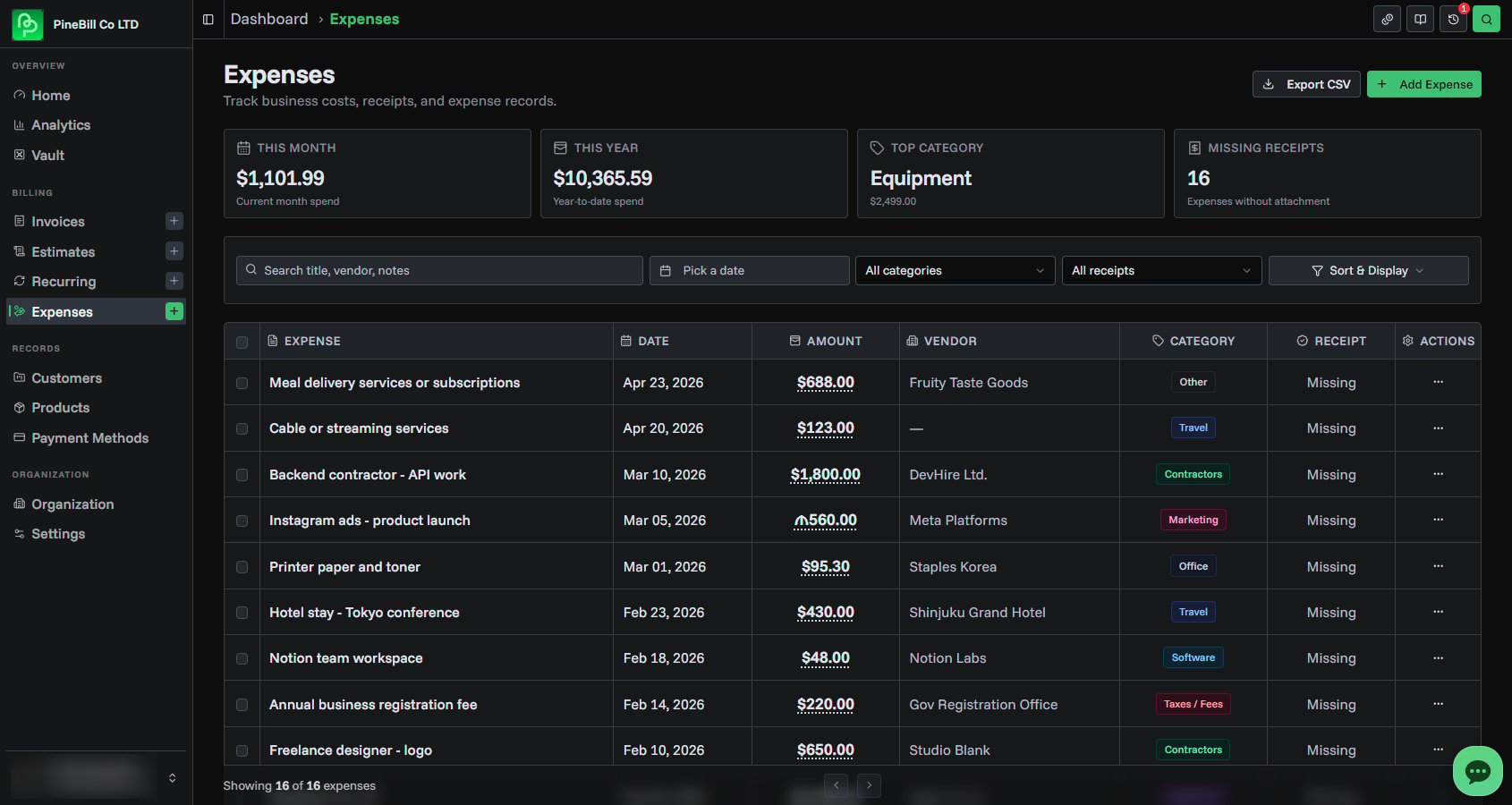
The Expenses page gives you a working list of every expense in the selected organization.
You can see:
- Expense title and linked customer
- Date
- Amount
- Vendor
- Category
- Receipt status
- Actions menu
The top cards show:
- This Month: current month spend
- This Year: year-to-date spend
- Top Category: highest spending category
- Missing Receipts: expenses without an attachment

Searching, Filtering, and Sorting
Use the filters above the table to narrow the list.
| Control | What it does |
|---|---|
| Search | Searches title, vendor, and notes |
| Date range | Shows expenses inside a selected date range |
| Category | Filters by one expense category |
| Receipt status | Shows all, only expenses with receipts, or only missing receipts |
| Sort & Display | Sort by date, title, vendor, category, amount, or created date |
| Results per page | Shows 5, 10, 25, or 50 expenses per page |
Click Clear all to remove active filters.

Viewing and Editing an Expense
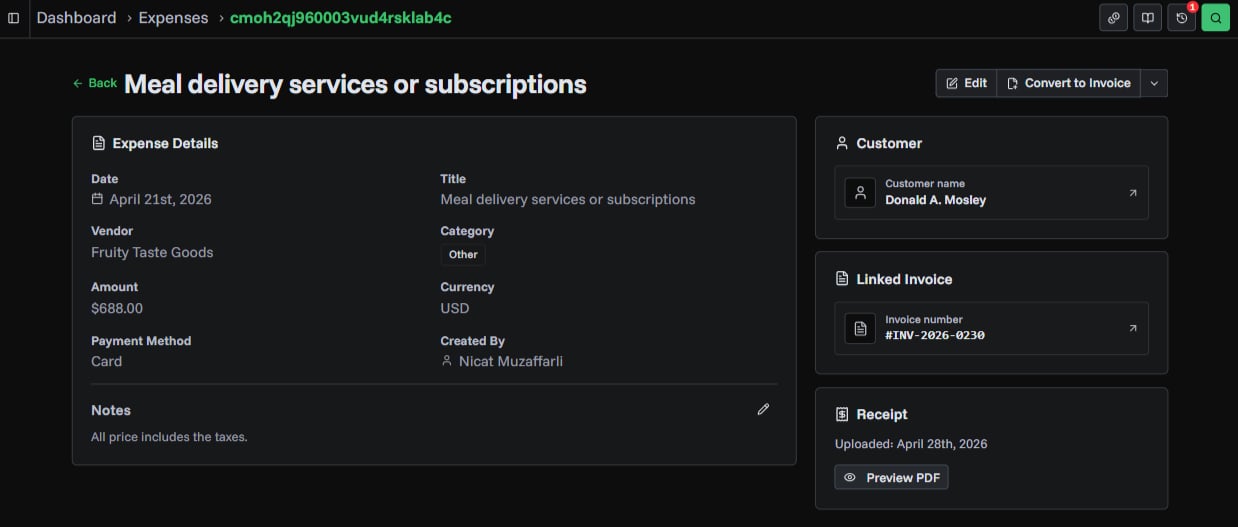
Click any expense row to open the expense detail page.
From the detail page you can:
- Review amount, currency, category, vendor, payment method, and creator
- See converted amount when the expense currency differs from your organization currency
- Edit the expense
- Edit notes directly
- View linked customer or linked invoice
- Preview image receipts or PDF receipts
- Convert the expense to an invoice draft
- Delete the expense if your role allows it
Converting Expenses to an Invoice
Use Convert to Invoice when you want to bill a customer for one or more expenses.
Convert One Expense
- Open the actions menu for an expense
- Click Convert to Invoice
- PineBill opens the invoice generator with that expense added as a line item
You can also open the expense detail page and click Convert to Invoice.
Convert Multiple Expenses
- Select expenses from the Expenses table
- Click Convert to Invoice
- PineBill opens the invoice generator with each selected expense as a line item
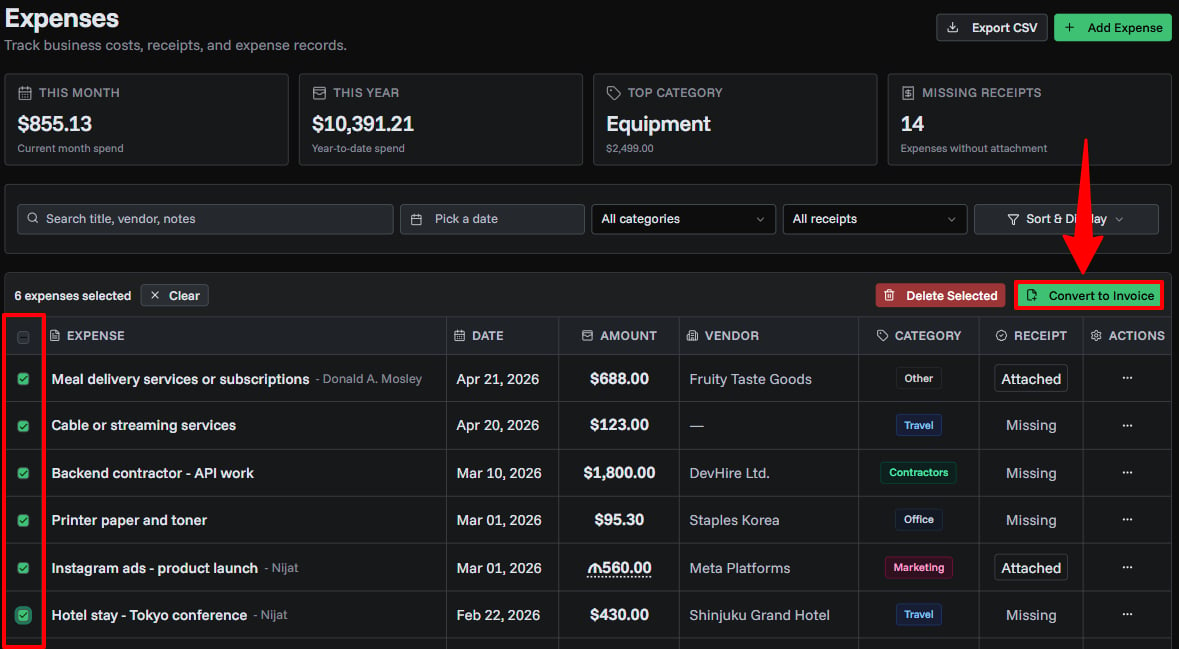
When expenses share the same customer, PineBill selects that customer in the invoice draft. If the expenses use a different currency than your organization currency, PineBill converts the line item amounts before adding them to the draft.
After you create the invoice, PineBill links the converted expenses to the new invoice.
Exporting Expenses
Click Export CSV to download the current filtered expense list.
The export includes:
- Date
- Title
- Vendor
- Category
- Amount and currency
- Converted amount and organization currency
- Payment method
- Customer
- Invoice number
- Notes
- Receipt file name
Use filters before exporting if you only need a specific period, category, or receipt status.
Deleting Expenses
You can delete one expense from its actions menu or detail page. Organization owners and admins can also select multiple expenses and delete them together.
Deleting an expense also removes its attached receipt. This cannot be undone.
Expense Analytics
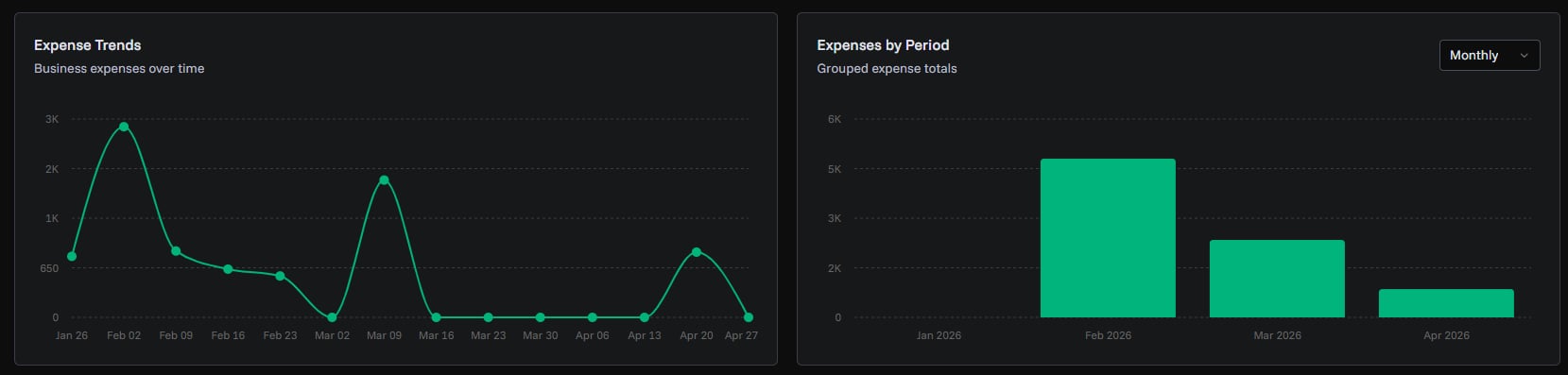
Expense totals are also available in Analytics. Use expense charts to review spending over time and compare grouped totals by day, week, month, quarter, or year.
Permissions
| Role | Can view | Can create | Can edit | Can delete | Can export |
|---|---|---|---|---|---|
| Owner/Admin | Yes | Yes | Any expense | Yes | Yes |
| Member | Yes | Yes | Own expenses | No | No |
Common Questions
Related Topics
- Creating Expenses - Add expense records and receipts
- Extract from Receipt - Scan receipts with AI
- Creating Invoices - Review and finish invoice drafts
- Customers - Add customers before linking expenses
- Analytics - Review expense charts