How to Create an Invoice with Claude (2026 Guide)
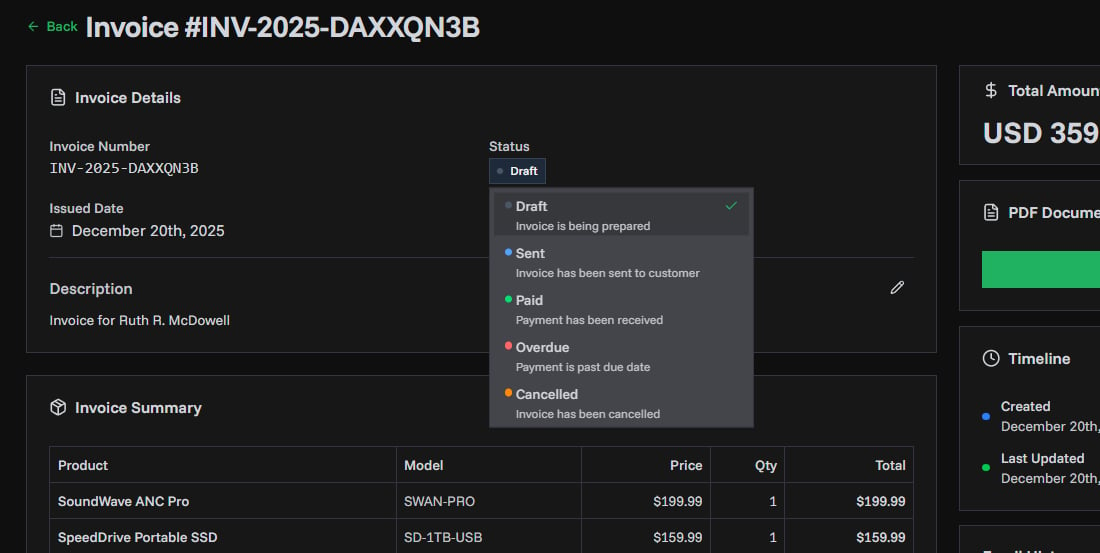
To create an invoice with Claude, connect PineBill from Claude's connectors directory, then describe the invoice in a chat. Type something like "Invoice Northwind for the October retainer, $2,400, due in 30 days" and Claude creates a real invoice in your PineBill account, shows you the line items and total, and can email it to your client or give you the PDF.
Setup takes about a minute and works on every Claude plan. This guide covers connecting, what to ask, how to review and send, and how to keep control of what Claude can do.
Why Connect Claude to Your Invoicing Software
Claude is good at turning a rough note into a clean request, but on its own it has nowhere to put an invoice. It can't number it, attach it to a customer, total it reliably, produce a branded PDF or send it.
Connecting Claude to PineBill fills that gap. The connection uses the Model Context Protocol (MCP), an open standard that lets Claude call PineBill's tools on your behalf: look up a customer, create an invoice, email it, check what's overdue. Everything Claude creates is a normal PineBill record that you can open and edit in your dashboard.
What You Need

- A PineBill account with your organization set up. Connected apps work on every plan. The sign-in page can't create an account, so sign up first if you're new.
- Claude on the web (claude.ai) or the Claude desktop app, on any plan.
Using PineBill through Claude doesn't spend PineBill AI credits, because Claude does the thinking.
Step 1: Connect PineBill to Claude
PineBill is listed in Claude's connectors directory, so there's no URL to copy.
Open PineBill in Claude's directory
Go to PineBill in Claude's connectors directory and click Connect. You can also search for PineBill under Customize → Connectors → Browse connectors.
Sign in and choose access
Sign in to your PineBill account. Turn on Allow edits so Claude can create and send invoices, then click Allow. Choose view-only instead if you only want Claude to read your data.
Turn PineBill on in a chat
Click + in the chat box, open Connectors, and make sure PineBill is on. Then ask something like "Show me my unpaid invoices" to check the connection.
Step 2: Ask Claude for the Invoice
Give Claude the same details you'd put on the invoice yourself: who it's for, what it's for, how much, and when it's due.
Create an invoice for Northwind for the October marketing retainer, $2,400, plus 3 hours of extra work at $85 an hour. Due in 30 days.
Claude finds Northwind in your PineBill customers, creates the invoice with both line items, and replies with the invoice number and total. A few habits make the first draft right more often:
- Name the customer as it appears in PineBill, or ask Claude to look them up first: "Find my customer called Northwind."
- Give quantity and rate, not just a total: "3 hours at $85" rather than "$255".
- Say the currency if you bill in more than one.
- Use your saved products. If "Monthly Retainer" is a product in PineBill, Claude can use its name and price.
New customer? Say so: "Add Lumen Studio as a customer, email billing@lumen.studio, then invoice them $1,200 for the logo project." Claude adds the customer first, then creates the invoice.
Step 3: Review and Edit in the Same Chat
Read Claude's summary before the invoice goes anywhere. Fixes are plain requests:
- "Change the extra work to 4 hours."
- "Move the due date to December 15."
- "Add a note: Thank you for your business."
- "Use our standard template instead."
Every change updates the same invoice in PineBill. If you'd rather finish by hand, open it in your dashboard.
Step 4: Send It or Download the PDF
To email the invoice, ask "Email it to Northwind." Claude asks for approval, then PineBill sends it to the customer's email on file.
To get the PDF, ask "Give me the PDF." Claude returns a private download link that expires after an hour. For a client, email the invoice or create a share link from its page in PineBill, since those keep working.
Beyond Invoices: Estimates and Follow-Ups
The same connection covers the rest of the quote-to-cash work:
- Estimates. "Create an estimate for Lumen Studio: brand guidelines, 20 hours at $95." Later: "Turn that estimate into an invoice and email it."
- Overdue invoices. "Which invoices are overdue, and who owes the most?" Claude reads PineBill's aging report and lists them by customer.
- Repeat billing. "Duplicate last month's Northwind invoice with November dates."
- Revenue questions. "How much did I invoice this quarter compared with last quarter?"
More examples are in our prompts for invoicing with ChatGPT and Claude.
Keep Control of What Claude Can Do
- Access level. View-only access lets Claude read invoices, customers and reports but change nothing. View and edit lets it create, update, send and delete.
- Per-tool permissions. In the connector's settings, set each PineBill tool to Always allow, Needs approval or Blocked. For example, allow reads freely and keep sending on approval.
- Your PineBill role. Claude acts as you, in the first organization you joined, and can only do what your role allows. Guests are always view-only.
- Disconnecting. Remove PineBill in Claude, or click Disconnect on the Connect MCPs page in PineBill. Access stops right away.
For Teams on Claude Team or Enterprise
An organization Owner adds PineBill once from Organization settings → Connectors. Each member then connects their own PineBill account from Customize → Connectors, so everyone works with their own permissions. The desktop app shares connectors with claude.ai, so there's nothing extra to set up there.
Key Takeaways
- Claude alone writes invoice text; Claude connected to PineBill creates invoices. The connection adds numbering, totals, PDFs and sending.
- One click from the directory. Connect PineBill from Claude's connectors directory and sign in once.
- Describe the invoice like a brief. Customer, items, quantity and rate, currency and due date.
- Approval stays with you. Claude asks before sending or deleting, and per-tool settings let you decide what runs without asking.
Using ChatGPT instead? See how to create an invoice with ChatGPT.
Sources
- Anthropic — Claude connectors directory: PineBill
- Model Context Protocol — Introduction
- PineBill Docs — Connect Claude
- PineBill Docs — Available MCP tools
Last updated: November 2026. Claude's menus may change; the PineBill docs carry the current setup steps.
Frequently Asked Questions
Can Claude create invoices?
Claude can write invoice text on its own, but it can't save, number or send an invoice. Connected to PineBill through Claude's connectors directory, Claude creates real invoices in your PineBill account with your numbering, template and currency, and can email them to your customer or give you the PDF.
Do I need a paid Claude plan?
No. PineBill is listed in Claude's connectors directory, and custom connectors work on every Claude plan; the Free plan allows one. On the PineBill side, connected apps work on every plan and don't use PineBill AI credits.
Does Claude ask before sending an invoice?
Yes. Claude asks before using a tool that changes data, such as sending an email or deleting a record. You can set each PineBill tool to Always allow, Needs approval or Blocked in the connector's settings. Keep approval on for sending and deleting, since neither can be undone.
Can my whole team use PineBill in Claude?
Yes. On Claude Team and Enterprise plans, an organization Owner adds the PineBill connector once, then each member connects their own PineBill account. Each person sees and changes only what their PineBill role allows.
Does it work in the Claude desktop app?
Yes. The Claude desktop app shares connectors with claude.ai, so once PineBill is connected on the web it is available in the desktop app too, and the other way round.