Bulk Import Customers
Import multiple customers at once using a CSV file.
Overview
You can import up to 5,000 customers at once by uploading a CSV file. The import wizard walks you through four steps: upload, column mapping, preview, and results.
Starting an Import
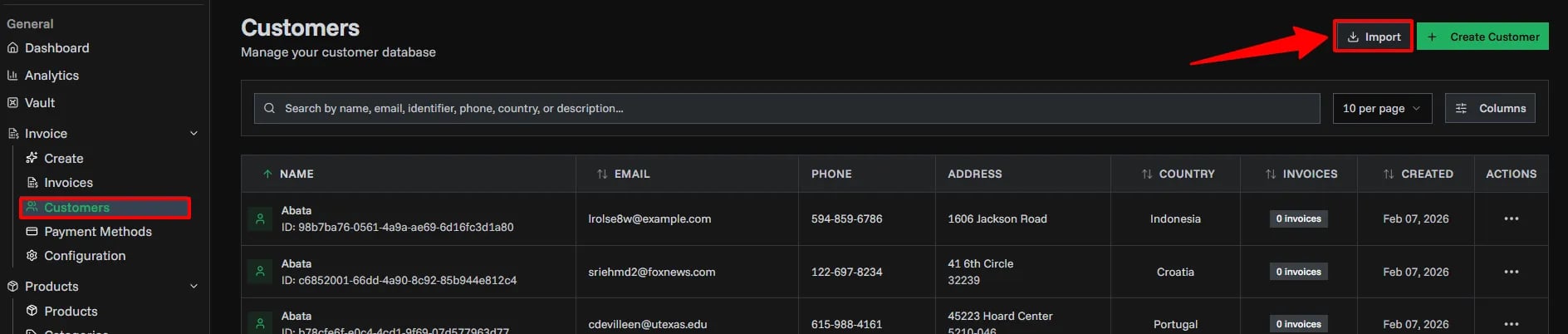
Navigate to Customers and click the Import button next to the Create Customer button.
Step 1: Upload CSV
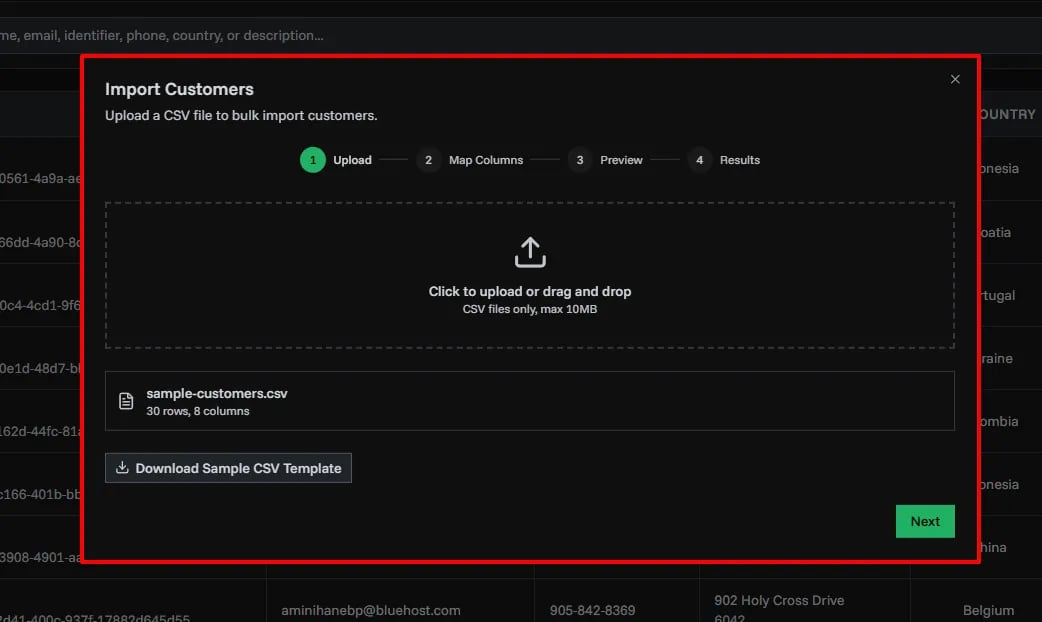
Upload your CSV file or download a template to get started.
- Click Download Template to get a pre-formatted CSV with the correct headers
- Drag and drop your CSV file or click to browse
- The file must be a valid
.csvfile with headers in the first row - Maximum 5,000 rows per import
CSV Template
The template includes these columns:
| Column | Required | Example |
|---|---|---|
| Name | Yes* | Acme Corp |
| Identifier | Yes* | CUST-001 |
| No | contact@acme.com | |
| Phone | No | +1-555-123-4567 |
| Address | No | 123 Main St |
| Zip Code | No | 10001 |
| Country | No | South Korea |
| Description | No | Enterprise client |
| Website | No | https://acme.com |
| Tax ID | No | US12-3456789 |
Sample CSV:
Name,Identifier,Email,Phone,Address,Zip Code,Country,Description,Website,Tax ID
Acme Corporation,ACME-001,contact@acme.com,+1-555-100-2000,123 Main St,10001,United States of America,Enterprise client,https://acme.com,US12-3456789
GlobalTech Solutions,GT-002,info@globaltech.io,+44-20-7946-0958,45 Oxford Street,W1D 2DZ,United Kingdom,Technology partner,https://globaltech.io,GB123456789
Berlin Design Studio,BDS-003,hello@berlindesign.de,+49-30-12345678,Friedrichstr. 100,10117,Germany,Creative agency,https://berlindesign.de,DE987654321
Step 2: Map Columns
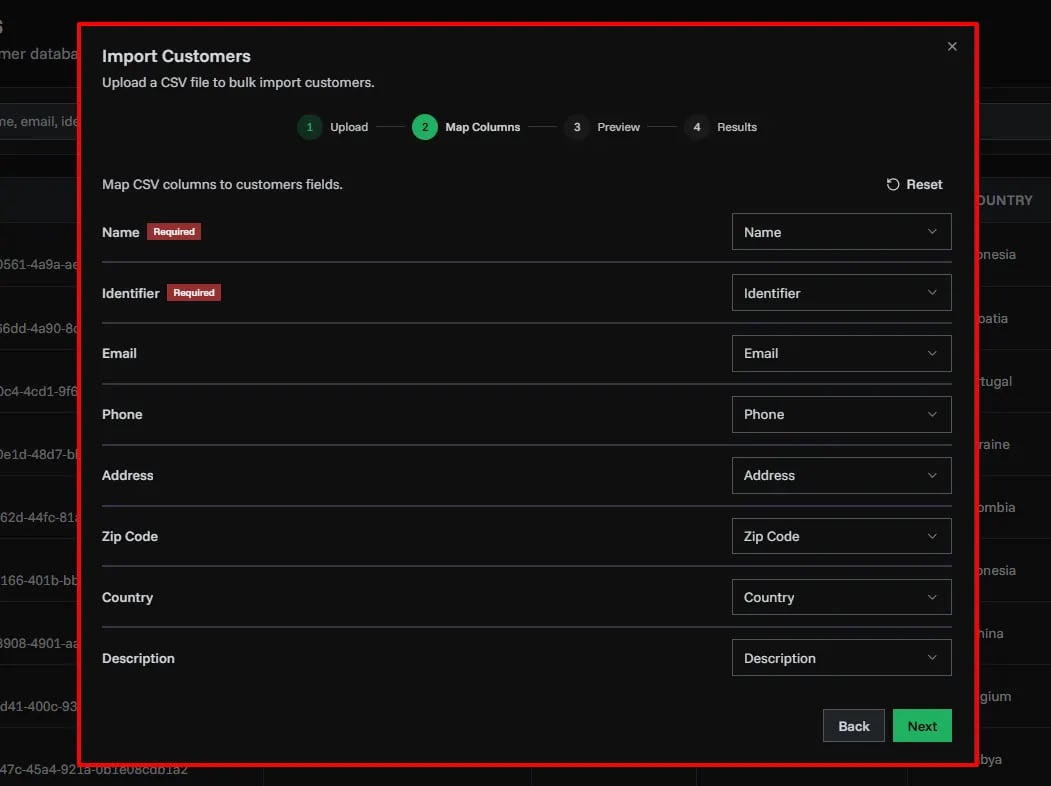
Map your CSV columns to customer fields. The wizard auto-detects common column names (e.g., "customer name", "customer id", "email address"), but you can adjust the mapping manually.
- Required fields (Name, Identifier) must be mapped before proceeding
- Unmapped optional fields will be skipped
- Click Reset to restore auto-detected mappings
Step 3: Preview
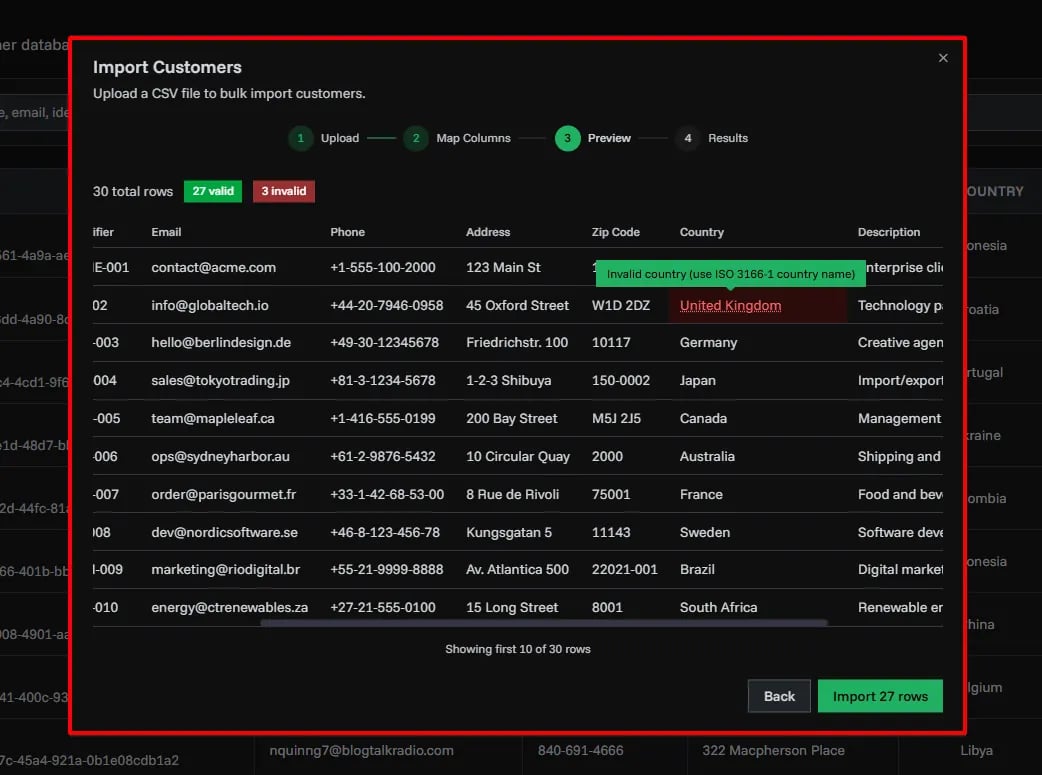
Review parsed data before importing. The preview shows:
- Total rows parsed
- Valid rows (will be imported)
- Invalid rows with specific error details per field
Only valid rows are imported. Fix any issues in your CSV and re-upload if needed.
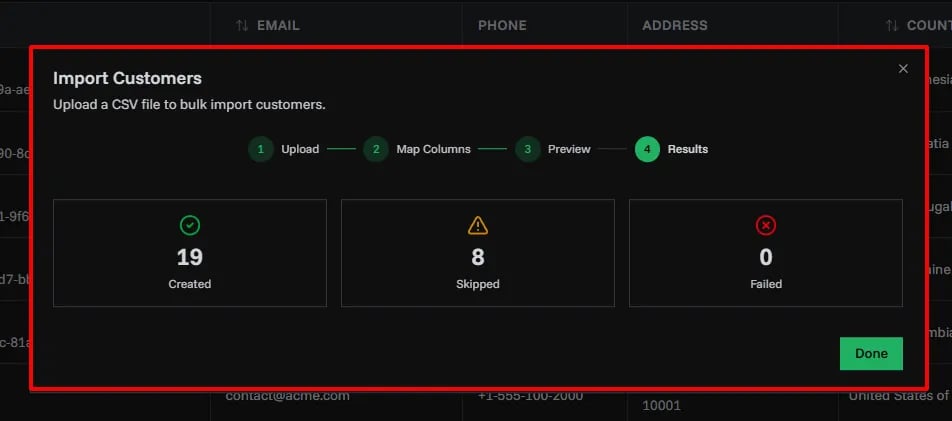
Step 4: Results
After clicking Import, the wizard processes your data in batches of 100 rows and shows a progress indicator. Once complete, you'll see:
- Number of customers created
- Number of rows skipped (duplicates or errors)
- Specific error messages for failed rows
Field Details
Identifier
Each customer must have a unique Identifier (e.g., tax number, account number). If an identifier already exists in your organization, that row will be skipped during import.
Country
Country values must match ISO 3166-1 country names (e.g., "United States of America", "Germany", "Japan"). Invalid country names will cause the row to fail validation.
Must be a valid email format. Empty values are accepted (the field is optional).
Website
Must be a valid URL (e.g., https://example.com). Empty values are accepted.
Tax ID
Customer's tax identification or VAT number (up to 50 characters). Any format is accepted. Empty values are accepted.
Related Topics
- Adding Customers - Add customers one by one
- Customer Details - View imported customer information
- Bulk Import Products - Import products via CSV