Customer Details Page
View comprehensive customer information, invoice history, and analytics in one place.
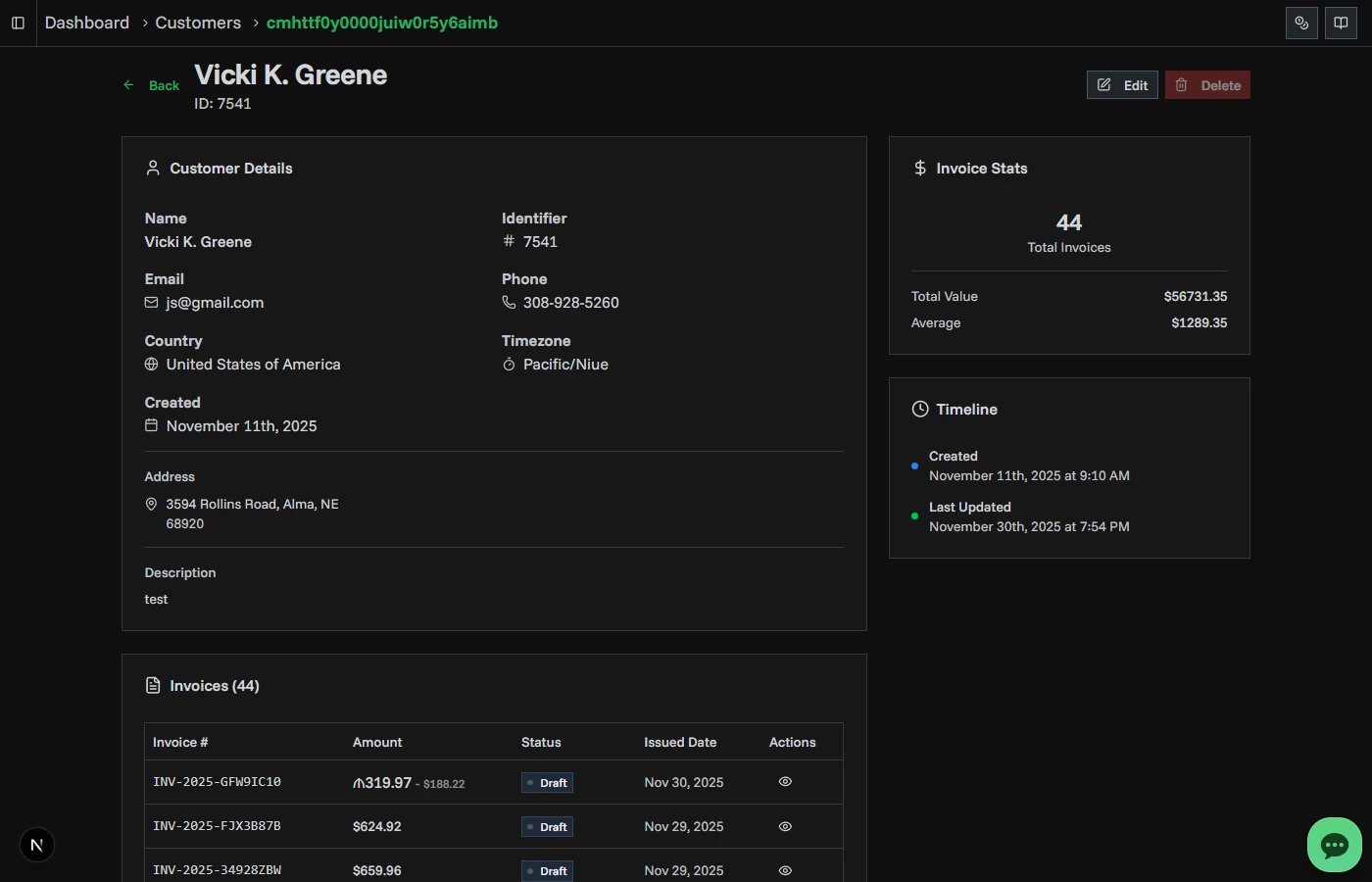
Customer Details
The customer details section displays all information about the customer. This information is organized into a grid layout showing key fields and contact information.
Customer Information Fields
| Field | Description | Display Notes |
|---|---|---|
| Name | Customer's full name or business name | Displayed in page header and details section |
| Identifier | Unique customer ID (e.g., tax number, internal code) | Shown with hash icon for easy identification |
| Customer's email address | Shown with mail icon, displays "—" if empty | |
| Phone | Customer's contact phone number | Shown with phone icon, displays "—" if empty |
| Country | Customer's country location | Only displayed if country is specified |
| Website | Customer's website URL | Displayed as a clickable link, only shown if set |
| Tax ID | Customer's tax ID or VAT number | Only displayed if tax ID is specified |
| Timezone | Customer's timezone in IANA format | Includes hover tooltip showing time offset |
| Created | Date when customer record was created | Formatted as readable date (e.g., "Jan 15, 2025") |
Address Information
If the customer has address information, it appears in a separate section below the main details:
- Address - Full street address (supports multi-line)
- ZIP Code - Postal or ZIP code
Address fields only display if at least one address field (address or zip code) is present.
Customer Invoices
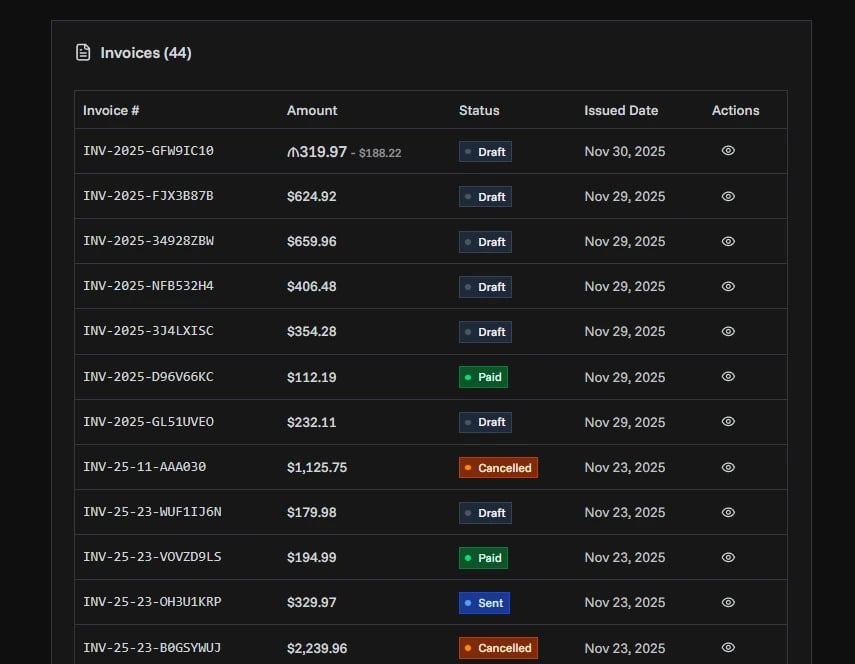
The invoices section shows all invoices associated with this customer in a comprehensive table view.
Invoice Table Columns
| Column | Information |
|---|---|
| Invoice # | Unique invoice number in monospace font for easy identification |
| Amount | Total invoice amount with currency code |
| Status | Current invoice status displayed as a colored badge |
| Issued Date | Date when the invoice was created (e.g., "Dec 1, 2024") |
| Actions | Eye icon button to view full invoice details |
Viewing Invoices
Click the eye icon in the Actions column to navigate to the full invoice details page for that specific invoice.
When No Invoices Exist
If the customer doesn't have any invoices yet, you'll see a placeholder message:
- File icon
- "No invoices" heading
- Message explaining the customer has no invoices
This is common for newly created customers.
Invoice Statistics (Right Sidebar)
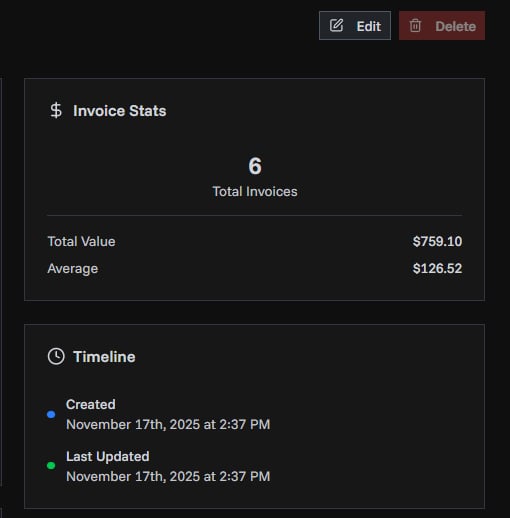
The Invoice Stats card provides quick metrics about the customer's invoice activity.
Displayed Metrics
Total Invoices: Shows the count of all invoices for this customer. The number is displayed prominently in large text.
Total Value: (shown when invoices exist) Sum of all invoice amounts for this customer, converted to your organization's default currency using current exchange rates. If the customer has invoices in multiple currencies (e.g., EUR, GBP, USD), they are all converted and totaled in your organization's currency.
Average Invoice: (shown when invoices exist) Average invoice amount calculated by dividing total value by invoice count. This is calculated in your organization's default currency after currency conversion. Helps understand typical transaction size for this customer.
Understanding the Stats
- Stats update automatically when invoices are created or deleted
- All amounts are calculated in real-time from actual invoice data
- Currency conversion uses current exchange rates to ensure accurate totals
- These metrics help identify your highest-value customers across all currencies
Deleting Customers
The delete button permanently removes the customer record from your organization.
Before You Delete
Important considerations:
- Deletion is permanent and cannot be undone
- You cannot delete customers who have existing invoices
- Only organization owners can delete customers
- All customer data will be permanently removed
If the customer has invoices, the delete button will be disabled with a tooltip explaining the restriction.
Related Topics
- Adding New Customers - Creating customer records
- Editing Customers - Updating customer information
- Invoice Details - Understanding invoice information