Online Invoice Payments
Clients can pay invoices by card through Stripe or with PayPal, and PineBill marks them paid
|2 min read|
PT
PineBill Team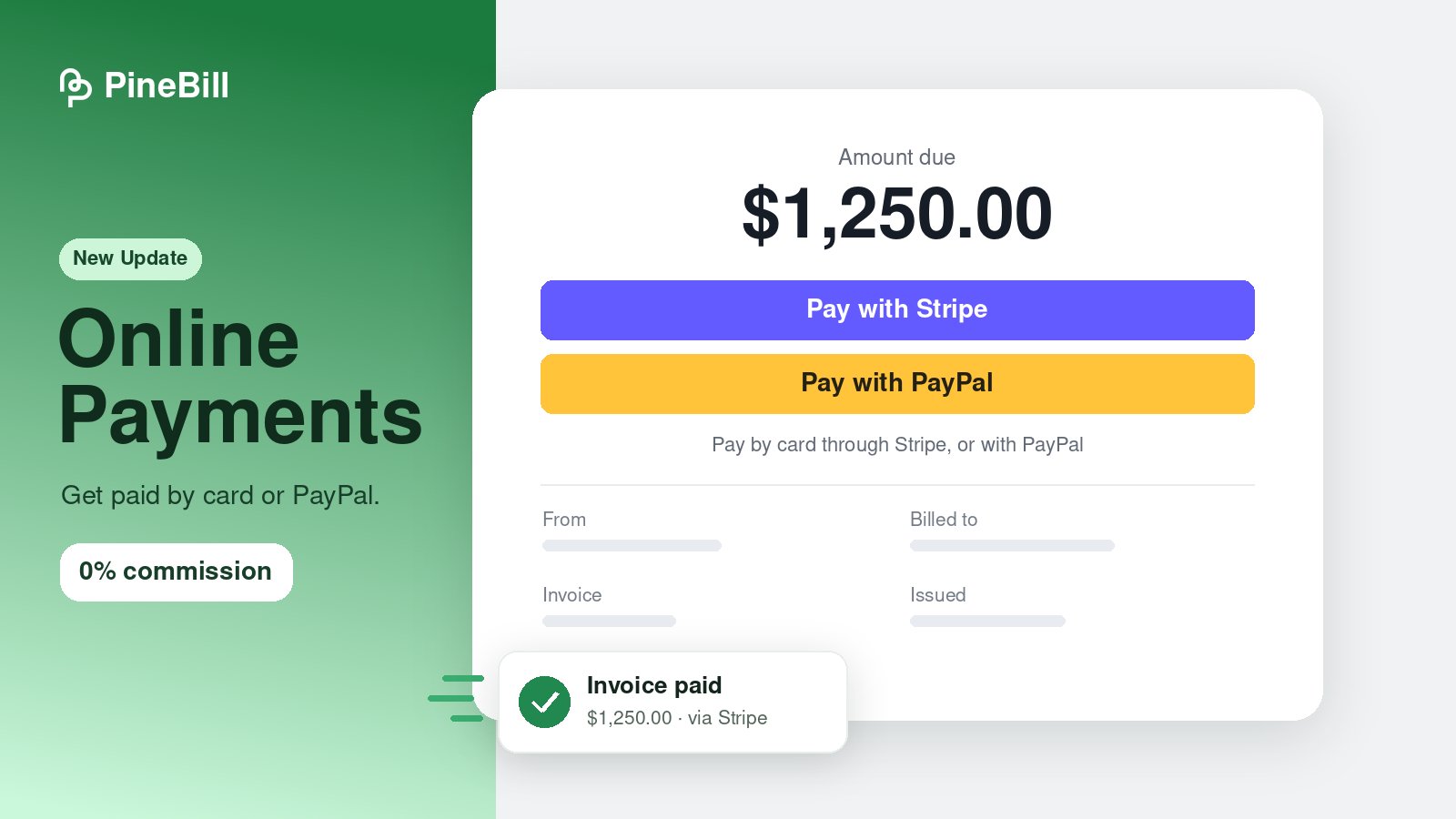
Clients can now pay an invoice straight from its share link. Connect your own Stripe account or your PayPal Business email, and a Pay with Stripe or Pay with PayPal button appears on every invoice that accepts online payments. The money goes directly to your account. PineBill takes no fee.
What's New
- Stripe and PayPal — connect either or both under Payment methods → Online payments. Stripe connects with a restricted key that can only create checkouts and webhooks; PayPal needs only your Business email
- Paid automatically — when a payment lands, the invoice is marked paid, its reminders stop, and your team gets an "Invoice paid" notification by email, in the app, and in Slack
- Partial payments — the invoice link shows what's left to pay, and reminders ask for the balance instead of the full total
- Refunds stay in sync — refund a Stripe payment and the invoice reopens with the balance due again
- Per-invoice switch — turn online payments on or off for each invoice in the editor; it's on by default once a provider is connected
- Paid invoices stay paid — an invoice paid in full online keeps its Paid status until the payment is refunded
- Payment details — each invoice lists its payments with the provider, date, payer, and a link to the payment in Stripe or PayPal
- Ask the AI — the assistant can tell you whether, when and how an invoice was paid
invoicespaymentsstripepaypal