File Vault
Secure file storage, organization, and sharing capabilities in PineBill.
Quick Start
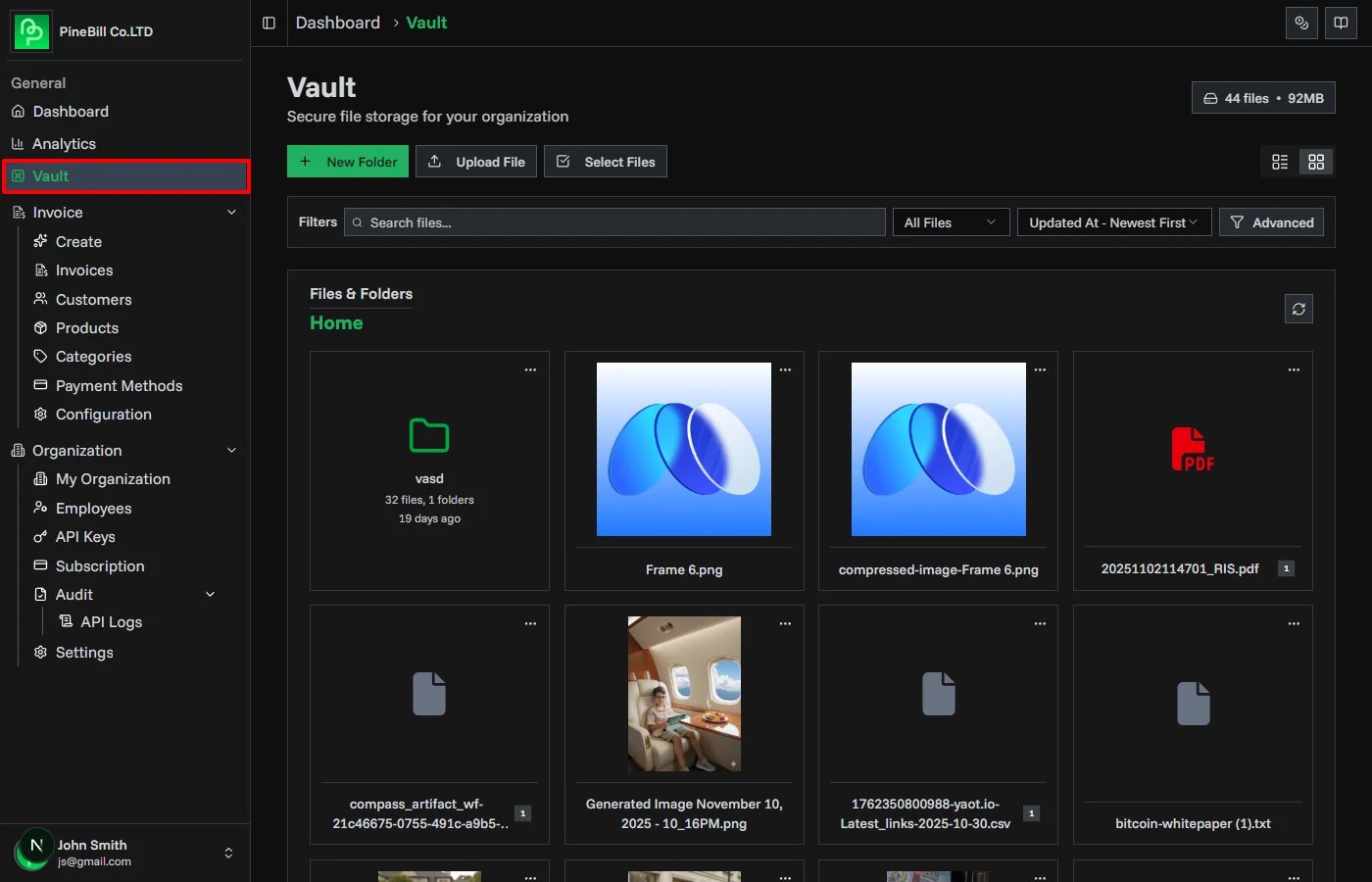
File Vault provides secure cloud storage for your business documents, invoices, contracts, and files. Upload, organize, and share files with your team and clients at Dashboard → File Vault.
What is File Vault?
File Vault is PineBill's secure file management system that allows you to:
- Upload Files: Store documents, images, PDFs, spreadsheets, and more
- Organize: Create folders and subfolders for easy organization
- Share Securely: Generate secure sharing links with passwords and expiration
- Access Control: Team members can access shared organization files
Storage Limits by Plan
| Plan | Storage Capacity | Max File Size | File Retention |
|---|---|---|---|
| Trial | 100 MB | 10 MB | Permanent |
| Solo | 10 GB | 10 MB | Permanent |
| Pro | 150 GB | 100 MB | Permanent |
| Enterprise | 1 TB | 500 MB | Permanent |
Need more storage? Upgrade your plan for increased capacity and larger file uploads.
Uploading Files
1. Access File Vault
- Navigate to File Vault
- Click Upload Files button
- Upload dialog opens
2. Select Files
- Drag and drop files into the upload area
- Or click Browse to select files from your device
- Multiple files can be uploaded at once
Supported file types:
| Category | File Types |
|---|---|
| Documents | PDF, DOC, DOCX, TXT, MD |
| Spreadsheets | XLS, XLSX, CSV |
| Presentations | PPT, PPTX |
| Images | JPG, PNG, WEBP, GIF |
| Archives | ZIP |
| Data | JSON, XML |
4. Upload
- Click Upload button
- Files are encrypted and uploaded securely
- Progress bar shows upload status
- Files appear in your vault when complete
Uploads are limited by your plan's max file size. Files exceeding the limit will be rejected.
File Management
Viewing Files
Files are displayed in a grid or list view with:
- Thumbnail: Visual preview (for images and PDFs)
- Name: File name and type
- Size: File size in KB/MB/GB
- Uploaded: Date and uploader
- Folder: Current location
File Actions
Click on any file to access actions:
- Download: Download file to your device
- Share: Generate secure sharing link
- Delete: Remove file from vault
Searching Files
Use the search bar to find files quickly:
- Search by name: Type file name
- Filter by type: PDF, Images, Documents, Spreadsheets
- Filter by date: Upload date range
- Filter by uploader: Who uploaded the file
- Filter by folder: Files in specific folders
Storage Usage

Monitor your storage usage:
- Check the storage indicator at the top of File Vault
- View breakdown by file type
- See largest files consuming storage
- Access from Subscription Dashboard
When approaching limit:
- Yellow warning at 80% usage
- Red alert at 95% usage
- Uploads blocked at 100% capacity
Solutions:
- Delete unused files
- Remove old temporary files
- Upgrade to higher plan tier
File Permissions
Organization Files
All files uploaded to the vault are organization-owned:
- Admins: Full access (upload, download, delete, share)
- Members: Upload, download, and share files
Related Topics
- Organizing Files - Folders and file organization
- Sharing Files - Secure file sharing with links
- Security - How we keep your files safe
- Subscription Plans - Storage limits by plan