Slack Notifications
Connect Slack and route PineBill notification events to channels.
Overview
Connect a Slack workspace to PineBill and send notification events to the channels you choose. Each event is routed independently, so you can send invoice activity to one channel and estimate activity to another.
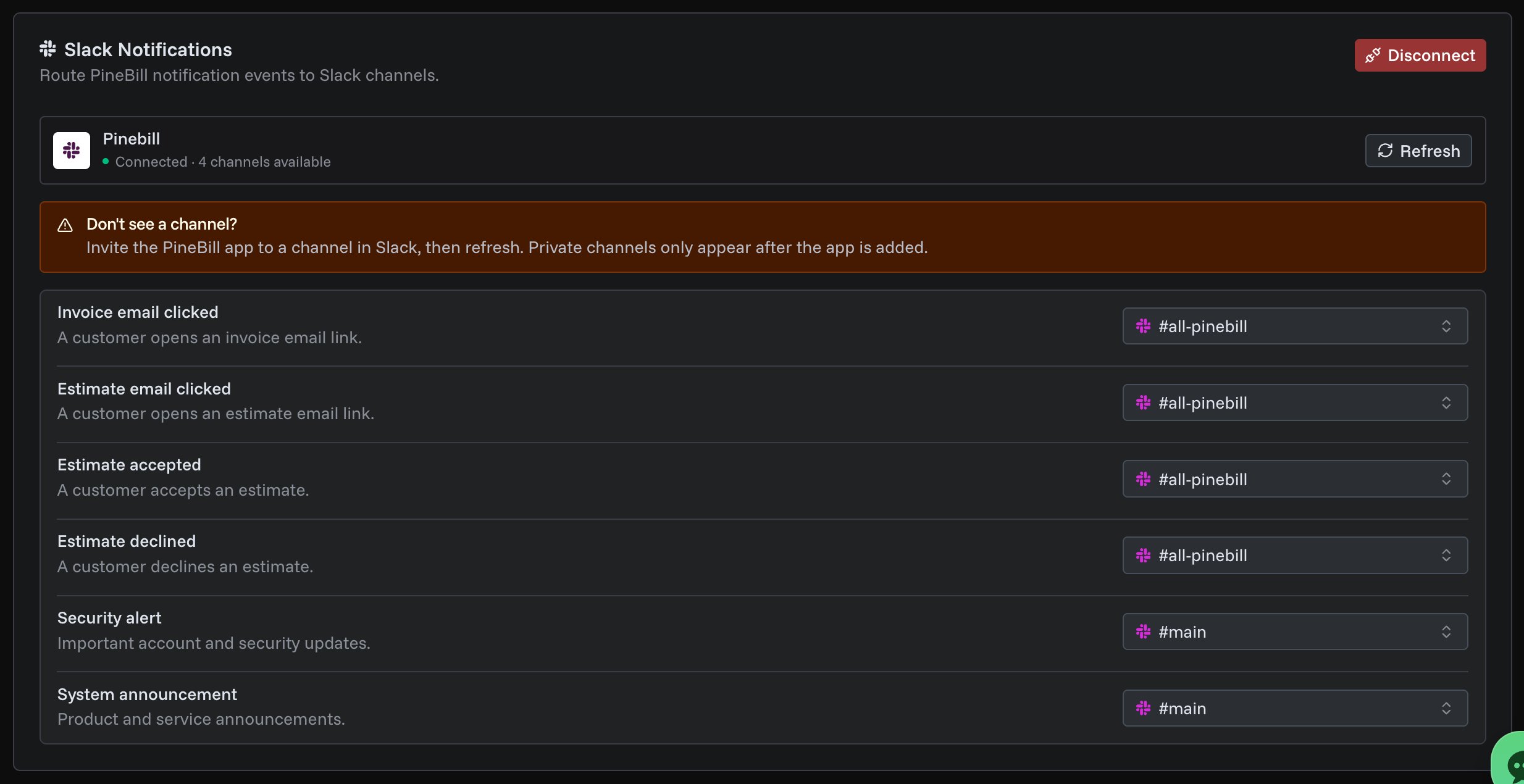
Only the organization owner can connect, configure, or disconnect Slack.
Connect Slack
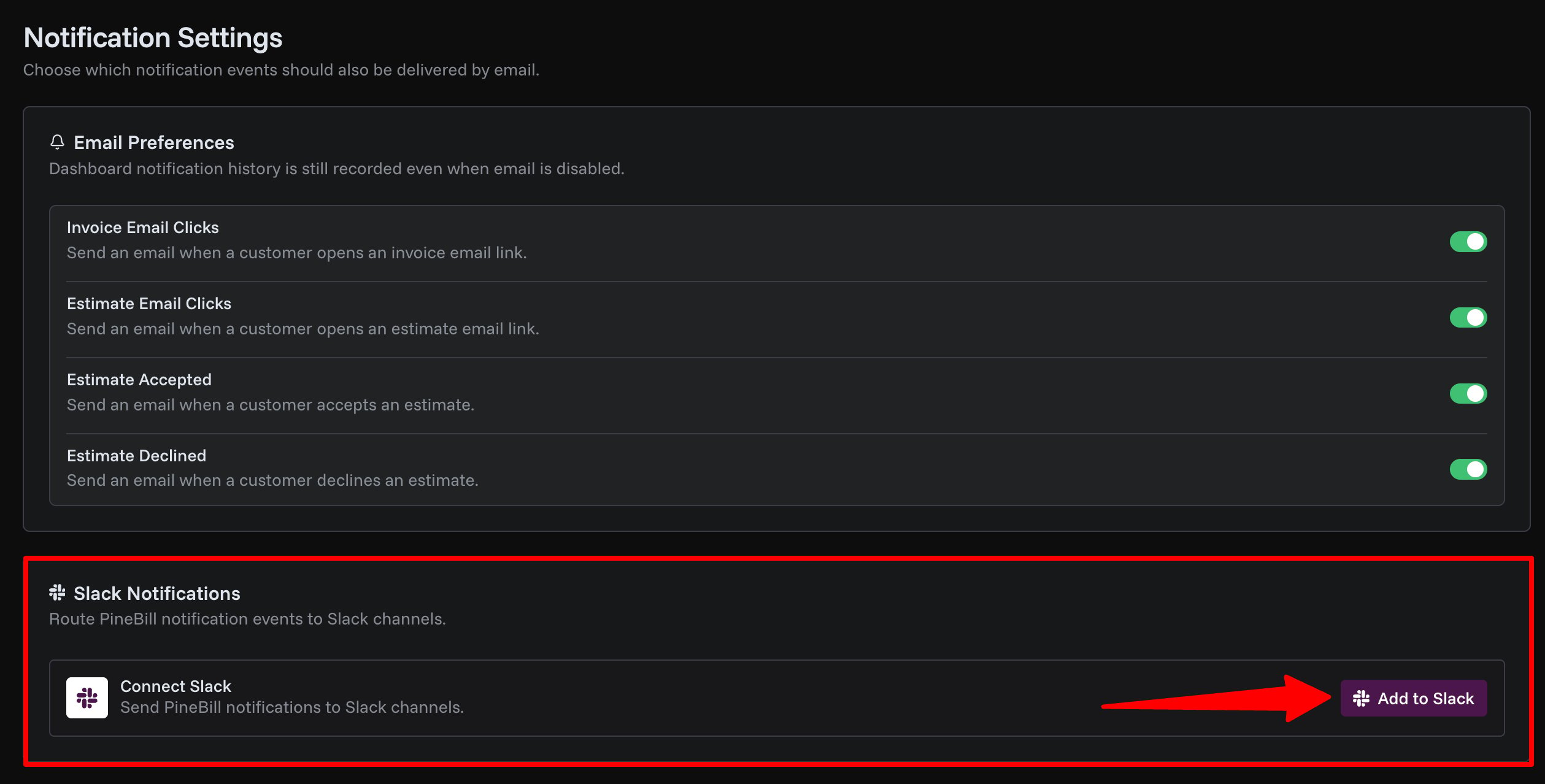
- Go to Dashboard → Setup → Notifications.
- In the Slack Notifications card, click Add to Slack.
- Approve the requested permissions in Slack and pick the workspace to install into.
- You're redirected back to PineBill with the workspace connected.
Route Events to Channels
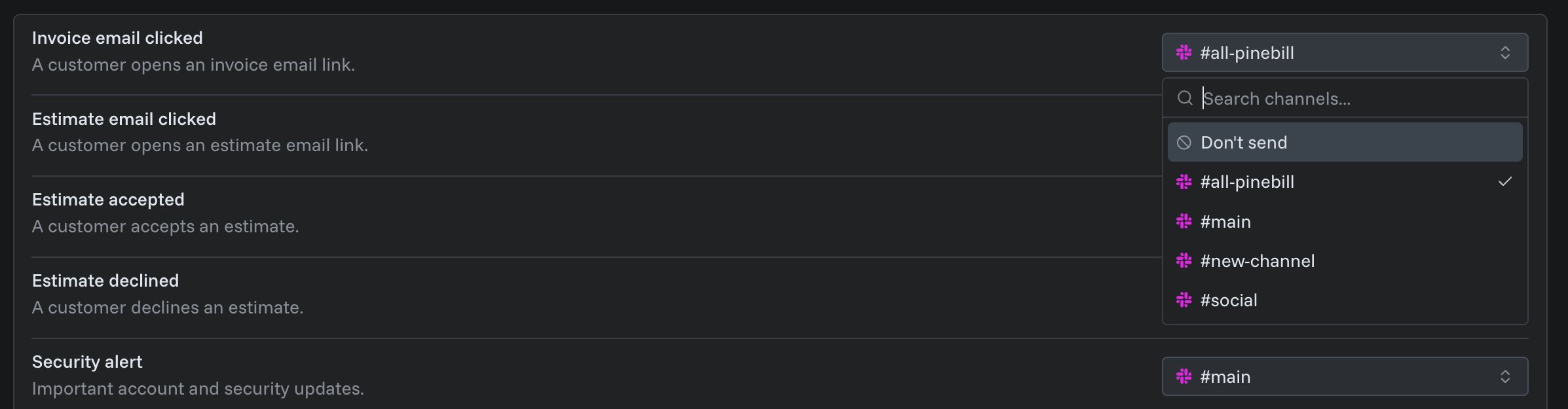
Once connected, each notification event shows a channel selector. Pick a channel to start sending that event, or choose Don't send to leave it off.
| Event | Sent when |
|---|---|
| Invoice email clicked | A customer opens an invoice email link |
| Estimate email clicked | A customer opens an estimate email link |
| Estimate accepted | A customer accepts an estimate |
| Estimate declined | A customer declines an estimate |
| Security alert | Important account and security updates |
| System announcement | Product and service announcements |
Don't See a Channel?
- Public channels appear automatically — no invite needed.
- Private channels appear only after you invite the PineBill app to them.
To add the app to a private channel, open it in Slack and type /invite @PineBill, then click Refresh in the Slack Notifications card to reload the channel list.
If a channel you've routed events to is later archived or deleted in Slack, that event automatically resets to Don't send. Pick a new channel to resume delivery.
Disconnect Slack
Click Disconnect in the Slack Notifications card to stop sending notifications to Slack. This revokes PineBill's access to your workspace.
Your channel mappings are saved. If you reconnect the same workspace, your previous routing is restored.