File Vault
Organizing Files
Create and manage folders to keep your files organized in PineBill File Vault.
Quick Start
Organize your files with folders and subfolders for easy access and management. Create a structured filing system that matches your business needs.
Creating Folders
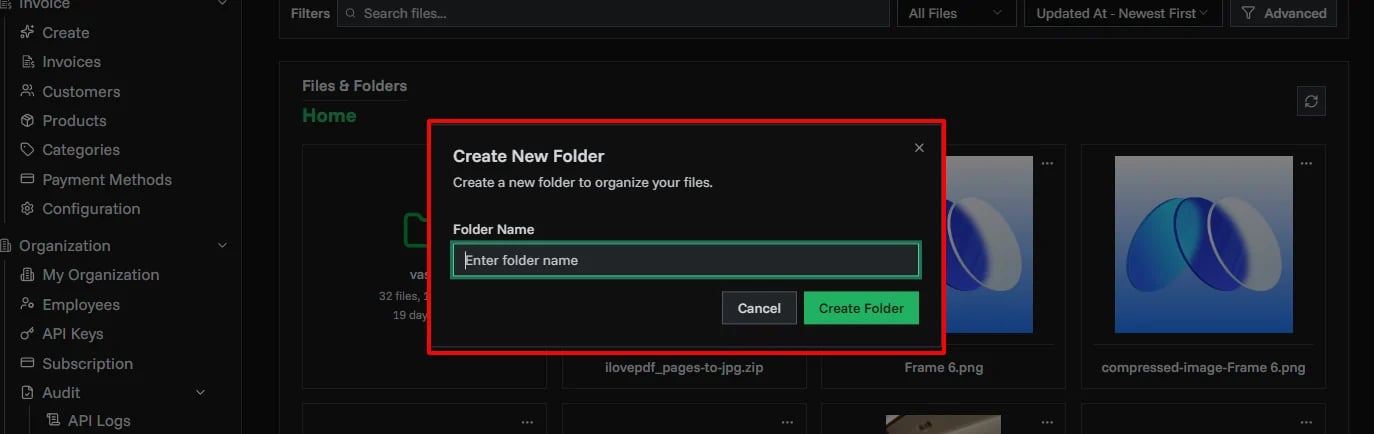
1. Open Create Folder Dialog
- Navigate to File Vault
- Click New Folder button
- Folder creation dialog opens
2. Name Your Folder
- Enter a descriptive folder name
- Use clear, searchable names
- Maximum 255 characters
Avoid:
- Special characters:
/ \ : * ? " < > | - Very long names that get truncated
3. Select Location
- Root: Create at top level
- Inside Folder: Select parent folder for subfolders
4. Create
- Click Create Folder
- Folder appears in your vault immediately
- Upload files or create subfolders inside
Deleting Folders
Delete Empty Folder
- Navigate to folder
- Click folder options menu
- Select Delete Folder
- Confirm deletion
Delete Folder with Contents
Warning: Deleting a folder deletes all files and subfolders inside.
- Click folder options menu
- Select Delete Folder
- Review contents count
- Type folder name to confirm
- Click Delete Permanently
Recovery:
Deleted folders and files cannot be recovered. Ensure you have backups if needed.
Folder Navigation
Breadcrumb Navigation
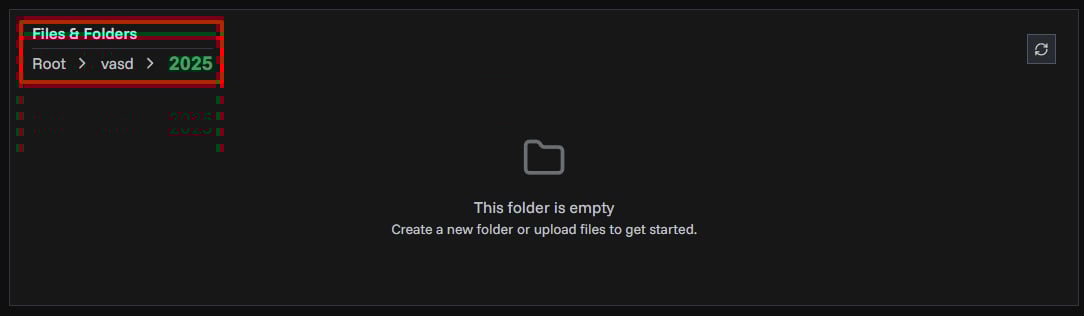
Use breadcrumbs at the top to:
- See current location path
- Jump to parent folders
- Return to root quickly
Example: Home > Clients > Acme Corp > Invoices
Quick Actions
- Back Button: Return to previous folder
- Search: Find files across all folders
- Filter by Folder: Show files only from specific folders
Folder Structure
Hierarchical Organization
Create nested folder structures:
Best Practices
By Category:
By Date:
By Client/Project:
Related Topics
- File Vault - Main vault features and uploading
- Sharing Files - Share files and folders securely
- Security - File security and encryption