File Vault
Sharing Files
Generate secure sharing links with password protection and expiration for your files.
Quick Start
Share files securely with clients and external parties using time-limited, password-protected sharing links. Control access and track views.
Permissions: Admins and Members can create sharing links. Guests cannot share files externally.
Creating Sharing Links
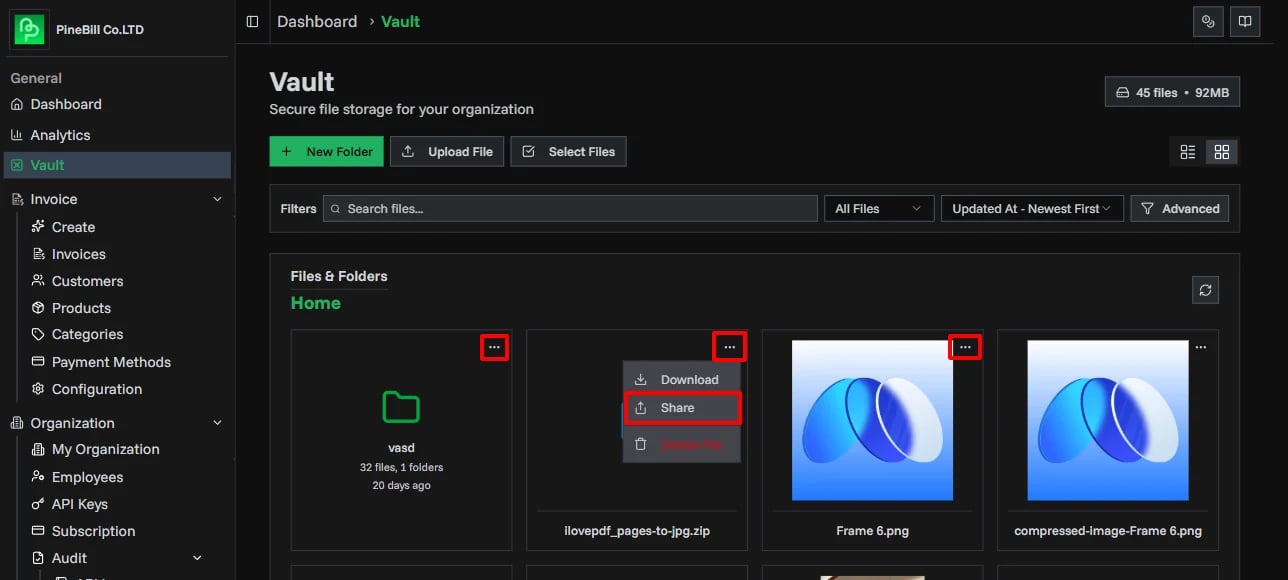
1. Select File to Share
- Navigate to File Vault
- Find the file you want to share
- Click file menu (three dots)
- Select Share
2. Configure Share Settings
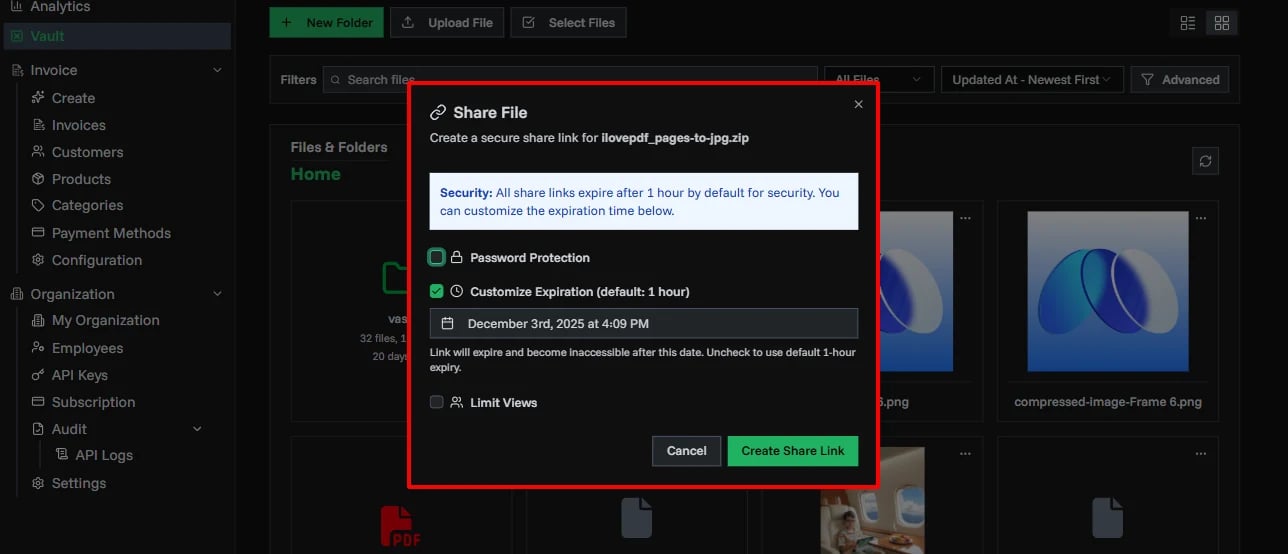
Link Expiration:
- No expiration (link works forever)
- 1 hour, 1 day and 7 days
- Custom date and time
View Limit:
- Unlimited views
- Maximum views (1, 5, 10, 25, 50, 100)
- Link expires after reaching limit
Password Protection:
- No password (anyone with link can access)
- Set password (recipients must enter password to view)
3. Generate and Copy Link
- Click Generate Share Link
- Secure link is created instantly
- Copy link to clipboard
- Share via email, chat, or any method
Link format:
https://pinebill.app/share/abc123xyz789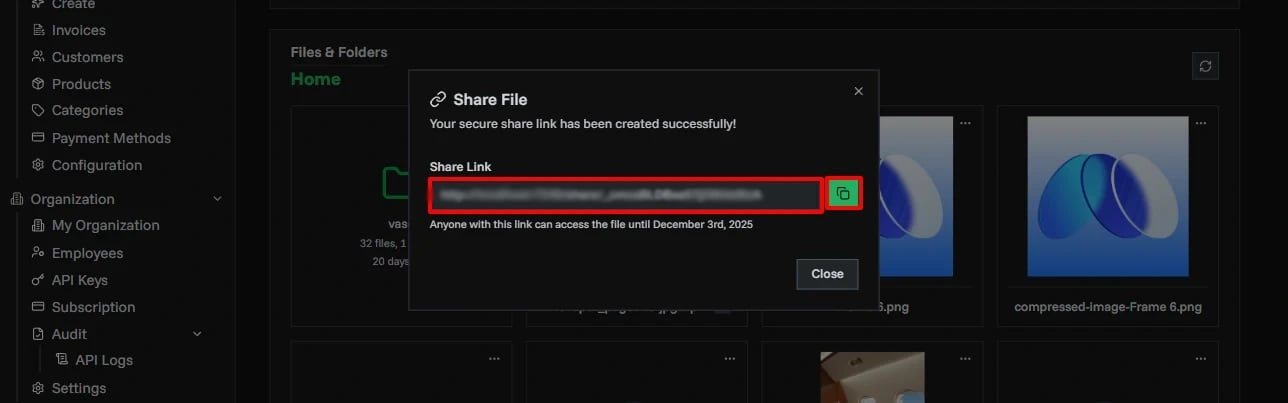
4. Share with Recipients
- Send link to intended recipients
- Include password separately (if set)
- Inform about expiration time
- Provide access instructions
Managing Share Links
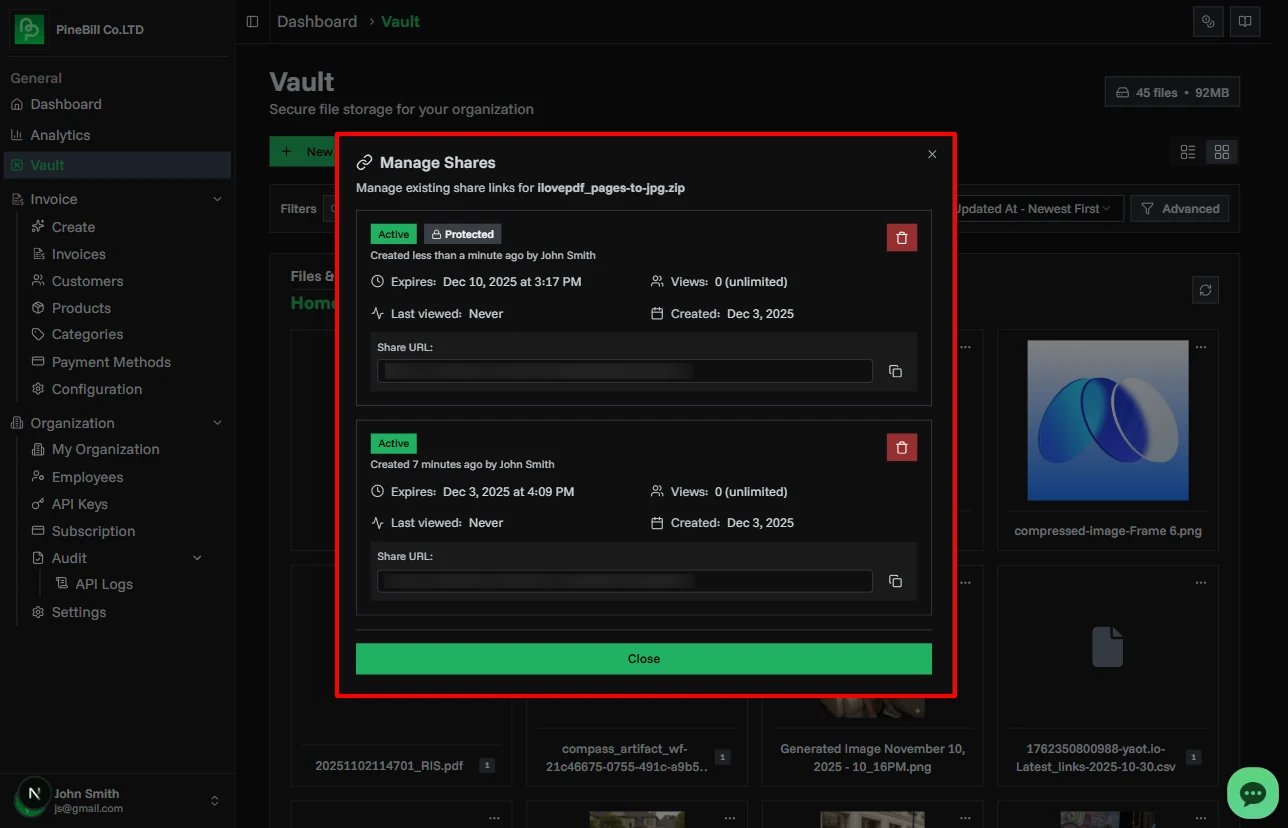
Active Shares Dashboard
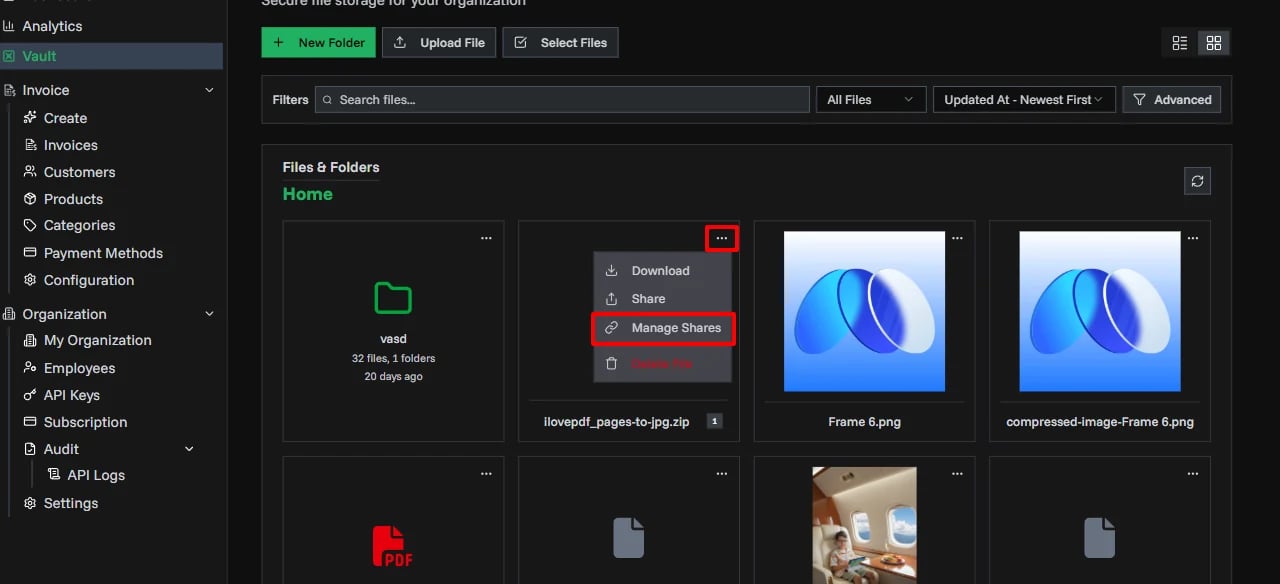
View all active sharing links:
- Go to File Vault
- Click Shares tab
- See all active shares
Information shown:
- File name and size
- Share link (masked)
- Expiration date
- View count (current/maximum)
- Created date and creator
- Last accessed timestamp
Revoking Share Links
Immediately disable access:
- Find share link in Shares dashboard
- Click Revoke or Delete
- Confirm revocation
- Link stops working instantly
When to revoke:
- File was shared by mistake
- Recipient no longer needs access
- Security concern or breach suspected
- File has been updated (create new share)
Security Best Practices
When Sharing Sensitive Files
Use Password Protection:
- Always protect confidential files
- Use strong, unique passwords
- Share password separately
Set Short Expiration:
- Don't use "no expiration" for sensitive files
- 1-7 days for most cases
- 1 hour for highly sensitive documents
Limit Views:
- Set view count if you know exact recipients
- Prevents unlimited distribution
- Revoke after confirmed access
Share Link Security
What makes links secure:
- Unique random tokens (impossible to guess)
- HTTPS encryption in transit
- Server-side access control
- Automatic expiration
- Revocable at any time
What recipients can do:
- View file in browser
- Download file (if enabled)
- Cannot see other vault files
- Cannot modify original file
What recipients cannot do:
- Access your vault
- View your organization
- Share the file further (no re-sharing)
- See file metadata or history
Limitations
File Size
Recipients can download files up to your plan's max file size:
- Shared files respect plan limits
- Large files may take time to download
- Consider compressing large files first
Deleted Files
Sharing links for deleted files stop working:
- Restore file from trash to reactivate
- Or create new share link after restoration
Troubleshooting
Related Topics
- File Vault - Main vault features
- Security - How file sharing is secured
- Organizing Files - File organization tips