Managing Recurring Invoices
View, filter, pause, resume, and monitor your recurring invoices in PineBill.
List View
Access your recurring invoices from Recurring Invoices → List in the sidebar.
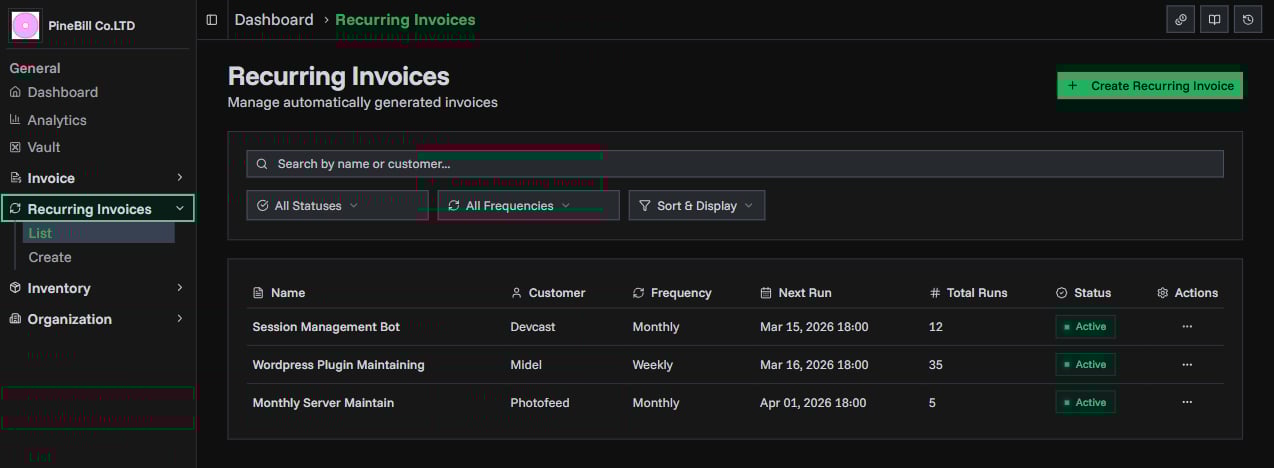
The list displays all recurring invoices with the following columns:
| Column | Description |
|---|---|
| Name | The recurring invoice name |
| Customer | Assigned customer name |
| Frequency | How often invoices are generated |
| Next Run | When the next invoice will be generated (shown for Active only) |
| Total Runs | Number of invoices generated so far |
| Status | Current lifecycle status |
| Actions | Context menu with available operations |
Click any row to open the detail page.
Search
Use the search bar to find recurring invoices by name or customer name. Search is case-insensitive with a 300ms debounce.
Filters
Filter the list using the dropdowns:
- Status: All Statuses, Active, Paused, Completed, Cancelled
- Frequency: All Frequencies, Weekly, Biweekly, Monthly, Quarterly, Semi-annually, Annually
Active filters appear as chips below the filter bar with individual clear buttons and a "Clear all" option.
Sort & Display
Open the Sort & Display popover to configure:
| Option | Choices |
|---|---|
| Sort By | Name, Next Run, Total Runs, Status, Created Date |
| Sort Order | Ascending, Descending |
| Results Per Page | 5, 10, 25, 50 |
On mobile, all filters collapse into a bottom sheet triggered by the "Filters & Sort" button.
Detail Page
Click a recurring invoice to view its full details.
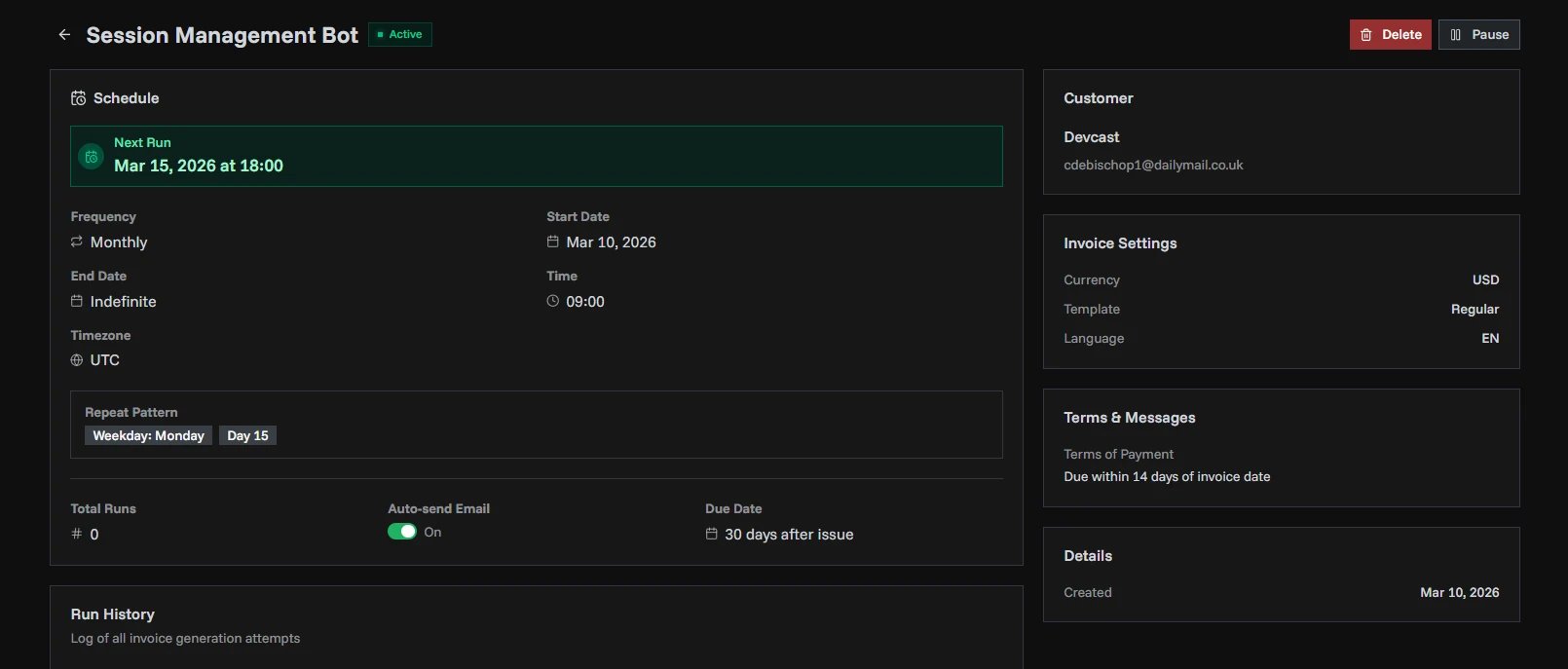
The detail page has two columns:
Main Content (Left)
- Schedule Card: Next run date (highlighted), frequency, start/end dates, time, timezone, repeat pattern badges, run stats, and auto-send toggle.
- Run History: Paginated table of all runs with columns for scheduled time, status, generated invoice link, email sent, and error details.
- Invoice Items: Product table with subtotal, shipping, discount, tax, and total.
Sidebar (Right)
- Customer: Name and email
- Assigned Employee: Name and employee ID (if assigned)
- Invoice Settings: Currency, currency format, template, language, tax, discount, shipping
- Terms & Messages: Payment terms and end message (if set)
- Details: Created date and last run timestamp
Pausing and Resuming
Pause
To temporarily stop a recurring invoice from generating invoices:
- From the list view: Click the three-dot menu on an Active recurring invoice → Pause
- From the detail page: Click the Pause button in the header
The status changes to Paused and no further invoices are generated until resumed.
Resume
To reactivate a paused recurring invoice:
- From the list view: Click the three-dot menu on a Paused recurring invoice → Resume
- From the detail page: Click the Resume button in the header
The status changes back to Active. If the next scheduled run was in the past, it is automatically advanced to the next valid future time.
Only Active invoices can be paused, and only Paused invoices can be resumed. Completed and Cancelled invoices cannot be reactivated.
Editing Recurring Invoices
You can update any field on a recurring invoice that is in Active or Paused status. Changes to schedule parameters (frequency, anchor days, time, timezone) automatically recalculate the next run date.
Recurring invoices in Completed or Cancelled status cannot be edited.
Deleting Recurring Invoices
To delete a recurring invoice:
- From the list view: Click the three-dot menu → Delete
- From the detail page: Click the Delete button
A confirmation dialog appears before deletion. Deleting a recurring invoice permanently removes it along with all run history. Previously generated invoices are not affected.
Run History
Each time a recurring invoice executes, a run record is created with one of three statuses:
| Status | Badge Color | Description |
|---|---|---|
| Success | Green | Invoice was generated successfully. Links to the generated invoice. |
| Failed | Red | An error occurred. Check the error message for details. |
| Skipped | Amber | The run was skipped due to a schedule conflict or validation issue. |
Run history is available on the detail page and shows:
- Scheduled For: When the run was supposed to execute
- Status: Success, Failed, or Skipped
- Invoice: Link to the generated invoice (Success runs only)
- Email Sent: Whether the invoice was emailed
- Error: Error message (Failed runs only)
Statistics
The recurring invoices list page shows summary statistics at the top:
| Stat | Description |
|---|---|
| Active | Number of currently active recurring invoices |
| Paused | Number of paused recurring invoices |
| Completed | Number of completed recurring invoices |
| Runs This Month | Total runs executed in the current month |
Related Topics
- Creating Recurring Invoices — Set up new automated billing
- Recurring Invoices Overview — Feature overview and lifecycle
- Invoice List — Managing one-time invoices