Recurring Invoices
Introduction
Automate your billing with scheduled, repeating invoices in PineBill.
Overview
Recurring invoices let you automate repetitive billing. Define a schedule, assign a customer and products, and PineBill generates and optionally emails invoices on your behalf — weekly, monthly, quarterly, or at any frequency you choose.
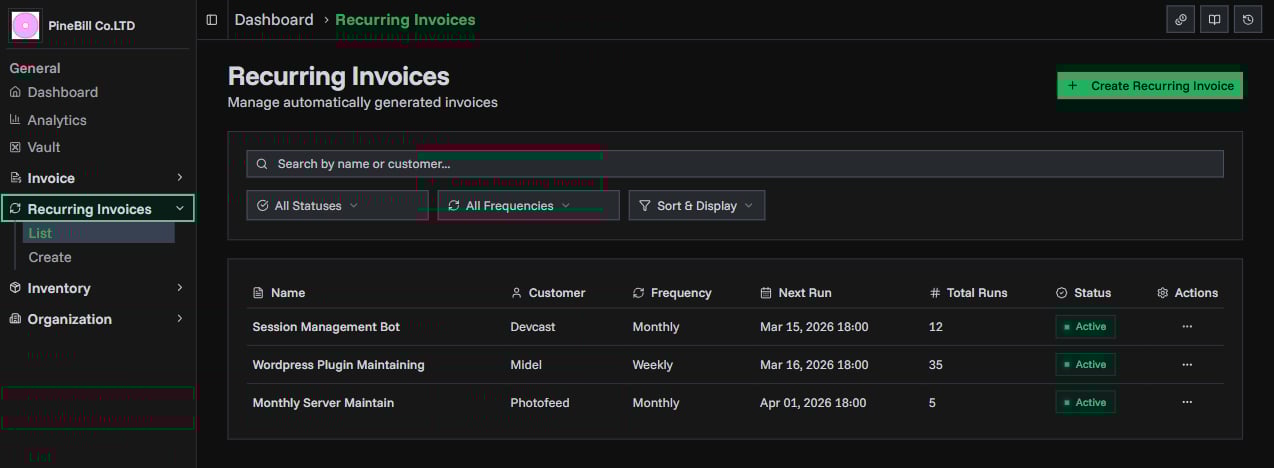
Key Features
| Feature | Description |
|---|---|
| Flexible Scheduling | Weekly, biweekly, monthly, quarterly, or yearly with multi-day anchors |
| Auto-Send Email | Automatically email generated invoices to one or more recipients |
| Run History | Full audit trail of every generated invoice with status and timing |
| Pause & Resume | Temporarily halt a schedule without losing configuration |
| Duration Controls | Run indefinitely, until a specific date, or for a set number of invoices |
| Employee Assignment | Link recurring invoices to employees for performance tracking |
Lifecycle
Recurring invoices follow a simple status lifecycle:
ACTIVE → PAUSED → ACTIVE (resume)
ACTIVE → COMPLETED (max runs or end date reached)
ACTIVE → CANCELLED
PAUSED → CANCELLED| Status | Description |
|---|---|
| Active | Running on schedule. Invoices are generated at each scheduled time. |
| Paused | Temporarily stopped. No invoices are generated until resumed. |
| Completed | Finished — reached the end date or maximum number of runs. Terminal state. |
| Cancelled | Manually cancelled. Terminal state. |
Completed and Cancelled are terminal states. Once a recurring invoice reaches either status, it cannot be reactivated.
Run Statuses
Each time a recurring invoice executes, a run record is created:
| Run Status | Meaning |
|---|---|
| Success | Invoice was generated (and emailed if auto-send is on) |
| Failed | Something went wrong — check the error message in run history |
| Skipped | The run was skipped (e.g., schedule conflict or validation issue) |