Estimates List
Learn how to view, search, sort, and filter your estimates efficiently in PineBill.
Estimates List and Filtering
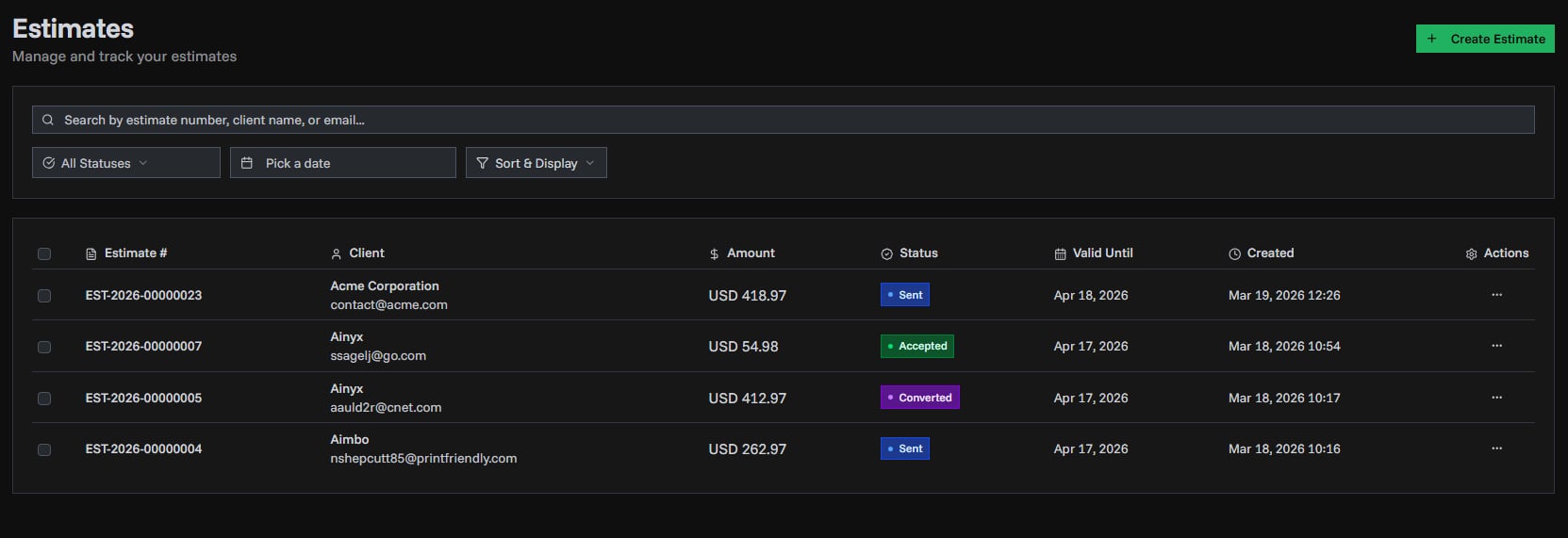
Access all your estimates from the Estimates page with powerful search and filtering capabilities.
List View Features
Table Columns
| Column | Description |
|---|---|
| Checkbox | Select estimate for bulk actions (owners only) |
| Estimate # | Unique estimate identifier |
| Customer Name | Name of the customer |
| Amount | Total amount with currency |
| Status | Current status (color-coded pill) |
| Issue Date | When estimate was created |
| Valid Until | Expiration date for the estimate |
| Assigned To | Employee assignment (if applicable) |
| Actions | Quick actions (view, edit, change status, delete) |
Sorting Options
| Feature | Description |
|---|---|
| Column Sort | Click any column header to sort |
| Sort Direction | Toggle between ascending/descending |
| Default Sort | Newest first (by creation date) |
Pagination Controls
| Option | Description |
|---|---|
| Items per Page | 10, 25, 50, or 100 estimates per page |
| Navigation | Previous/Next buttons |
| Page Jump | Jump to specific page number |
Search and Filtering
Find estimates quickly with powerful filters:
Search Bar
| Search Type | Description |
|---|---|
| Estimate Number | Search by unique estimate ID |
| Customer Name | Search by customer name |
| Customer Email | Search by customer email address |
| Description | Search in estimate description |
| Real-time Search | Results update as you type |
Status Filter
| Feature | Options |
|---|---|
| Available Statuses | Draft, Sent, Accepted, Declined, Expired, Converted |
| Selection Type | Multi-select to show multiple statuses |
| Filter Display | Active filters shown as removable chips |
Date Range Filter
| Filter Type | Options |
|---|---|
| Range Type | Filter by issued date range |
| Quick Presets | Last 7 days, Last 30 days, Last 90 days, This Year |
| Custom Range | Custom date range picker |
Active Filters Management
| Feature | Description |
|---|---|
| Display | Shown as chips above the table |
| Remove Filter | Click X on any chip to remove |
| Clear All | Reset all filters at once |

Bulk Actions
Select multiple estimates to perform batch operations, saving time when managing large numbers of estimates.
Selecting Estimates
| Feature | Description |
|---|---|
| Checkbox Column | Click the checkbox next to any estimate to select it |
| Select All | Use the header checkbox to select all estimates on the current page |
| Indeterminate State | Header checkbox shows a minus icon when some (but not all) are selected |
| Selection Count | Shows how many estimates are currently selected |
Available Bulk Actions
When you have estimates selected, a bulk actions bar appears with the following options:
| Action | Description |
|---|---|
| Change Status | Update the status of all selected estimates at once |
| Delete Selected | Remove all selected estimates (with confirmation) |
| Clear Selection | Deselect all estimates |
Bulk Status Change
Change the status of multiple estimates simultaneously:
- Select the estimates you want to update
- Click Change Status in the bulk actions bar
- Choose the new status from the dropdown
- Confirm the change in the dialog
Estimates with CONVERTED status cannot be changed via bulk status update.
Bulk Delete
Remove multiple estimates at once:
- Select the estimates you want to delete
- Click Delete Selected
- Review the confirmation dialog showing the number of estimates to be deleted
- Confirm to permanently remove the selected estimates
Bulk delete is permanent and cannot be undone. All associated data including PDFs will be removed.
Tips for Efficient Search
Use the search bar for quick lookups by customer or estimate number. Combine multiple filters to narrow down results when managing large estimate lists.
- Combine multiple filters for precise results
- Use status filters to focus on actionable estimates (e.g., Accepted, ready for conversion)
- Save time with date presets for common reports
- Use bulk actions to update multiple estimates at once
- Clear all filters to start fresh