Organization
View organization details and manage team members.
Quick Start
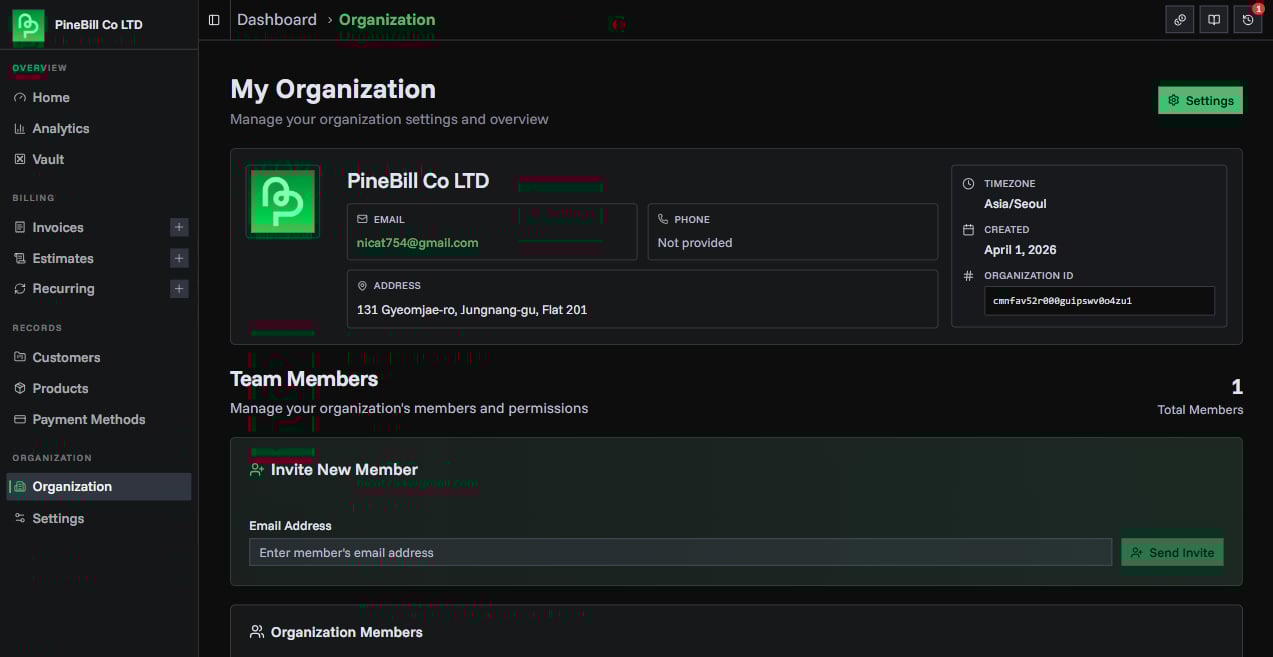
The Organization page is the overview screen for your workspace. It shows your company profile, key metadata, and team members, and it includes a direct path to Company Settings.
Company Information
The top card displays your company details:
Company Logo
- Displays uploaded company logo (if set)
- 96x96px preview
- Falls back to company initials if no logo is uploaded
- Updated from Organization Settings
Company Details
| Field | Description |
|---|---|
| Company Name | Your business name |
| Company email address (clickable mailto link) | |
| Phone | Company phone number (clickable tel link) |
| Address | Full business address (multi-line) |
| Timezone | Organization timezone in IANA format |
| Created | Date when organization was created |
| Organization ID | Unique ID shown in a code block |
Organization ID
- Unique identifier for your organization
- Used for API integrations and support
- Displayed directly on the overview card
Team Members
Team member management appears below company information.
Note: Solo plan users do not see the team management section. Member management is available on supported multi-user plans.
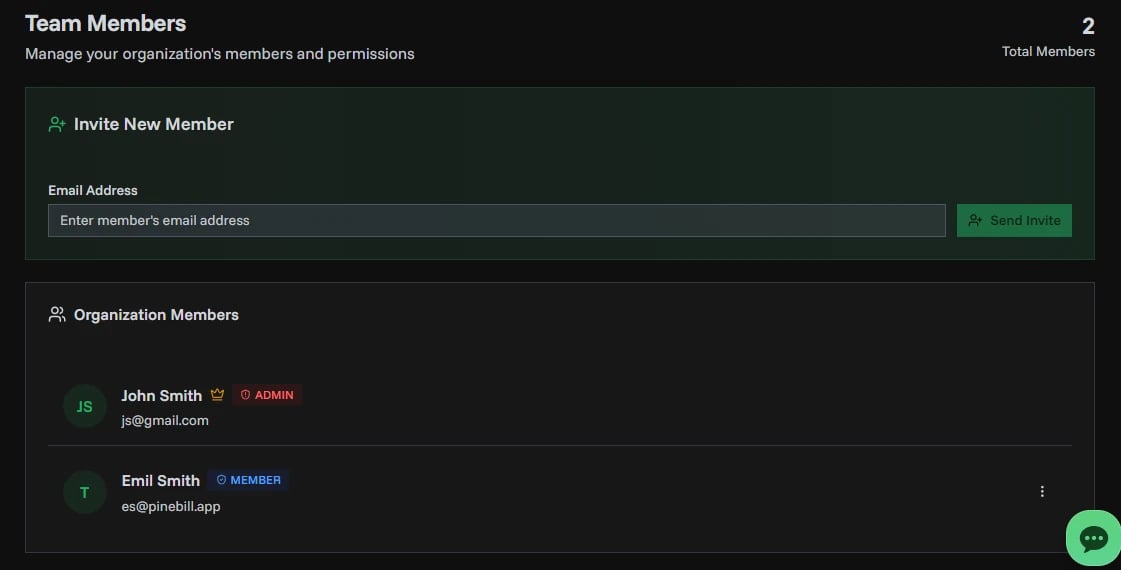
Member List
Table showing all organization members:
| Column | Information |
|---|---|
| Name | Member's display name |
| Member's email address | |
| Role | ADMIN, MEMBER, or GUEST |
| Status | Active or Pending invitation |
| Joined | Date when member joined |
| Actions | Edit role, resend invite, or remove member |
Member Roles
| Role | Permissions |
|---|---|
| ADMIN | Full access. Can manage organization, members, and all data |
| MEMBER | Can create and manage invoices, customers, products |
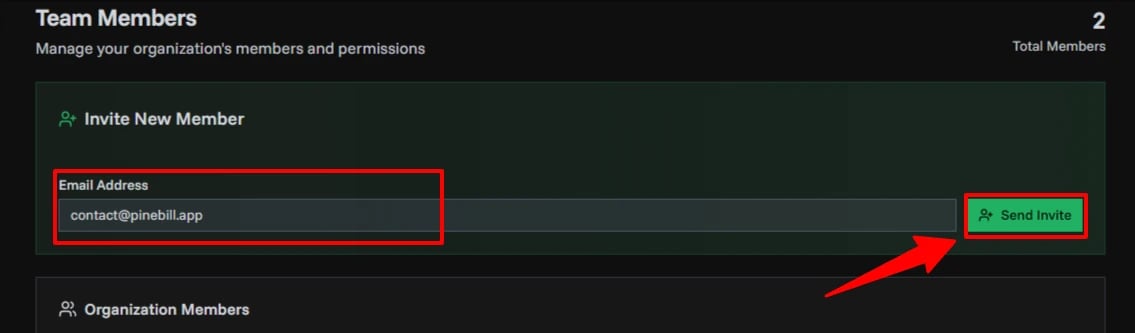
Inviting Members
- Enter email address
- Select role (ADMIN, MEMBER, or GUEST)
- Click Send Invitation
- Invitation email sent to the address
- Member appears in list with "Pending" status
Invitation expires: Invitations expire after 7 days.
Managing Members
Resend Invitation:
- For pending members only
- Click resend icon
- New invitation email sent
Remove Member:
- Click delete icon
- Confirm deletion
- Member immediately loses access
- Cannot remove yourself
- Organization owner cannot be removed
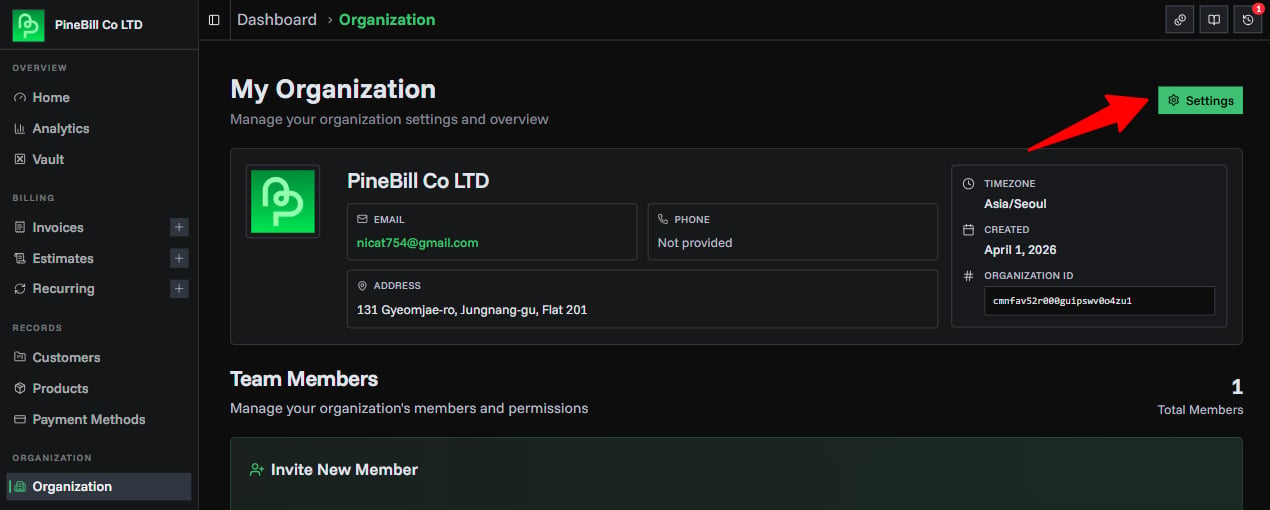
Settings Button
Click the Settings button in the top-right corner to open Organization Settings, where owners can edit company information, upload a logo, review billing, and access destructive organization actions.
You can also reach the same page from the central Settings hub under Company Settings.
Related Topics
- Organization Settings - Edit company details
- Set Up Your Organization - Complete onboarding and configure your workspace
- Subscription Plans - Upgrade to add team members