API Keys
Manage and utilize API keys for secure access to PineBill's RESTful API.
Quick Start
API keys provide secure authentication for programmatic access to PineBill. Manage them from Settings → API Access and Activity → API Keys.
Plan Requirements: API keys are available on Pro and Enterprise plans. Trial accounts get 2 keys for testing with 50 API calls/month.
Creating API Keys
1. Access API Keys Dashboard
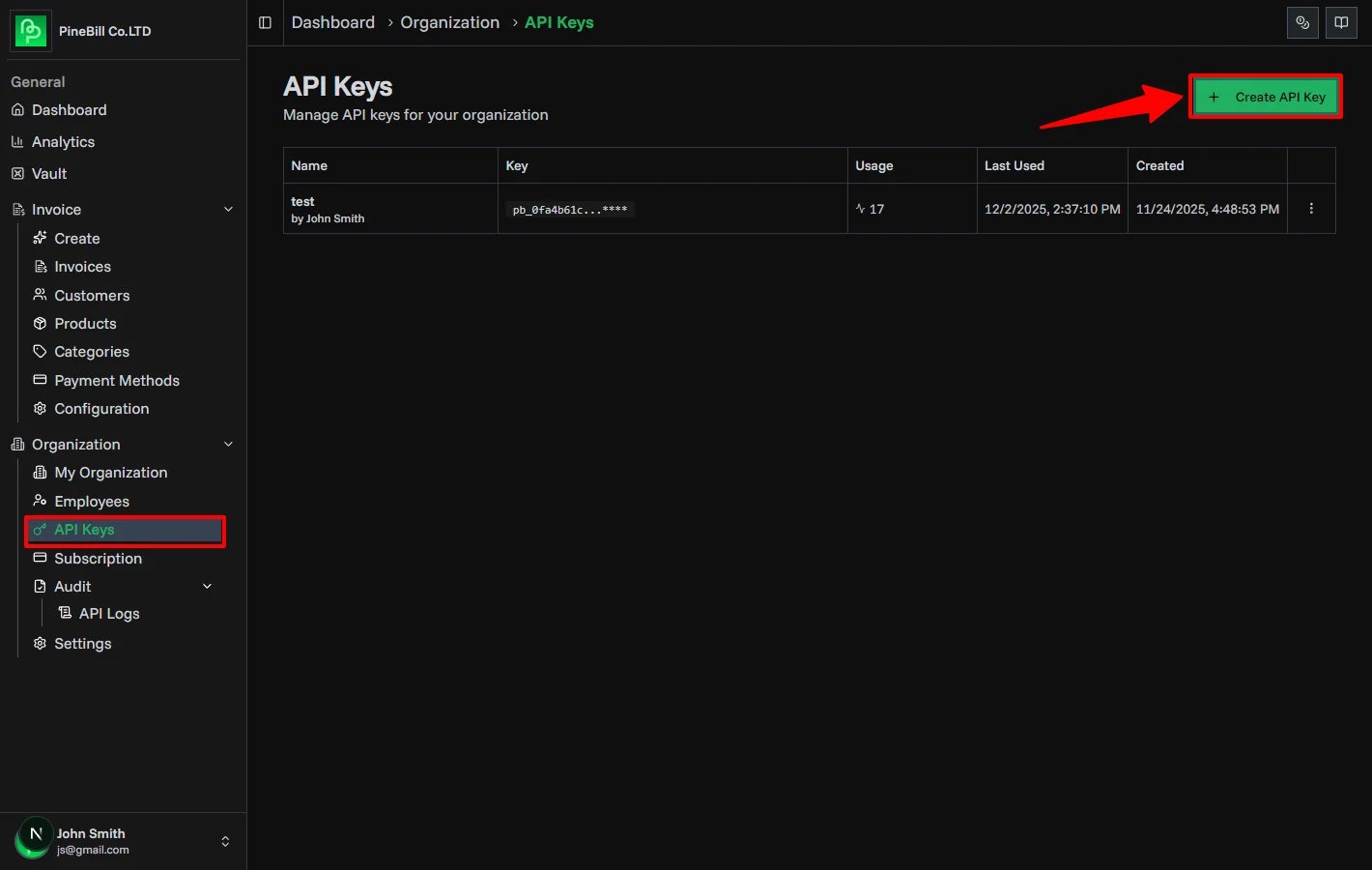
- Open Settings
- In API Access and Activity, click API Keys
- Click Create API Key button
- API key creation dialog opens
Admin Only: Only organization admins can create API keys. Members and guests can view existing keys.
2. Name Your Key
- Enter a descriptive name (e.g., "Production Server", "Dev Environment")
- Use names that identify the key's purpose or location
- Maximum 100 characters
Good names:
- "Production API - Backend Server"
- "Staging Environment"
- "Mobile App Integration"
Avoid:
- "Key 1", "Test", "API Key"
3. Save and Copy Your Key
- Click Create API Key
- Your API key is displayed once only
- Copy and store it securely immediately
- Click Done when saved
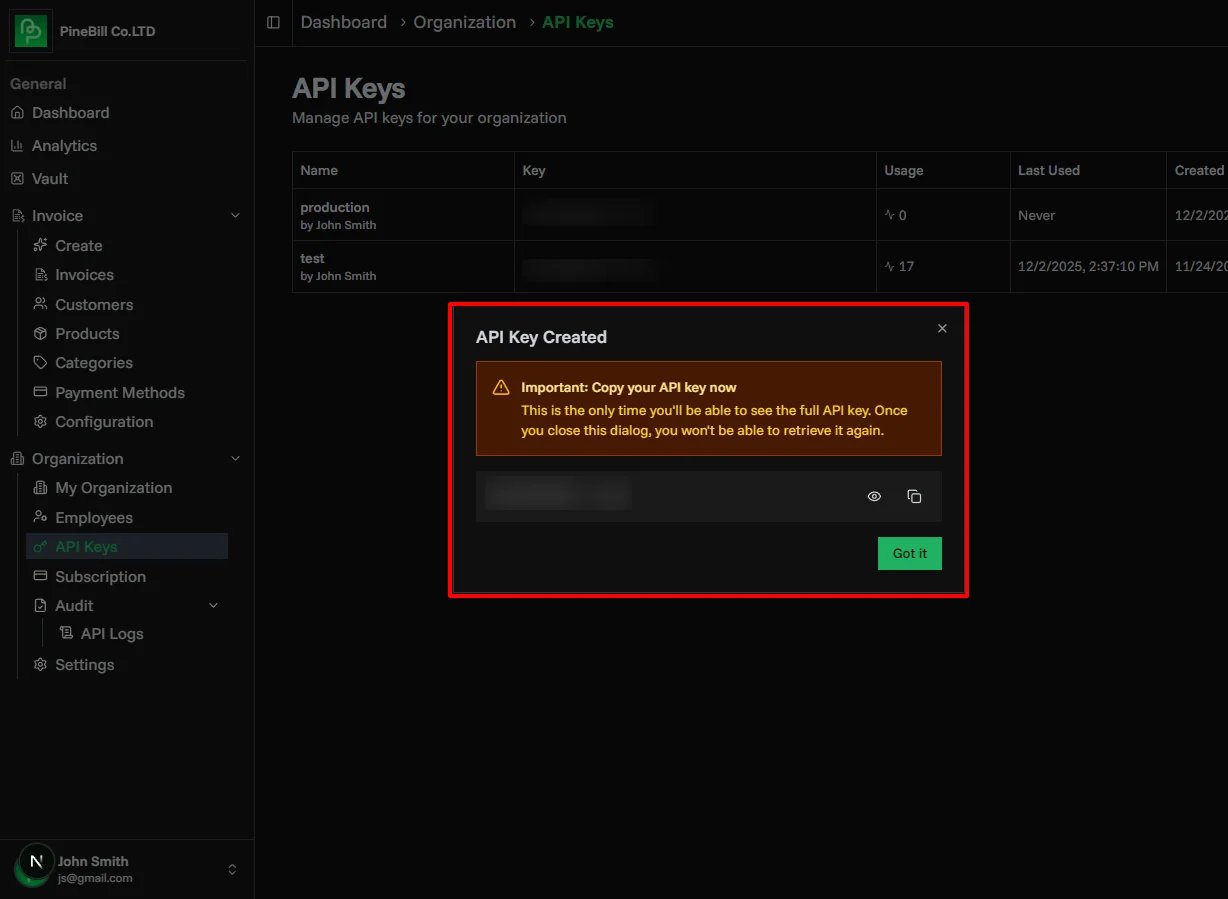
Critical: The API key is shown only once. If you lose it, you must revoke and create a new key.
API Key Format
PineBill API keys follow this format:
pb_1234567890abcdefghijklmnopqrstuvStructure:
pb_- PineBill key prefix[32 characters]- Unique key identifier
API Key Limits by Plan
| Plan | Max API Keys | Monthly API Calls | Rate Limit |
|---|---|---|---|
| Trial | 2 | 50 | 60/minute |
| Solo | 0 | No API access | N/A |
| Pro | 10 | 10,000 | 60/minute |
| Enterprise | Unlimited | Unlimited | Custom |
Upgrade to Pro or Enterprise to access API features. View Plans →
Using API Keys
Authentication
Include your API key in the X-API-Key header:
curl -X GET https://api.pinebill.app/v1/invoices \
  -H "X-API-Key: pbk_live_your_api_key_here"
JavaScript/Node.js Example
const response = await fetch("https://api.pinebill.app/v1/invoices", {
  headers: {
    "X-API-Key": process.env.PINEBILL_API_KEY,
    "Content-Type": "application/json",
  },
});

const data = await response.json();
Python Example
import requests

headers = {
    'X-API-Key': 'pbk_live_your_api_key_here',
    'Content-Type': 'application/json'
}

response = requests.get(
    'https://api.pinebill.app/v1/invoices',
    headers=headers
)

data = response.json()
Revoking API Keys
1. Access API Keys Dashboard
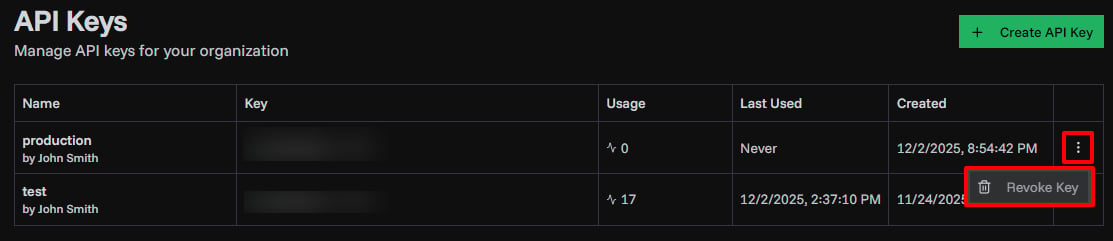
Owner Only: Only organization owners can revoke API keys. This prevents unauthorized key deletion.
2. Confirm Revocation
- Review the key name and last usage
- Confirm you want to revoke access
- Click Revoke Key
Monitoring API Key Usage
Usage Statistics
View detailed usage for each API key:
- Open Settings
- Navigate to API Keys
- Click on a key to view details
- See usage statistics for the last 30 days
Available metrics:
- Total requests in last 30 days
- Daily request chart
- Recent API calls (last 50)
- Status code distribution
- Most accessed endpoints
API Audit Logs
Track all API activity across your organization:
- View all API requests from all keys
- Filter by date, endpoint, or status code
- Monitor for security issues
- Debug API integration problems
Open audit logs from Settings → API Access and Activity → API Audit Logs.
Learn more about API Audit Logs →
Troubleshooting
Related Topics
- API Introduction - Getting started with PineBill API
- API Audit Logs - Monitor API usage and security
- Subscription Plans - API access requirements
- API Documentation - Complete API reference